How to Uninstall Windows Subsystem for Linux (WSL) in Windows 11

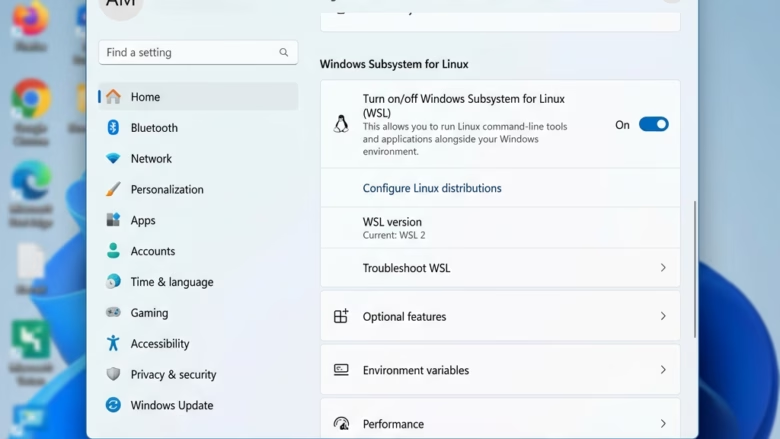
You uninstall Windows Subsystem for Linux (WSL) from Windows 11 by using PowerShell commands to unregister and remove its distributions and features.
WSL allows you to run Linux environments directly on your Windows PC, but you might want to remove it if you no longer need it or wish to reclaim disk space. This process will completely remove all Linux distributions installed via WSL and their associated files.
For instance, to fully remove WSL and any distributions like Ubuntu 22.04 LTS, you’ll execute specific commands. Remember, this action is irreversible and deletes all your Linux data.
To uninstall Windows Subsystem for Linux (WSL), first uninstall your Linux distributions from Settings or File Explorer. Then, turn off the “Windows Subsystem for Linux” feature via Optional Features or by toggling it off in Settings.
Option 1Uninstall via Settings
This method works on newer versions of Windows 11. If you do not see these options, move to Option Two.
- Open Settings by pressing the ⊞ Win+I keys.
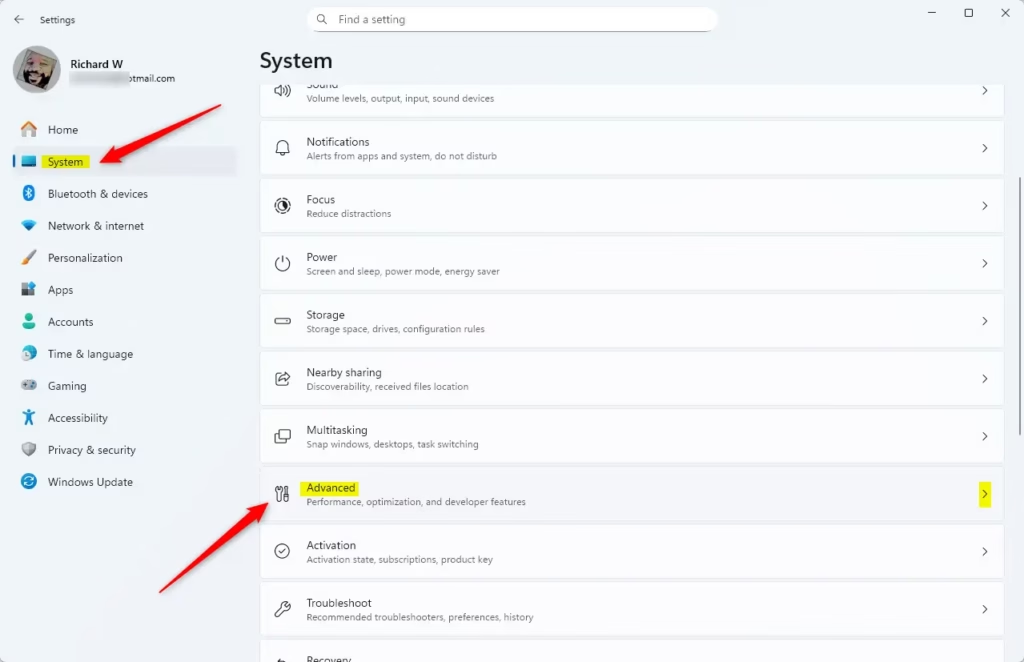
- Click System on the left, then click Advanced on the right. Open Advanced settings
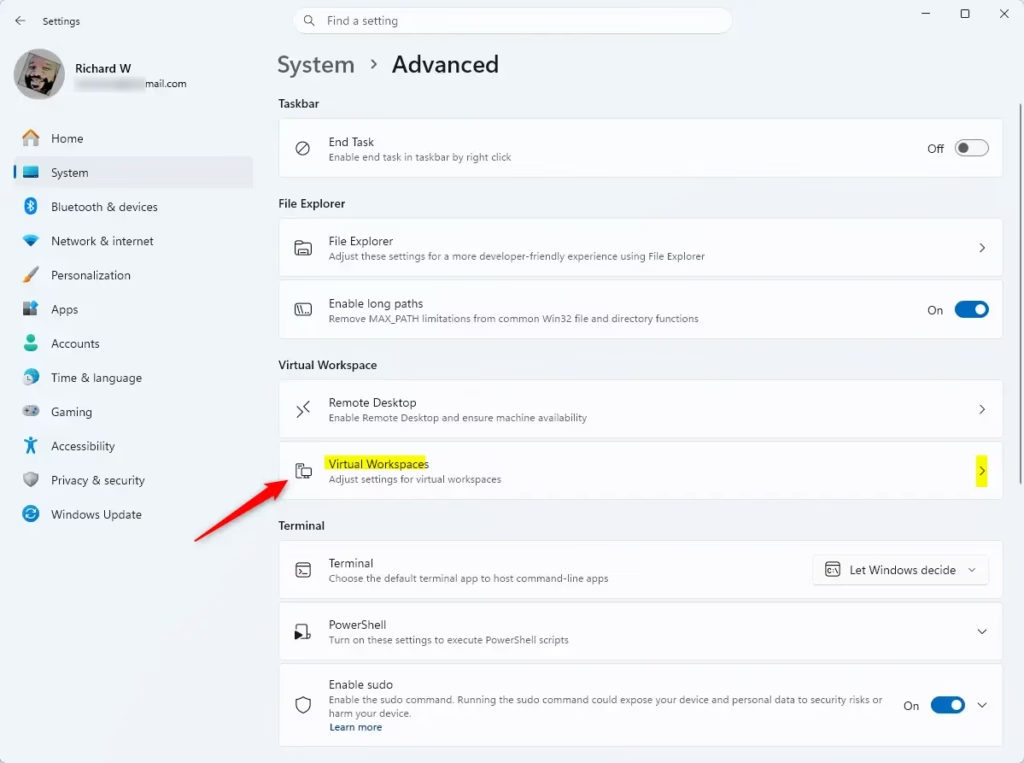
- Click on Virtual Workspaces.
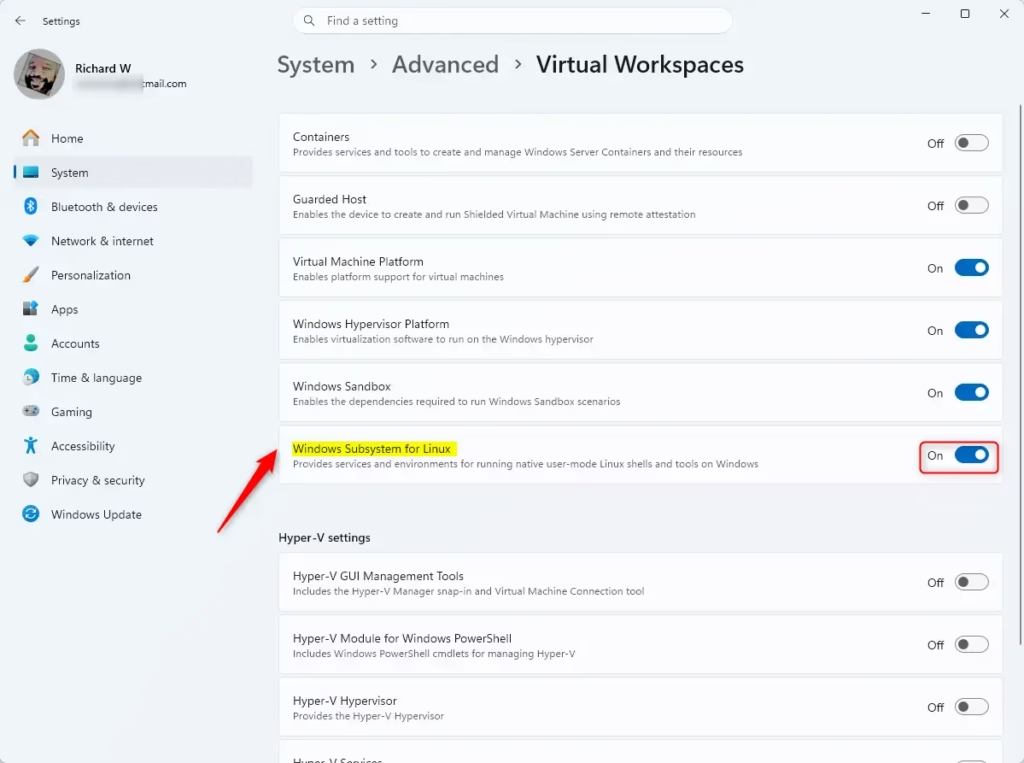
- Turn off Windows Subsystem for Linux.
- Click Yes if the User Account Control (UAC) window appears. (Admin privileges required).
- Close Settings once the process is finished.
Option 2Manual Uninstall
Follow these steps to remove Linux versions and the WSL feature manually.
- Open the Start menu.
- Click the All apps button.
- Uninstall your Linux distributions:
- Open File Explorer (press ⊞ Win+E) and click Linux in the side panel to see your installed versions.
- Right-click your Linux distribution (e.g., “GenericLinux”) and select Uninstall. Confirm your choice.
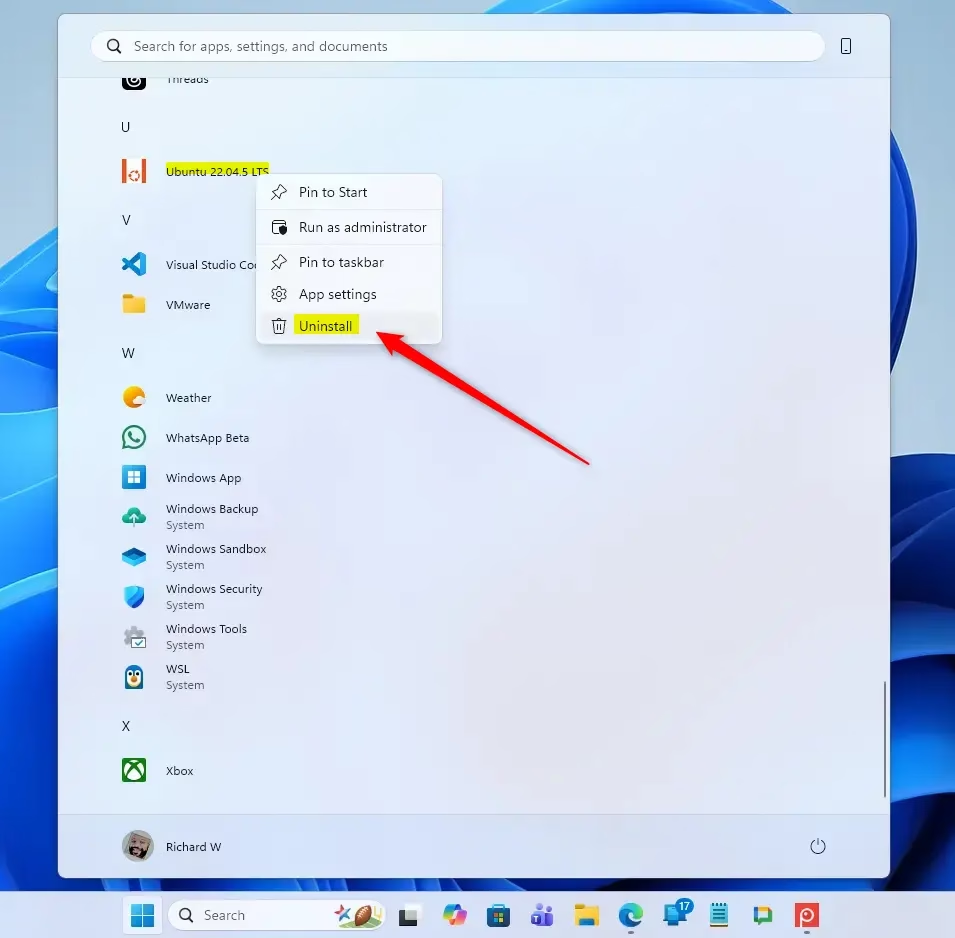
- Uninstall the Windows Subsystem for Linux app:
- Right-click the Windows Subsystem for Linux app in your app list.
- Select Uninstall and confirm.
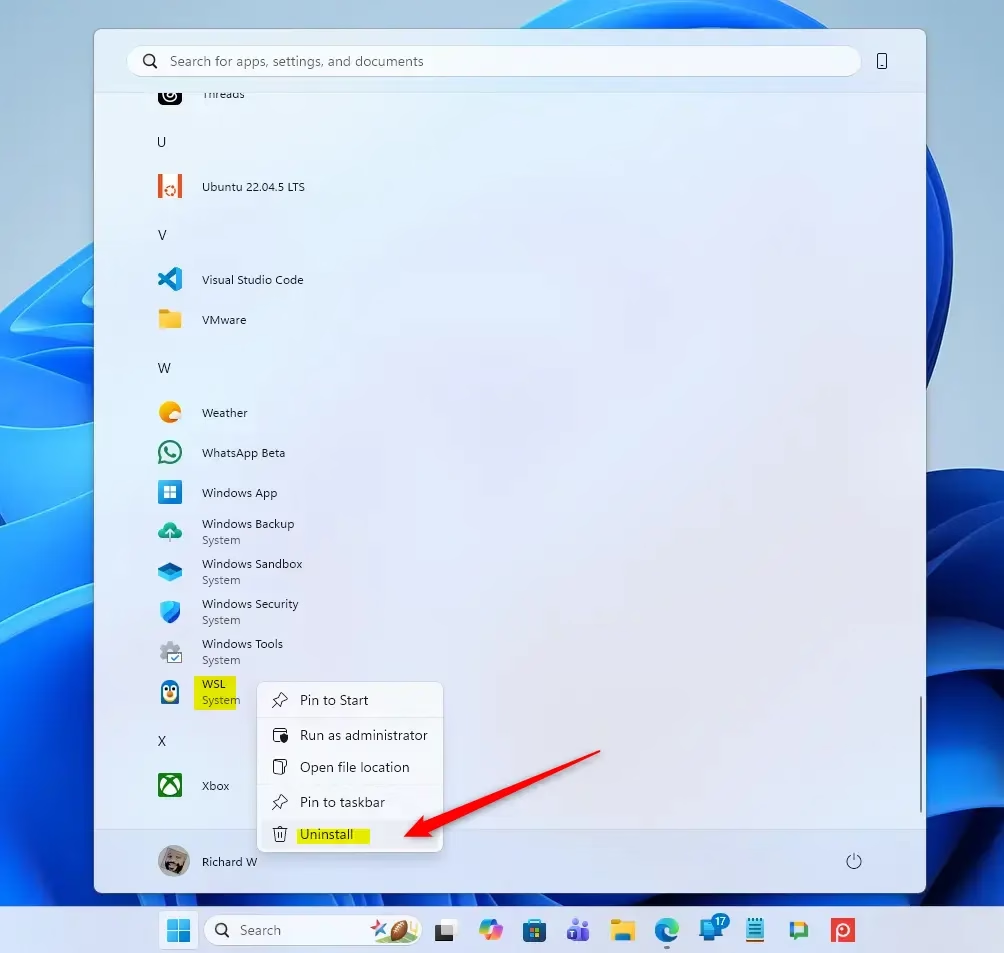
- Press ⊞ Win+R, type
OptionalFeatures.exe, and press Enter. - Uncheck Windows Subsystem for Linux and click OK. (Admin privileges required).
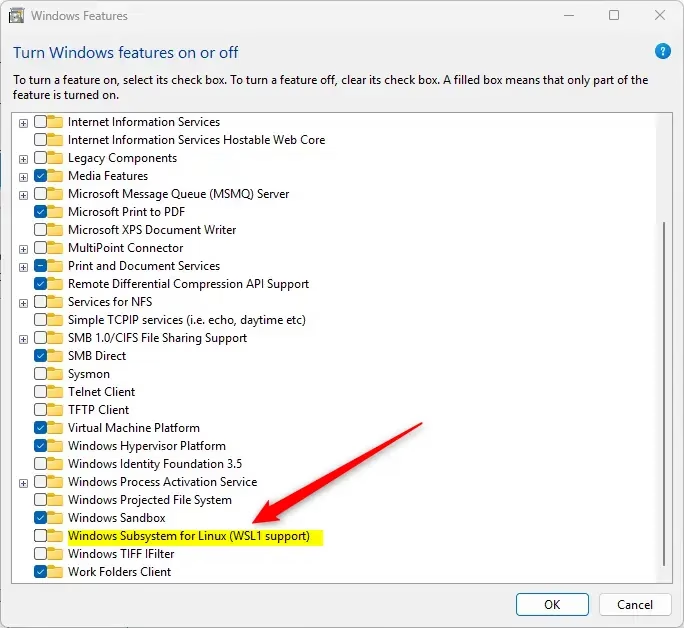
- Click Restart now to finish the removal.
Summary
Removing WSL is a simple process that involves deleting your Linux apps and turning off the Windows feature in the settings menu. By following these steps, you can fully clean up the WSL environment from your system and reclaim your disk space.
Frequently Asked Questions
- How to completely uninstall the subsystem for Linux WSL on Windows?
Open Settings, go to System, and select Optional features. Find Windows Subsystem for Linux and select Uninstall. You can also use thewsl --unregistercommand in PowerShell to remove specific distributions. - How do I disable Windows Subsystem for Linux WSL?
Open the Start menu, search for “Turn Windows features on or off,” and uncheck the box for “Windows Subsystem for Linux.” Click OK and restart your computer. - How do I completely remove WSL2?
Uninstall all Linux distributions first. Then, go to “Turn Windows features on or off,” uncheck “Windows Subsystem for Linux” and “Virtual Machine Platform,” click OK, and restart your system. - How do I uninstall Apps on WSL?
Open your Linux terminal and use the package manager for your OS, such assudo apt remove. To remove the entire distribution, use thewsl --unregistercommand in Windows PowerShell.
Was this guide helpful?

About the Author
Richard
Tech Writer, IT Professional
Richard, a writer for Geek Rewind, is a tech enthusiast who loves breaking down complex IT topics into simple, easy-to-understand ideas. With years of hands-on experience in system administration and enterprise IT operations, he’s developed a knack for offering practical tips and solutions. Richard aims to make technology more accessible and actionable. He's deeply committed to the Geek Rewind community, always ready to answer questions and engage in discussions.


No comments yet — be the first to share your thoughts!