How to Enable or Disable Copilot Journeys in Microsoft Edge on Windows 11


This guide explains how to turn the Copilot Journeys feature on or off in the Microsoft Edge browser on Windows 11.
Why use Copilot Journeys?
Browsing the web often involves many tabs and sessions over several days. It is easy to lose track of what you were doing. Copilot Journeys acts as a smart assistant. It organizes your browsing into groups, summarizes your progress, and suggests the next step so you can pick up exactly where you left off.
What happens when you enable it?
Once turned on, Edge will track your browsing activity in the background. After you have visited a few sites, you will see “Journey” cards appear on your new tab page. Clicking these cards opens a chat with Copilot to help you continue your specific task.
How to Enable or Disable Copilot Journeys
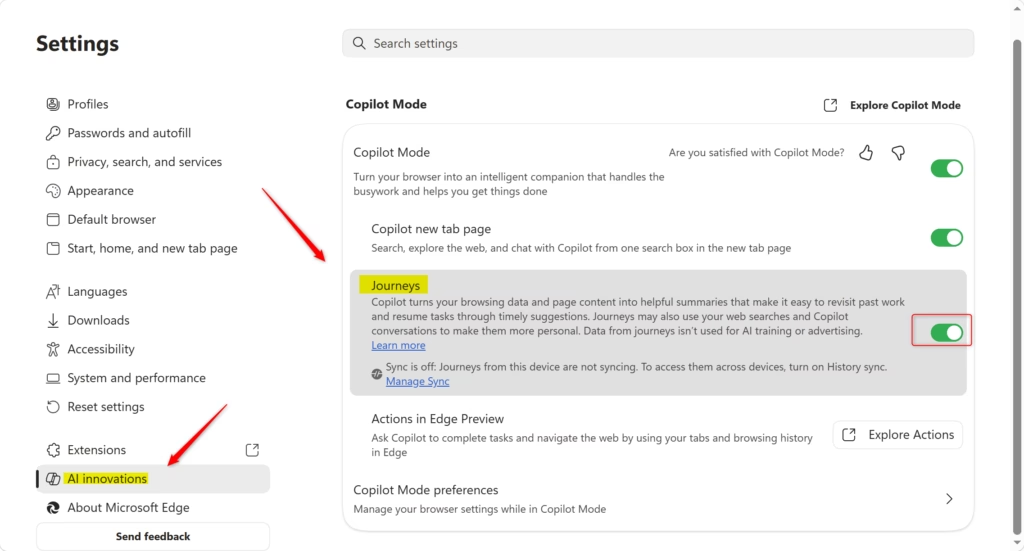
Note: You must have Copilot Mode and the Copilot new tab page enabled before the Journeys setting will appear.
- Open Microsoft Edge.
- Click the Settings and more (three dots) menu in the top right corner and select Settings.
- In the left-hand menu, click on AI innovations or Start, home, and new tab page.
Note: If you do not see the menu, click the three-line icon or widen your browser window. - Locate the Journeys setting. Toggle the switch to On or Off based on your preference.
If you see an “Explore Journeys” button instead of a toggle, click it first to access the feature settings. - You can now close the Settings tab.

Privacy and Data
Copilot Journeys is designed with privacy in mind. It ignores sensitive sites like banking or healthcare and excludes InPrivate browsing sessions. If you choose to turn off the feature, Edge will immediately stop collecting data and delete any previously stored information used to create your Journeys. You can also clear your browsing history in Edge Settings to prevent past data from being used. Learn more
Summary
Copilot Journeys is a tool that helps you stay organized by summarizing your recent web tasks into cards on your new tab page. You can manage this feature through the Edge Settings menu under AI innovations or Start, home, and new tab page. Turning it off stops the data collection and clears your existing Journey history.
References:
Copilot Journeys – Microsoft Support
Meet Copilot Mode in Edge: Your AI browser
Was this guide helpful?




Leave a Reply