How to Back Up and Restore Device Drivers in Windows 11


Device drivers are basically small programs that act as translators, helping your computer communicate with hardware like printers, keyboards, and graphics cards. Before reinstalling Windows, it’s a smart move to save a copy of all your current drivers. That way, you won’t have to hunt for them later.
⚠️ Admin Required: You need to be signed in as an administrator to back up or restore drivers.
Back up drivers by opening Windows Terminal as administrator and using DISM, PnPUtil, or PowerShell commands with a destination folder. Restore drivers individually or all at once through Device Manager by browsing to your saved folder, or use PnPUtil to install all drivers from the folder.
Why Back Up Your Drivers?
When you do a clean install of Windows, you lose all your drivers. Without them, your devices won’t work properly. Backing them up means you can quickly restore them without hunting online.
What You Need to Do First
Create a folder to store your drivers. For example:
C:\Users\YourName\Desktop\MyDrivers
Method 1Using the DISM Command
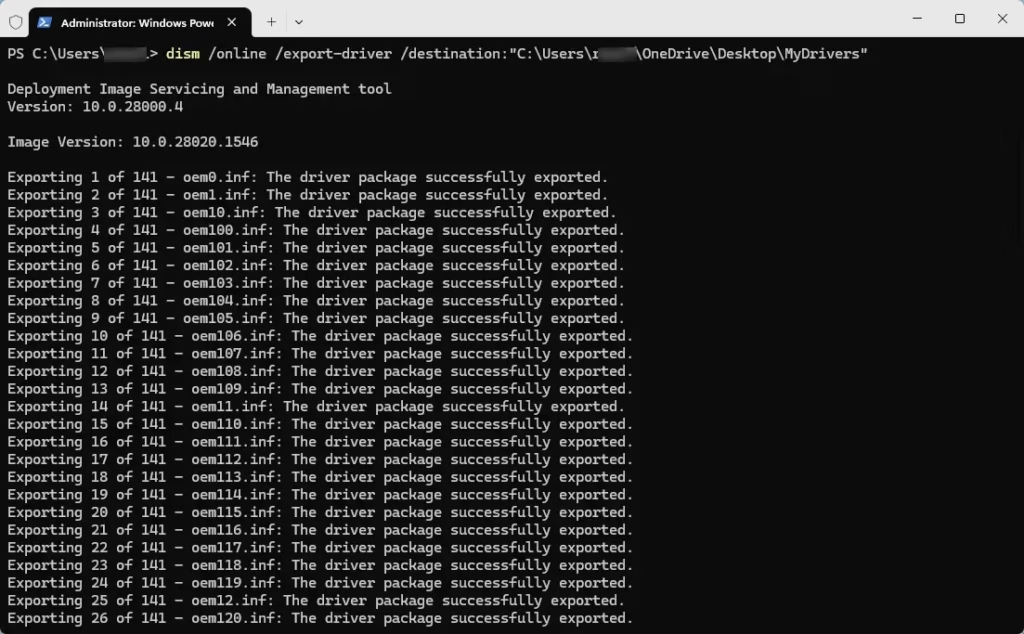
You can back up your device drivers in Windows 11 using the DISM command, which is a powerful tool built into the system.
Type this command, making sure to replace C:\Users\YourName\Desktop\MyDrivers with the actual path to the folder you created:
dism /online /export-driver /destination:"C:\Users\YourName\Desktop\MyDrivers"Press Enter. Windows will copy all your third-party drivers to that folder.
Method 2Using the PnPUtil Command
Open Windows Terminal as an administrator, just like you did for the first method.
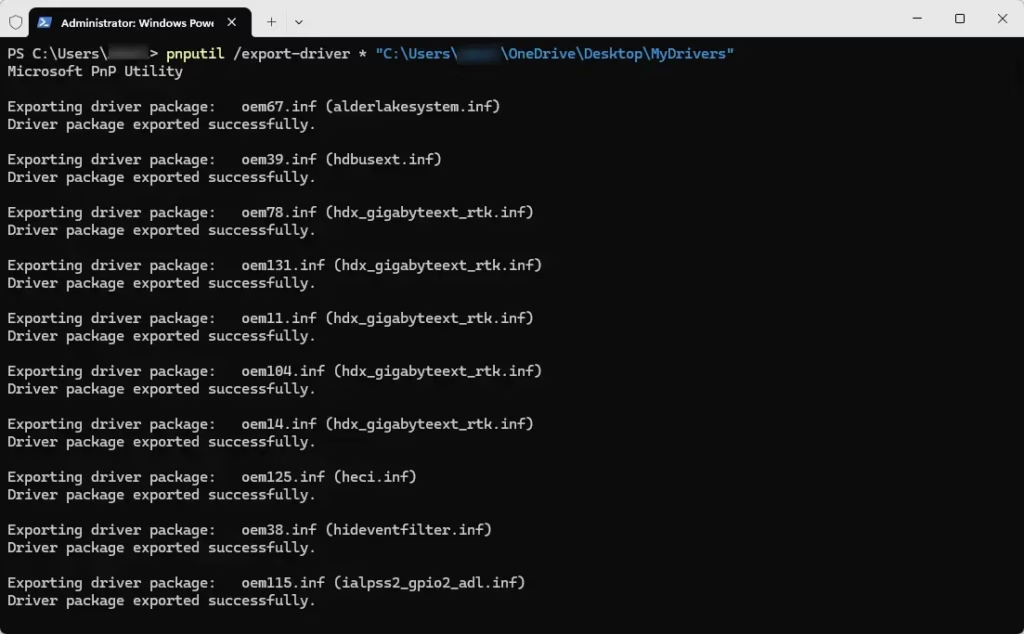
Type this command. Replace the folder path:
pnputil /export-driver * "C:\Users\YourName\Desktop\MyDrivers"Press Enter to save the drivers.
Method 3Using PowerShell’s Export-WindowsDriver
Open Windows Terminal (Admin). Ensure you’re in PowerShell, which is usually the default when you open Windows Terminal.
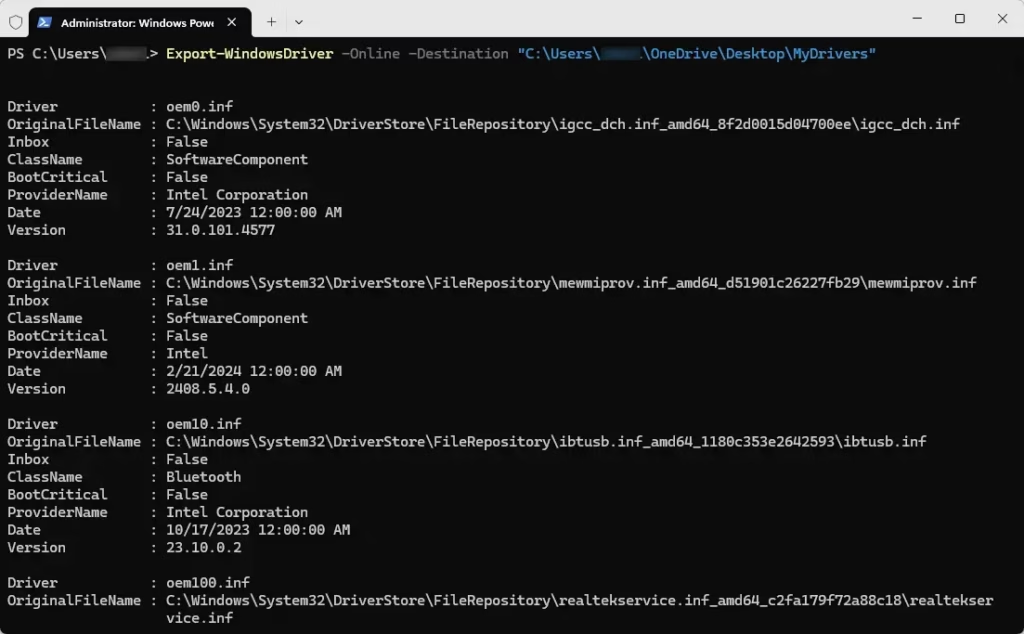
Type this command. Change the folder path as needed:
Export-WindowsDriver -Online -Destination "C:\Users\YourName\Desktop\MyDrivers"Press Enter. This saves your drivers to the folder.
How to Restore Device Drivers
Restore One Driver Using Device Manager
If you need to restore just one specific device driver, you can easily do so using the Device Manager in Windows 11.
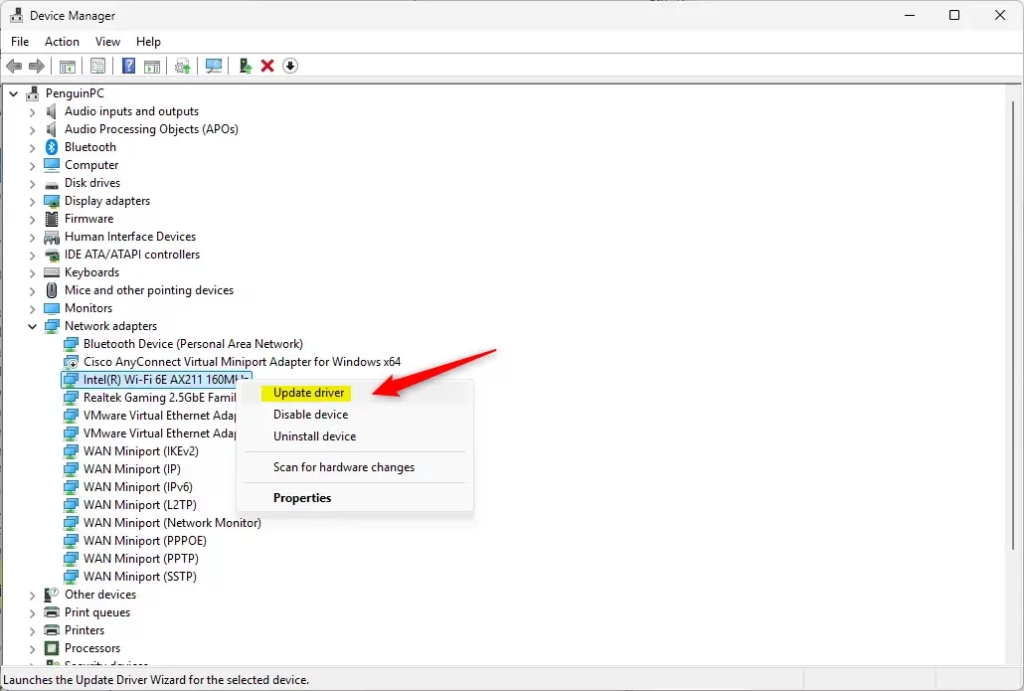
Find the device you want to update (for example, your printer or webcam). Right-click it and select Update driver.
Choose Browse my computer for drivers.
Click Browse and navigate to your saved drivers folder (for example, C:\Users\YourName\Desktop\MyDrivers).
Check Include subfolders and click Next.
Windows will look for the best driver in your folder and install it if found.
Restore All Drivers Using Device Manager
Restoring all your device drivers at once in Windows 11 is possible using the Device Manager, which can save you a lot of time.
Right-click the computer name at the very top of the list, or click ‘Action’ in the menu bar. Then, choose ‘Add drivers’.
Click Browse and choose your drivers folder.
Check Include subfolders. Then click Next. Windows will install all drivers it finds.

Restore All Drivers Using PnPUtil Command
The PnPUtil command offers a quick way to restore all your device drivers in Windows 11 from a backup folder.
Type this command. Replace the folder path:
pnputil /add-driver "C:\Users\YourName\Desktop\MyDrivers\*.inf" /subdirs /install /rebootThis command installs all drivers found in the folder and its subfolders. Then it restarts your PC if needed.
Before you run this command, remember to save any open work, as your computer might restart on its own.
Summary
- Always back up your device drivers before reinstalling Windows or making big changes.
- Use one of the simple commands (DISM, PnPUtil, or PowerShell) to save your drivers to a safe folder.
- You can restore drivers one by one using Device Manager. Or restore all at once using Device Manager or the PnPUtil command.
- Keeping drivers backed up saves time and avoids driver hunting later.
- Make sure your drivers are up to date after restoring for best computer performance.
Backing up and restoring device drivers in Windows 11 is a straightforward process that can save you significant time and hassle.
DISM Driver Servicing Commands
Export-WindowsDriver PowerShell Cmdlet
How to restore drivers from backup?
And you need to restore these drivers. Here’s how to get them back. Once again, open the command prompt as an administrator.
Will system restore restore drivers?
With System Restore, you can revert your PC’s state to a previous point in time. This can be particularly useful when troubleshooting issues caused by recent changes, such as software installations, driver updates, or system settings modifications.
Was this guide helpful?

About the Author
Richard
Tech Writer, IT Professional
Richard, a writer for Geek Rewind, is a tech enthusiast who loves breaking down complex IT topics into simple, easy-to-understand ideas. With years of hands-on experience in system administration and enterprise IT operations, he’s developed a knack for offering practical tips and solutions. Richard aims to make technology more accessible and actionable. He's deeply committed to the Geek Rewind community, always ready to answer questions and engage in discussions.




No comments yet — be the first to share your thoughts!