How to Find the Pictures Folder in Windows 11

You can find the Pictures folder in Windows 11 directly within your user profile directory.
This essential folder serves as the default location where Windows 11 automatically stores all your downloaded, saved, and captured image files, keeping them neatly organized.
The standard path to access this folder is usually 📁C:\Users\[Your Username]\Pictures, a predictable spot for all your visual content.
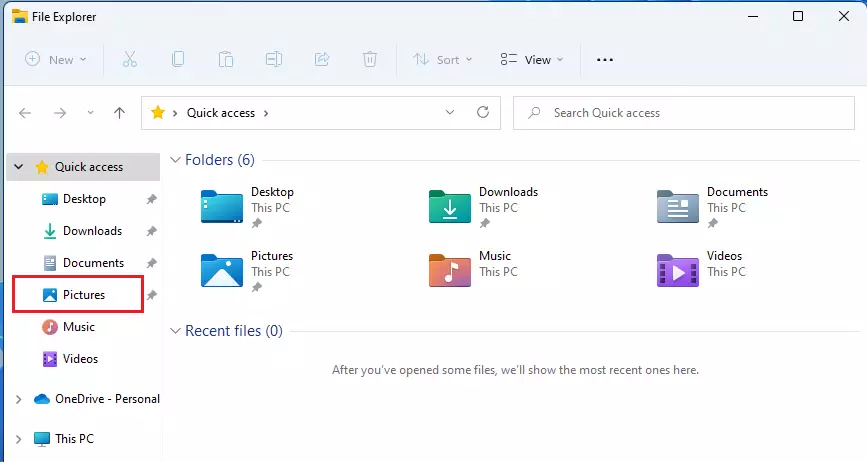
The Pictures folder in Windows 11 is located in your user profile at 📁C:\Users\[Your Username]\Pictures. You can also find it quickly in File Explorer’s left sidebar under Quick access.
Where is the Pictures Folder Located?
Where is the Pictures Folder Located?
By default, Windows 11 stores this folder inside your personal user profile. The standard file path is:
C:\Users\genericuser\Pictures
Replace “genericuser” with your actual Windows account name. You can also find this folder quickly using the navigation pane in File Explorer.
How to Open the Pictures Folder
Method 1Using File Explorer
This is the fastest way to reach your files:
- Click the File Explorer icon on your taskbar.
- Look for “Pictures” in the left sidebar under “Quick access.”
- Click “Pictures” to open it.
Method 2Using the Profile Directory
You can navigate manually by opening your user profile folder. Go to This PC > Local Disk (C:) > Users > genericuser. You will see your personal folders listed here.
Managing OneDrive Path Conflicts
Your Pictures folder might show up inside OneDrive because Windows 11 often turns on OneDrive photo backup automatically, moving your local Pictures folder to the OneDrive cloud to sync your pictures.
How do I stop Windows from automatically backing up my photos? You can disable this in the OneDrive settings. Click the OneDrive cloud icon in your taskbar, go to Settings, and manage your backup preferences under the Sync and backup tab.
How to Move the Pictures Folder Location
You can easily move your Pictures folder to another drive if your main drive is running out of space, helping to free up room and making sure Windows automatically saves all new photos to the new location.
- Right-click the Pictures folder and select Properties.
- Go to the Location tab.
- Click Move and select a new folder on another drive.
- Click Apply and then OK.
Advanced Troubleshooting: Registry Paths
If your Pictures folder is missing or not working right, you can check its path in the Windows Registry Editor, which requires administrator access to view and carefully change specific values.
Summary
The Pictures folder in Windows 11 is where your images are stored, and you can easily find it in File Explorer, move it to another drive using its Properties, or sync it with OneDrive for safekeeping.
How do I restore the default Pictures folder icon if it changes?
Right-click the Pictures folder and select Properties. Go to the Customize tab and click Change Icon. You can browse to the shell32.dll file in the System32 folder to select the original folder icon. This restores the default visual appearance of your folder in File Explorer.
Was this guide helpful?
0% of readers found this helpful (1 votes)

About the Author
Richard
Tech Writer, IT Professional
Richard, a writer for Geek Rewind, is a tech enthusiast who loves breaking down complex IT topics into simple, easy-to-understand ideas. With years of hands-on experience in system administration and enterprise IT operations, he’s developed a knack for offering practical tips and solutions. Richard aims to make technology more accessible and actionable. He's deeply committed to the Geek Rewind community, always ready to answer questions and engage in discussions.


I have been working on getting my pictures onto my computer. Now I find most of my pictures have gone to safety without my permission or even know what was being done. And they are gone from my computer and have known where they are. You have left me no understand how the system works.
This is unexpected. There are MY pictures, but you have taken over on them. You have taken from my computer whether I am done with them or not. I must get them back to use them as I wish. I AM THE ONE THAT OWNS AND IT IS MY JOB TO DECIDE WHERE THEY SHOULD BE! Please give me the information I need your contact and move them back to me when I need them.