How to View Startup App Impact in Windows 11

You can view startup app impact in Windows 11 to identify programs slowing down your PC.
Startup apps are applications that automatically launch when you boot up your computer. Understanding their performance impact helps you optimize your boot time.
Windows 11’s Task Manager, specifically under the “Startup apps” tab, shows a “Startup impact” rating for each program. This rating uses categories like “High,” “Medium,” and “Low” to inform your decisions.
Disabling non-essential startup apps with a “High” impact can significantly speed up how quickly your PC becomes ready to use after powering on.
Open Task Manager (Ctrl+Shift+Esc) and go to the “Startup apps” tab to see a “Startup impact” rating for each program. Alternatively, navigate to Settings > Apps > Startup. This helps identify programs slowing down your computer’s boot time.
How to Check Startup App Impact in 🪟 Windows 11
There are two easy ways to check which startup apps use the most resources on your computer:
1Using Task Manager
Windows 11’s Task Manager is a simple tool that shows you which apps start with your computer and how much they slow things down, helping you check startup app impact.
- Press the keys
CTRL + SHIFT + Esctogether on your keyboard to open Task Manager. - At the top, click the Startup tab.
- You’ll see a list of apps that start with Windows. Next to each app is its “Startup impact” — this shows how much it slows down your computer when it starts.
Task Manager shows startup apps and their impact on Windows 11.
Impact levels explained:
- High impact: Uses a lot of your computer’s power when starting.
- Medium impact: Uses some power but not too much.
- Low impact: Uses very little power at startup.
2Using the Settings App
You can check startup app impact in Windows 11 using the Settings app, which offers another easy way to see which programs might be slowing down your computer when it starts.
- Click the Start menu (the Windows icon) at the bottom-left of your screen.
- Select Settings. Or press
Windows key + Ion your keyboard to open Settings quickly. - On the left side, click Apps.
- On the right, click Startup.
- You will see a list of apps that run at startup along with their impact on your computer.

Open Settings from the Start menu.
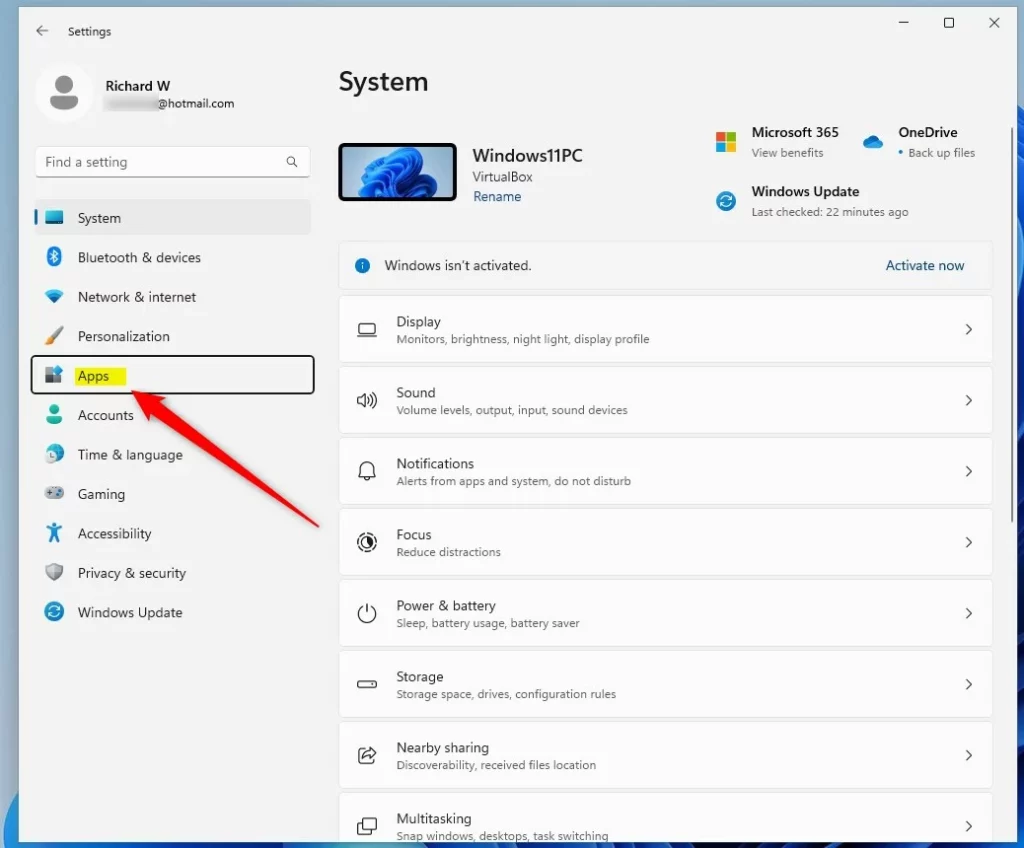
Click “Apps” in the Settings menu.
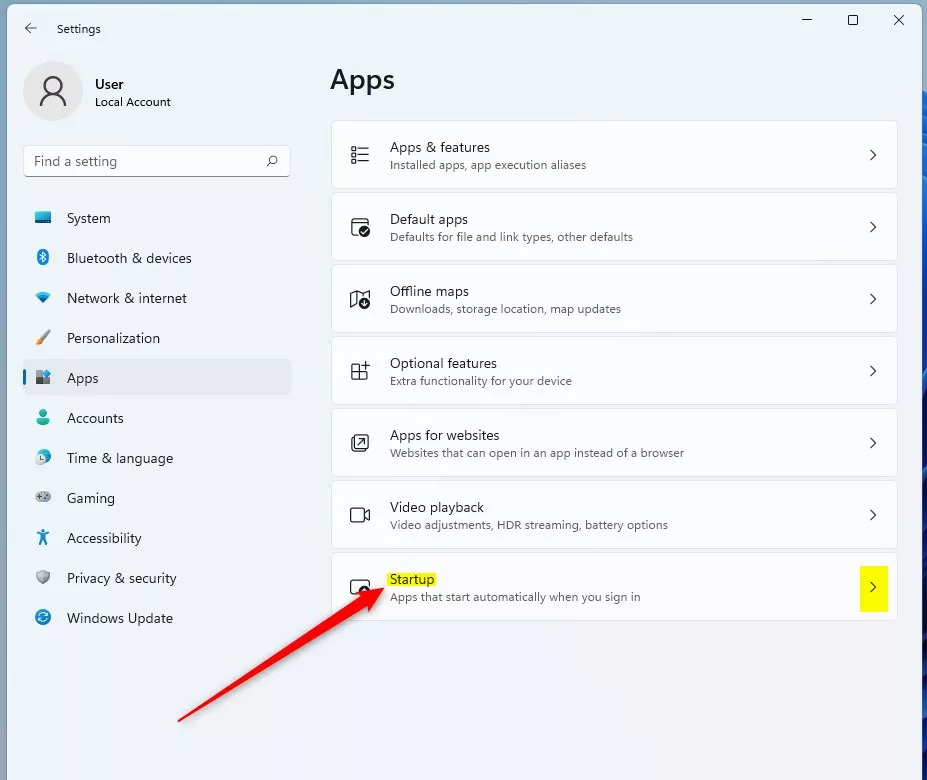
Click “Startup” to see startup apps and their impact.

Startup apps and their impact shown in Settings.
What Can You Do With This Information?
Seeing which apps have a high startup impact in Windows 11 means you can choose to turn them off to make your PC start up much faster.
Learn more about enabling or disabling startup apps here: How to Enable or Disable Startup Apps in Windows 11
Summary
- Windows 11 helps you see how much each startup app affects your computer’s speed and performance.
- You can check this info using either Task Manager or the Settings app.
- Knowing which apps use more resources lets you decide which ones to keep or turn off at startup.
- This can make your computer start faster and work better.
Windows 11 makes it easy to see how much each app starting up affects your computer’s speed, helping you manage startup app impact.
How to change startup impact in 🪟 Windows 11?
You can change the startup impact of apps in Windows 11 by searching for ‘Startup Apps’ in the Windows search bar and opening the tool to enable or disable programs.
Was this guide helpful?

About the Author
Richard
Tech Writer, IT Professional
Richard, a writer for Geek Rewind, is a tech enthusiast who loves breaking down complex IT topics into simple, easy-to-understand ideas. With years of hands-on experience in system administration and enterprise IT operations, he’s developed a knack for offering practical tips and solutions. Richard aims to make technology more accessible and actionable. He's deeply committed to the Geek Rewind community, always ready to answer questions and engage in discussions.



No comments yet — be the first to share your thoughts!