
This simple guide will help you turn on or off automatic time setting in Windows 11.
Why Does Time Matter on Your Computer?
Time is how we keep track of events from the past to the future. Your computer uses a clock called the system clock to record the time when you save or change files.
You can let Windows 11 set this clock automatically. Or you can choose to set the time yourself.
Important: You need to be signed in as an administrator to change this setting. An administrator is someone who can make big changes to your computer. Also, to turn on automatic time setting, you need to have Location services turned on. You also need to let apps access your location.
How to Turn On or Off Automatic Time Using Settings
- Press
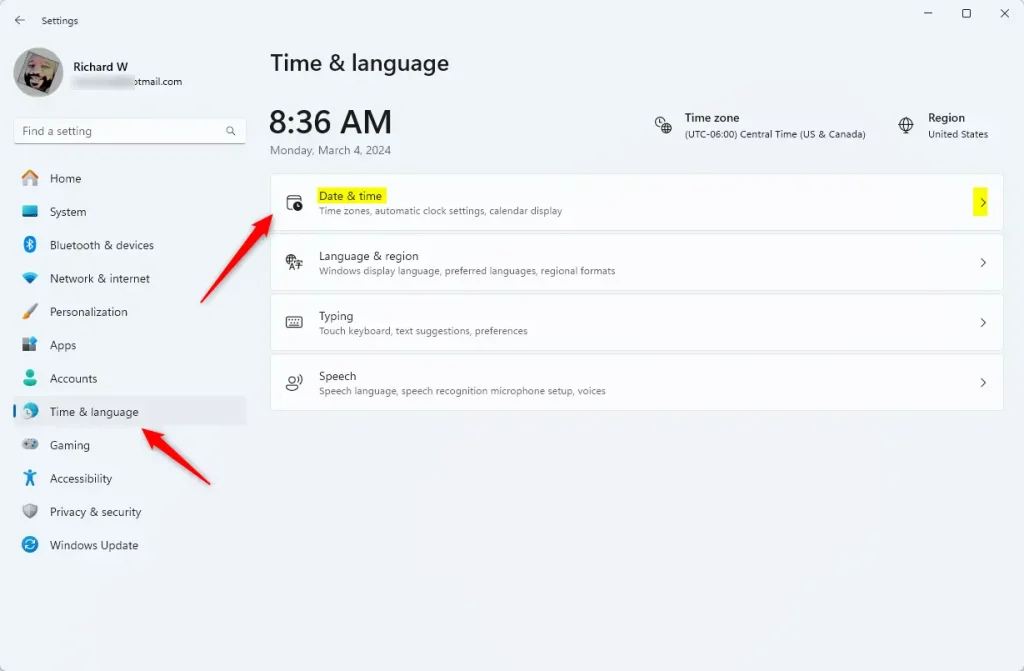
Win + Ion your keyboard to open the Settings window. - On the left side, click Time & language. Then on the right side, click Date & time.
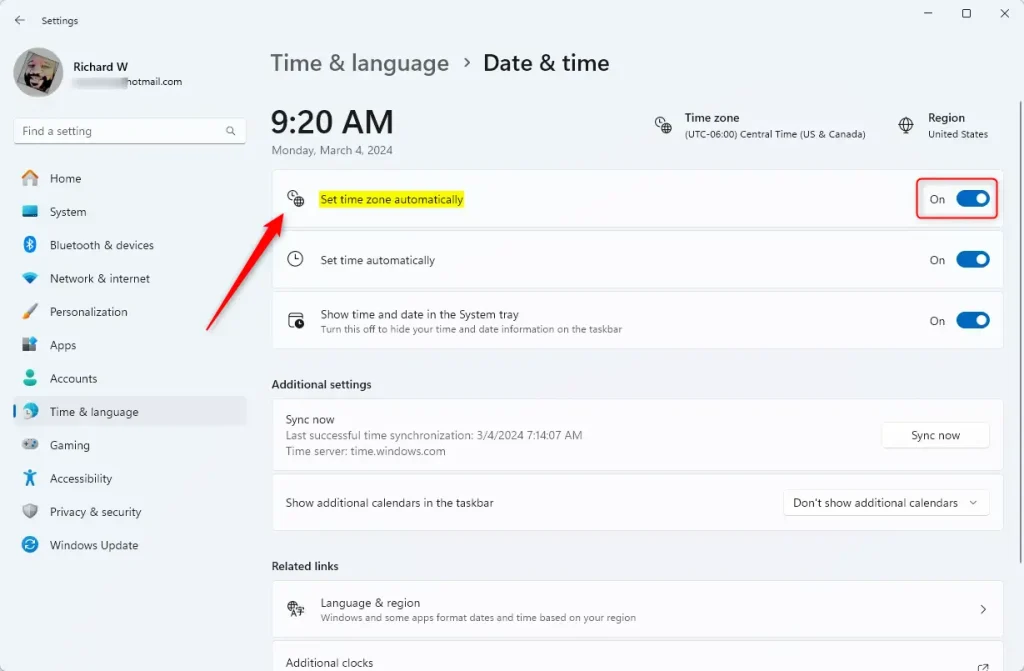
- Look for the option called Set time automatically.
- Switch it On if you want Windows to update your time automatically. Switch it Off if you want to set the time manually.
- Once done, you can close the Settings window.
How to Turn On or Off Automatic Time Using the Registry (Advanced)
If you like, you can also change this setting by editing the Windows Registry. This is for advanced users and administrators only. Be careful and back up your registry before making changes.
Turn On Automatic Time Setting (Default)
Open Command Prompt as an administrator and type this command:
reg add "HKLM\SYSTEM\CurrentControlSet\Services\W32Time\Parameters" /v Type /t REG_SZ /d NTP /fTurn Off Automatic Time Setting
Open Command Prompt as an administrator and type this command:
reg add "HKLM\SYSTEM\CurrentControlSet\Services\W32Time\Parameters" /v Type /t REG_SZ /d NoSync /fSummary
You now know how to control whether Windows 11 sets the time for you automatically or not. Windows 11 gives you an easy way to manage automatic time settings through the Settings menu. You can choose to let your computer update the time automatically or set it manually, depending on what you prefer. For advanced users, the Windows Registry offers another way to control automatic time settings. Always make sure you are signed in as an administrator to make these changes. Think about backing up your settings before you change the Registry. Keeping your clock accurate helps you organize your files and keep your schedule on track.



Leave a Reply