

How to Check Windows Feature Experience Pack Version in Windows 11

This article explains which version of the Windows Feature Experience pack is installed in Windows 11.

The Windows Feature Experience Pack is a collection of features that can be updated independently of Windows feature updates. It was introduced in Windows 10 to allow Microsoft to deliver new features and improvements to users more quickly and efficiently.

The Feature Experience Pack includes features such as new emojis, improved graphics settings, and updates to Windows search.

Here’s how to find which version of the Windows Feature Experience Pack is installed on Windows 11.

Find which versions of the Windows Feature Experience Pack are installed

As mentioned, users can use the steps below to determine which version of the Widows Feature Experience Pack is installed in Windows 11.

First, open the Windows Settings app.

You can do that by clicking on the Start menu and selecting Settings. Or press the keyboard shortcut (Windows key + I) to launch the Settings app.

When the Setting app opens, click the System button on the left and select the About tile on the right to expand it.
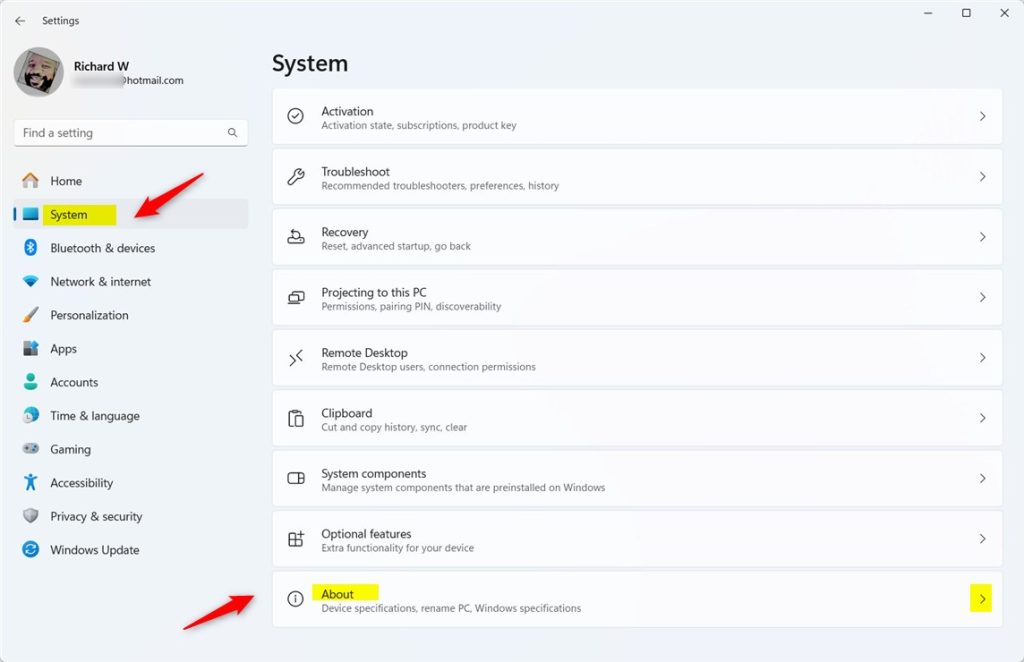
Windows 11 Settings System About tile displaying Feature Experience Pack version

The Windows Feature Experience Pack version is found under Windows specifications in the System > About settings pane.
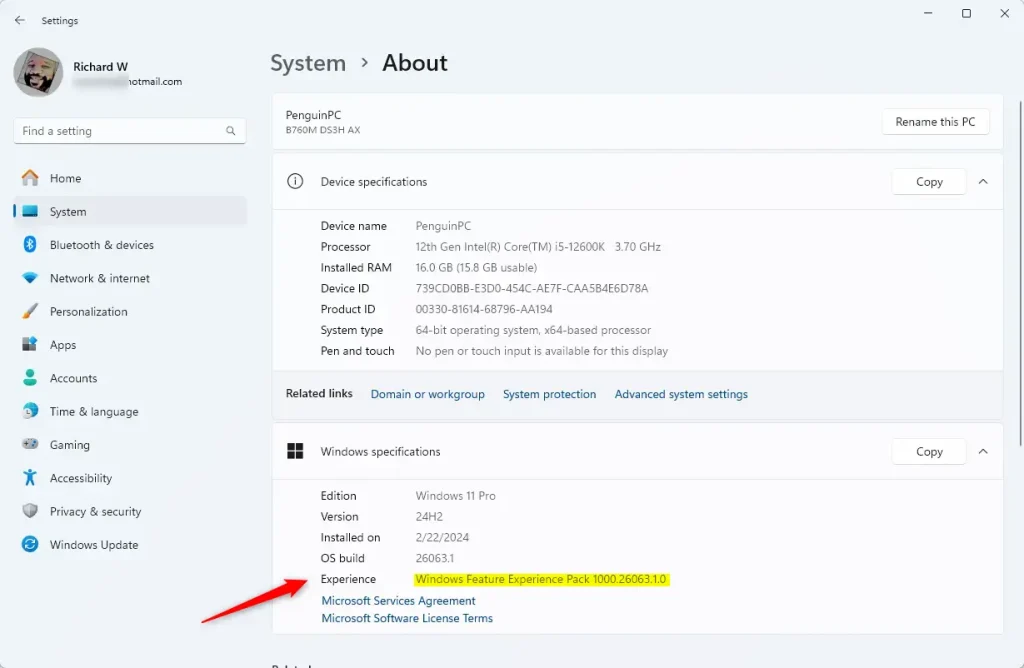
Windows Experience Pack version

That should do it!

Conclusion:

  • Understanding the importance of the Windows Feature Experience Pack in delivering quick feature updates
  • Exploring the steps to locate the installed version of the Windows Feature Experience Pack in Windows 11
  • Utilizing the Windows Settings app to access the necessary system details
  • Empowering users to stay informed about the features and improvements brought by the Windows Feature Experience Pack


Frequently Asked Questions

What is the Windows Feature Experience Pack?

The Windows Feature Experience Pack is a collection of features that can be updated independently of Windows feature updates. It allows Microsoft to deliver new features and improvements to users more quickly and efficiently.

How can I check the version of the Windows Feature Experience Pack in Windows 11?

To check the version, open the Windows Settings app by clicking the Start menu and selecting Settings or using the keyboard shortcut Windows key + I. Then, navigate to System and select the About tile to find the version under Windows specifications.

Why is the Windows Feature Experience Pack important?

The Windows Feature Experience Pack is important because it facilitates the delivery of quick feature updates without needing a full Windows update. This ensures users have access to the latest features and improvements in a timely manner.

What features are included in the Windows Feature Experience Pack?

The Windows Feature Experience Pack includes features such as new emojis, improved graphics settings, and updates to Windows search. These enhancements aim to improve the overall user experience in Windows 11.

Can I update the Windows Feature Experience Pack separately from Windows updates?

Yes, the Windows Feature Experience Pack can be updated independently of regular Windows updates. This allows Microsoft to roll out new features and improvements without requiring a complete system update.

Categories:

Tags:

One response to “How to Check Windows Feature Experience Pack Version in Windows 11”

  1. […] Online Service Experience Packs function similarly to Windows Feature Experience Packs. The difference between the two is that the Windows Feature Experience Packs can deliver broad […]

Leave a Reply

Your email address will not be published. Required fields are marked *
