How to Show Encrypted NTFS Files in Color in Windows 11

Do you use Windows 11? You might want to see which files or folders are encrypted or compressed. Windows can show these files in different colors to help you spot them easily.
Windows uses something called Encrypted File System (EFS). This helps keep your files safe by locking them with encryption. If your computer is lost or stolen, encrypted files stay protected and can’t be opened by others.
Why does this matter? Colored files make it easy to tell encrypted or compressed items apart from regular files.
When you turn on the color feature, encrypted or compressed files will appear in a different color inside File Explorer. This makes it easy to tell them apart from regular files.
How to Turn On or Off Colored Encrypted or Compressed Files in 🪟 Windows 11
Follow these simple steps:
- Open File Explorer by clicking the folder icon on the taskbar. Or press
Windows key + Eon your keyboard. - Click the three dots (
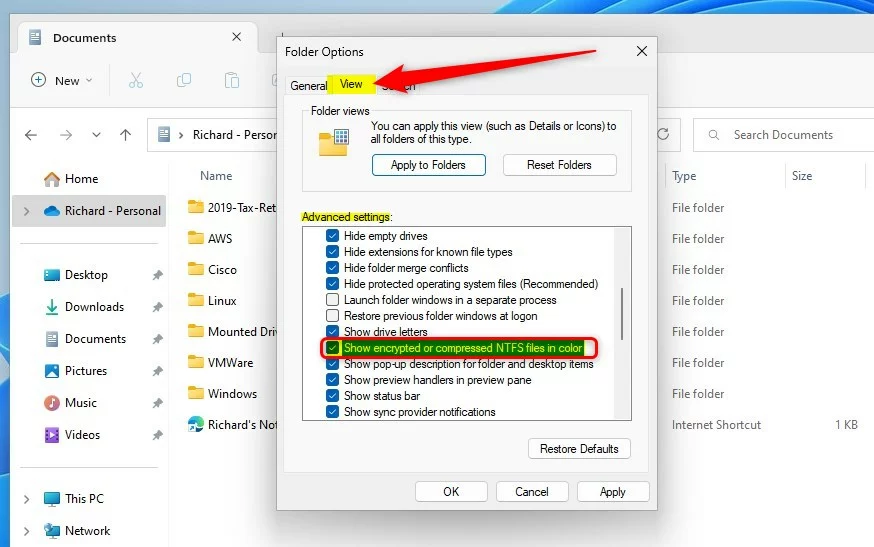
•••) on the top menu bar. Then select Options from the dropdown. This opens the Folder Options window. - In the Folder Options window, click the View tab at the top.
- Under Advanced settings, find and check the box that says “Show encrypted or compressed NTFS files in color.”
- Click OK to save your changes and close the window.
Here is what the checkbox looks like:
What happens when you do this? Now, when you look in File Explorer, encrypted files will show up in green and compressed files in blue. Colors may vary depending on your system theme.
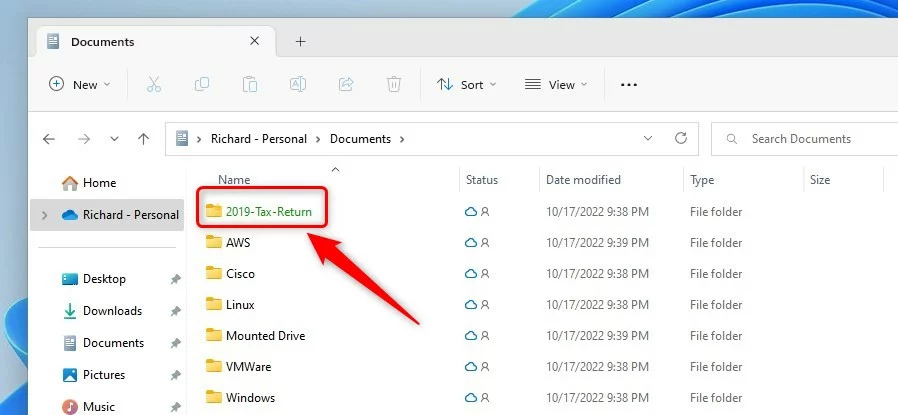
If you want to stop seeing these colors, just follow the same steps and uncheck the box. Then click OK.
Summary
- Turning on this feature makes it easy to spot encrypted or compressed files by showing them in color.
- You can turn it off anytime if you prefer a plain, all-one-color look.
- This small setting helps you keep track of which files are more secure or compressed on your PC.
That’s it! You’ve now learned how to make your encrypted and compressed files stand out in Windows 11.
Was this guide helpful?

About the Author
Richard
Tech Writer, IT Professional
Richard, a writer for Geek Rewind, is a tech enthusiast who loves breaking down complex IT topics into simple, easy-to-understand ideas. With years of hands-on experience in system administration and enterprise IT operations, he’s developed a knack for offering practical tips and solutions. Richard aims to make technology more accessible and actionable. He's deeply committed to the Geek Rewind community, always ready to answer questions and engage in discussions.


No comments yet — be the first to share your thoughts!