
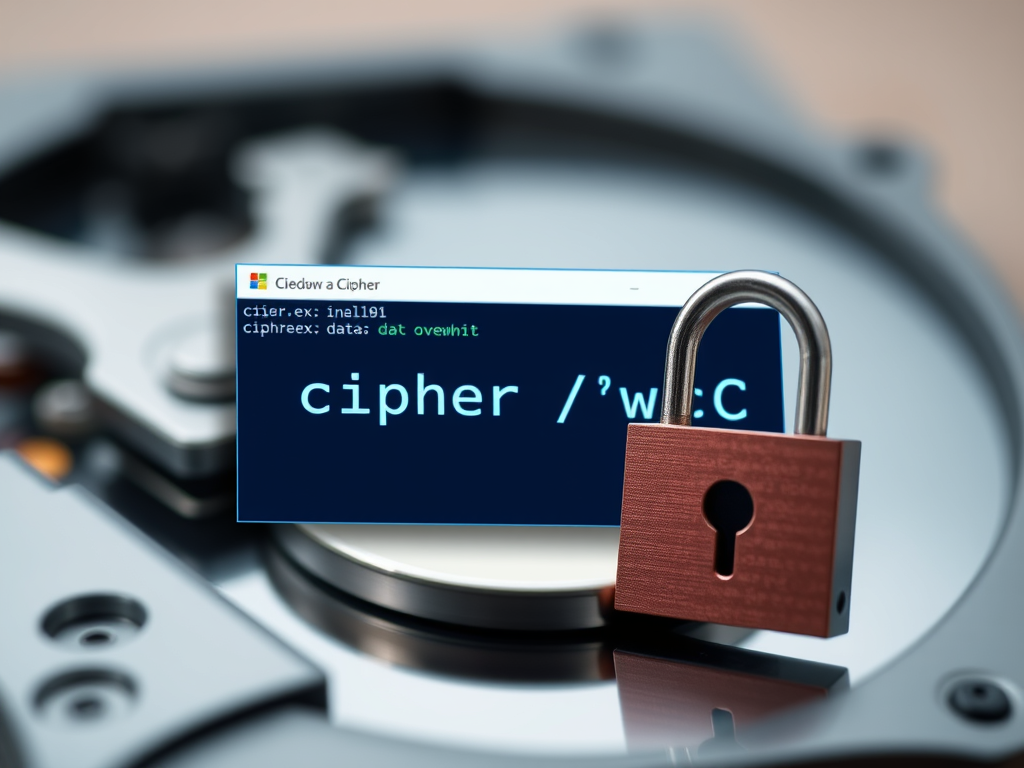
This article explains how to use the Cipher security tool to overwrite deleted data on Windows 11.
What Is Cipher and Why Should You Use It?
The Cipher.exe command can encrypt and decrypt data on drives that use the NTFS file system. It can also be used to overwrite data that has been deleted so that it can’t be recovered or accessed.
Why does this matter? When you delete files or folders, the data isn’t initially removed from the hard disk. Instead, the space on the disk occupied by the deleted data is deallocated. After it’s deallocated, the space is available when new data is written to the disk. Until the space is overwritten, you can recover the deleted data using a low-level disk editor or data-recovery software.
Encrypting File System (EFS) makes a backup copy of the file before encrypting so the data isn’t lost if an error occurs during the encryption process. After the encryption is complete, the backup copy is deleted.
As with other deleted files, the data isn’t removed until overwritten. Using the Cipher.exe command, you can overwrite the deleted data to prevent unauthorized recovery.
How to Overwrite Deleted Data with Cipher
To overwrite deleted data on Windows 11, open Windows Terminal as administrator and run the command cipher /w:, replacing the drive letter with your target drive. This command securely wipes all free space on the specified drive, making any previously deleted data unrecoverable. The process may take time depending on drive size.
- Open the Windows Terminal app as administrator and select Windows PowerShell or Command Prompt. ⚠️ Requires admin privileges
- Use the command format below to overwrite deleted data on the specified drive on your Windows machine:
cipher /w:<drive letter>Replace
<drive letter>with the drive on your computer. - For example, run the command below to overwrite deleted data on the C drive:
cipher /w:C - Wait for the process to complete. It will overwrite all deleted data on the drive.
That should do it!
Summary
Using the Cipher security tool effectively ensures that deleted data on your Windows 11 system cannot be recovered. Here are the key takeaways:
- Data Overwriting: Cipher.exe specifically overwrites deleted data, making it unrecoverable.
- File Recovery Threat: Deleted files remain on the disk until their occupied space is reused. Using Cipher helps mitigate recovery threats.
- Simple Command: The command
cipher /w:<drive letter>is straightforward and can be executed with administrative privileges. - Drive Specific: Ensure you run the command on the correct drive to protect sensitive data.
- Regular Maintenance: Using Cipher can enhance your data security practices on Windows 11.
Implementing these practices can help maintain your privacy and secure data management.
Reference
Frequently Asked Questions
What is the Cipher tool in Windows 11?
How do I overwrite deleted data using Cipher?
Can deleted files be recovered if I use Cipher?
Do I need administrative privileges to use Cipher?
Is using Cipher a good practice for data security?



Leave a Reply