
When you turn on your Windows 11 computer, some apps start automatically. Sometimes this is helpful. But if too many apps run at startup, your PC can get slower. This guide will show you simple ways to turn startup apps on or off.
What Are Startup Apps?
Startup apps are programs that open right after you turn on your computer. Some are built into Windows, like Microsoft Defender Antivirus, which helps keep your PC safe.
Other startup apps are ones you installed yourself. You can decide if these apps should start automatically or not.
Why Manage Startup Apps?
Turning off unnecessary startup apps helps your computer start faster and run more smoothly.
How to Turn Startup Apps On or Off in Windows 11
There are a few easy ways to control which apps start when your PC boots up. Let’s look at them!
Method 1: Use Task Manager
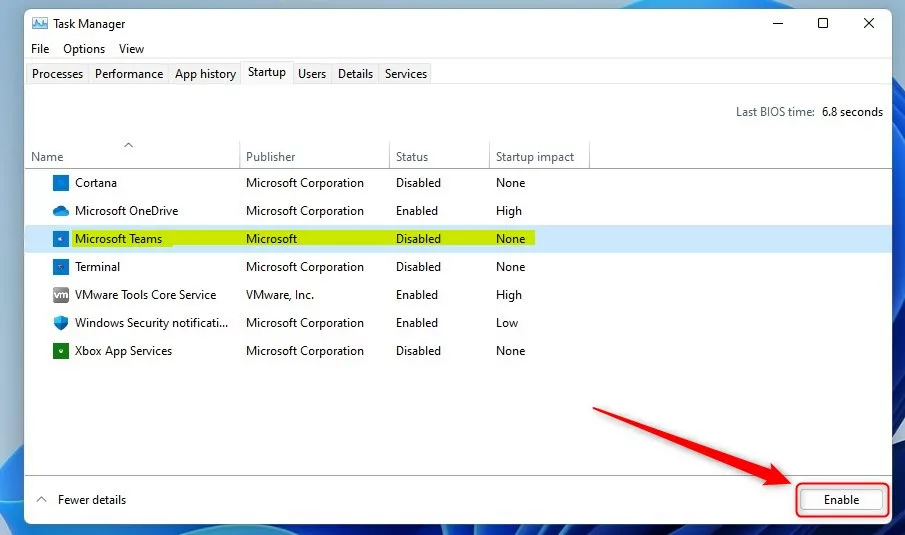
Task Manager is a tool that shows all running apps. It lets you choose which apps start automatically.
- Press
Ctrl + Shift + Escon your keyboard at the same time. This opens Task Manager. - If Task Manager opens in a simple view, click More details at the bottom.
- Click the Startup tab at the top.
- Here, you will see a list of apps that can start with Windows.
- To turn an app off, click it once to select it. Then click the Disable button at the bottom right.
- To turn an app on, select it and click Enable.
Method 2: Use Windows Settings
You can also manage startup apps through the Settings app.
- Click the Start button (Windows icon) at the bottom left of your screen.
- Select Settings. Or press
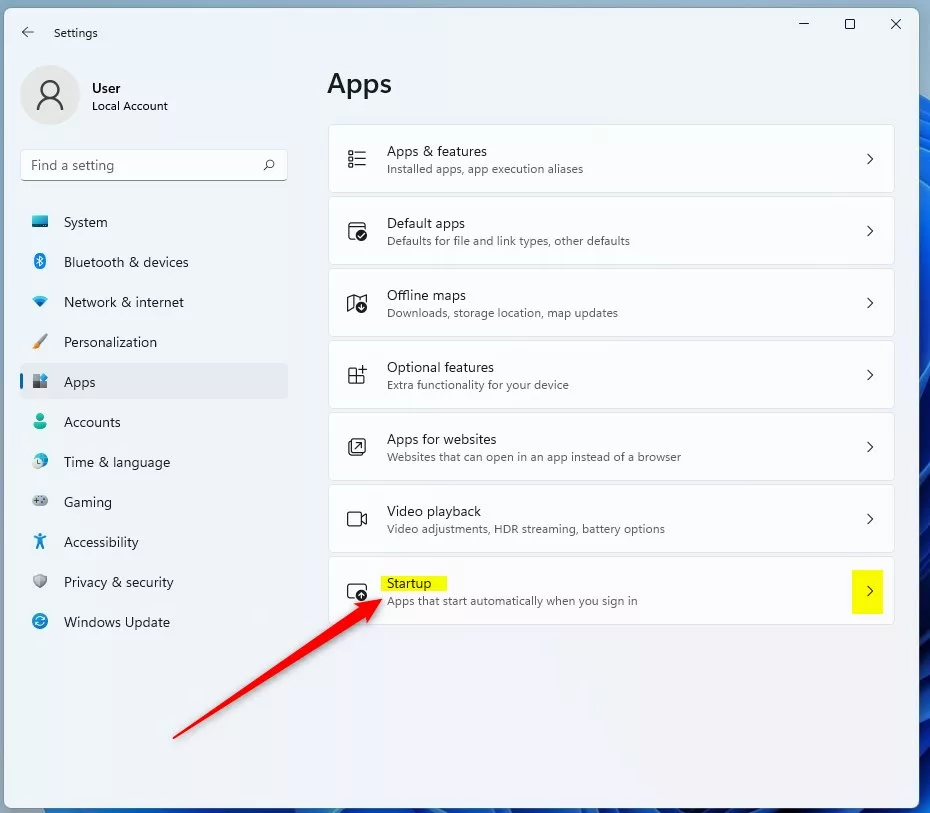
Windows key + Ion your keyboard to open Settings quickly. - In the Settings window, click on Apps from the menu on the left.
- Click Startup on the right side.
- You will see a list of apps with switches next to them.
- Toggle the switch On to allow an app to start automatically.
- Toggle the switch Off to stop the app from starting up.
Method 3: Change an App’s Advanced Settings
Some apps let you control startup options inside their own settings.
- Open Settings (Start menu > Settings or press
Windows key + I). - Click Apps on the left menu.
- Click Installed apps or Apps & features.
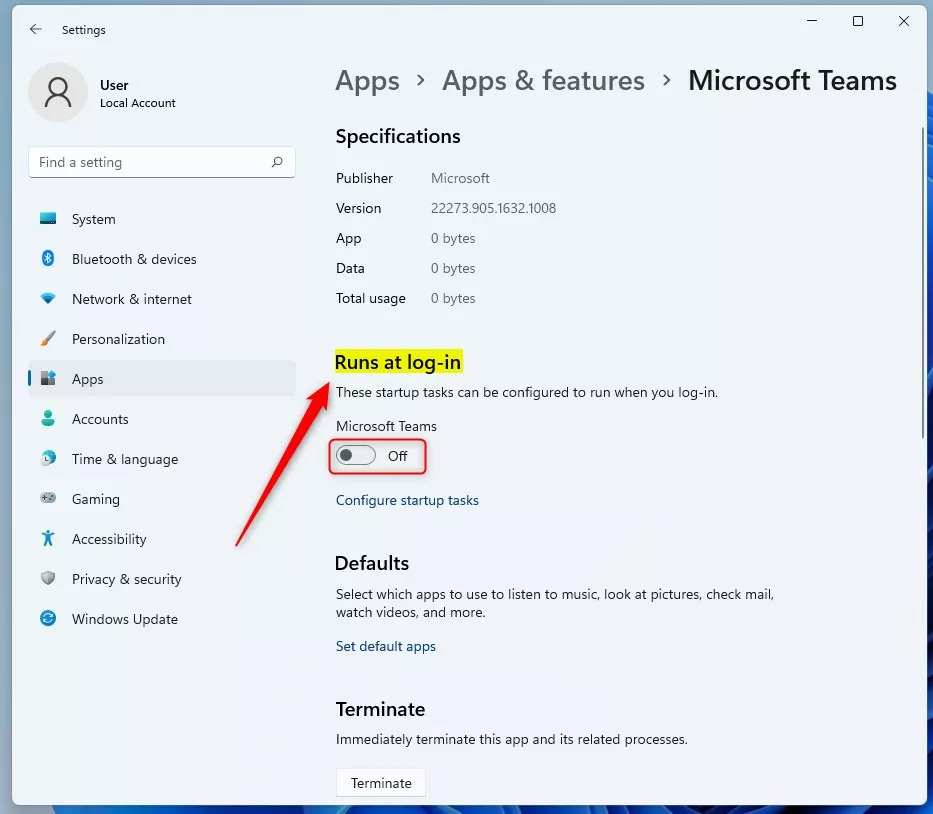
- Find the app you want to change. Click the three dots (⋮) next to it.
- Select Advanced options from the list.
- Look for Run at log-in or similar.
- Toggle this setting Off to stop the app from starting automatically. Or toggle it On to allow it.
When you’re done, just close the Settings window.
More Help
If you want to learn more about startup apps, check this official Microsoft guide: Change which apps run automatically at startup in Windows.
Summary
- You can easily turn startup apps on or off using Task Manager, Windows Settings, or an app’s own settings.
- Disabling unneeded startup apps can make your PC start faster and work better.
- Follow these simple steps to control your startup apps and improve your Windows 11 experience.
Feel free to ask questions or share your tips in the comments below!



Leave a Reply