
In this guide, we’ll show you how to turn on a special security feature called Firmware Protection on your Windows 11 PC. This helps keep your computer safe from tricky malware programs right from the moment it starts up.
What Is Firmware Protection?
Your computer has a part called firmware that helps it start up and run properly. Sometimes bad software tries to sneak in here, which is hard for regular antivirus programs to catch.
Firmware Protection works like a security guard at your PC’s startup, checking everything is safe before Windows even loads. This extra layer of protection helps:
- Stop malware attacks that try to hide deep inside your PC.
- Make sure only trusted software runs when your PC turns on.
- Keep your PC’s firmware safe from being changed without permission.
- Give extra security to special devices called Secured-core PCs.
Note: Firmware protection is especially important if you store sensitive information or want strong security for your PC.
How to Turn On Firmware Protection in Windows 11
If your computer supports it, here’s how you can enable this security feature using the Windows built-in security app.
- Open the Windows Security app. You can do this by clicking the Start button, then selecting Settings > Privacy & Security > Windows Security, and then click Open Windows Security.
- In the Windows Security window, click on Device security.
- Look for the section called Core isolation and click on Core isolation details.
- Find the switch for Firmware protection and toggle it On.
- If the Firmware Protection option is grayed out and you can’t change it, you may need to adjust a setting in the Windows Registry. (Don’t worry, we’ll explain that below.)
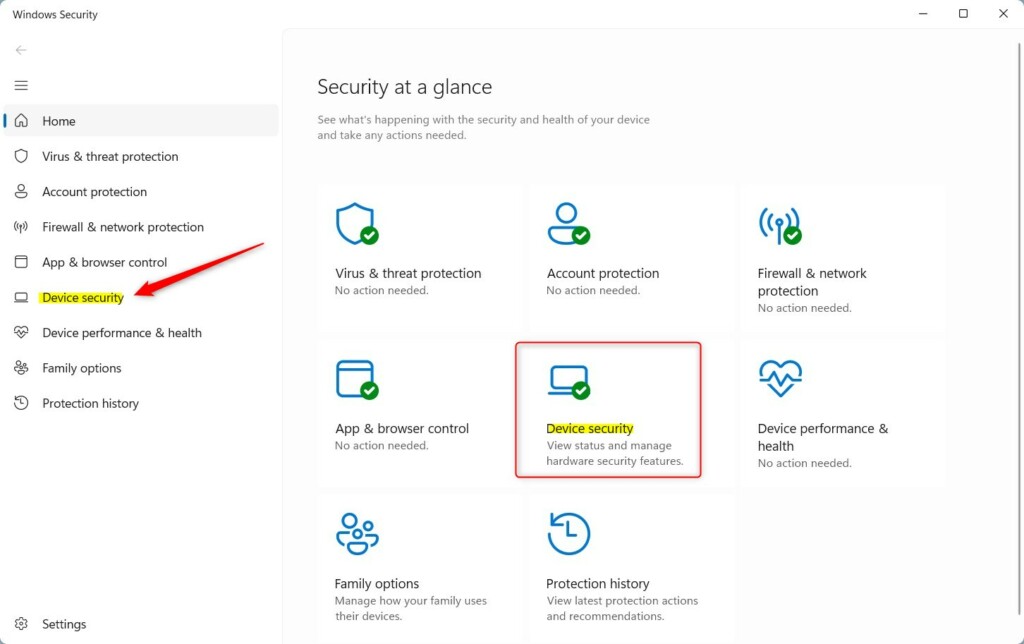 Windows Security app – Device Security section
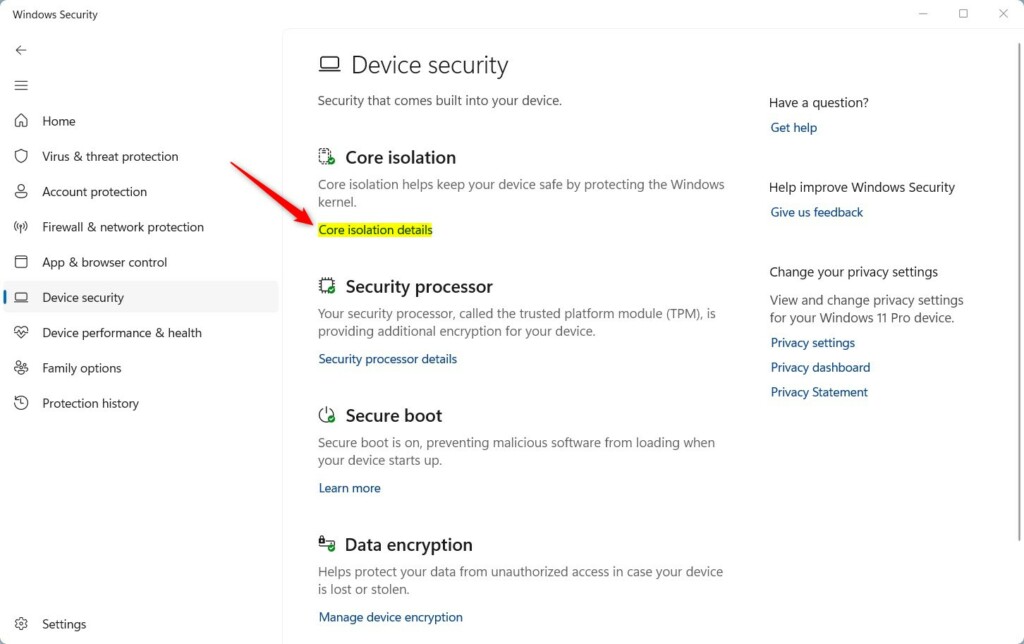 Core isolation details – Firmware Protection switch
- After turning it on, restart your computer to make sure the changes take effect.
How to Enable Firmware Protection Using Windows Registry
If you can’t turn on Firmware Protection in Windows Security, you can try this method. Be careful when editing the registry — making wrong changes can cause problems on your PC. You might want to back up the registry first.
- [Admin Required] Press Windows + R keys to open the Run box. Type
regeditand press Enter to open the Registry Editor. - Navigate to this folder path:
HKEY_LOCAL_MACHINE\SYSTEM\CurrentControlSet\Control\DeviceGuard\Scenarios\SystemGuard - Right-click on the SystemGuard folder, then choose New > DWORD (32-bit) Value.
- Name this new value
Enabled. - Double-click the Enabled value and set its data to
1to turn on Firmware Protection. - Click OK and close the Registry Editor.
- Restart your computer to apply the changes.
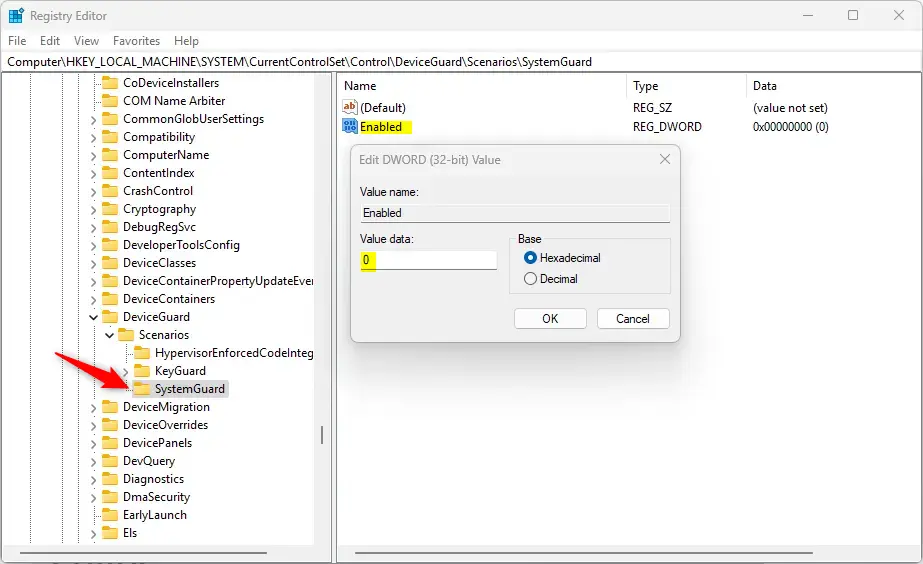 Editing the Registry to enable Firmware Protection
Summary
Turning on Firmware Protection on your Windows 11 PC helps keep it safer by:
- Stopping malware that tries to attack your PC before Windows starts.
- Making sure your PC only runs trusted software during startup.
- Protecting the important firmware that helps your PC start.
- Giving extra security especially if you have a Secured-core PC.
For more details, you can visit the official Microsoft page on System Guard Secure Launch and SMM Protection.
By following these simple steps, you help protect your PC from hidden threats and keep your Windows 11 experience safe and smooth.



Leave a Reply