How to Extend Storage Size in Windows 11

This guide explains how to increase the storage capacity of a storage pool in Windows 11.
Storage Spaces is a built-in Windows tool that lets you group several physical hard drives together to act as one single, large drive. Think of it like taking several small boxes and taping them together to make one giant container. This makes it easier to organize your files and gives you more room to grow.
Once you set up a storage space, it appears in your File Explorer just like a regular hard drive. You can increase its size whenever you start to run low on space.
The size you choose is logical, not physical. This means you can set a size that is larger than the space you currently have. You can simply add more physical drives to the pool later to catch up to that capacity.
Open Settings, navigate to System > Storage > Advanced storage settings > Storage Spaces. Select your storage pool, click Properties, then click Extend. Enter your desired new size and click OK.
Why Extend Your Storage Space?
The main reason to do this is when you run out of room for your photos, videos, or programs. By extending your storage, you avoid the hassle of deleting old files or moving things to external drives constantly.
What Happens When You Finish?
Once you finish these steps, Windows will recognize the larger capacity immediately. You will have more room to save new files and install apps without needing to replace your existing hardware right away.
How to Extend Storage Space Size
Note: This process requires administrator privileges to modify system storage settings.
- Open the Windows Settings app. You can click the Start menu and select Settings, or press the Windows key + I on your keyboard to open Settings app.

Windows 11 System button in Settings - When the Settings app opens, click on the “System” tab on the left side of the window.

Windows 11 Storage tile in Settings app - Select the “Storage” option on the right side of the screen.
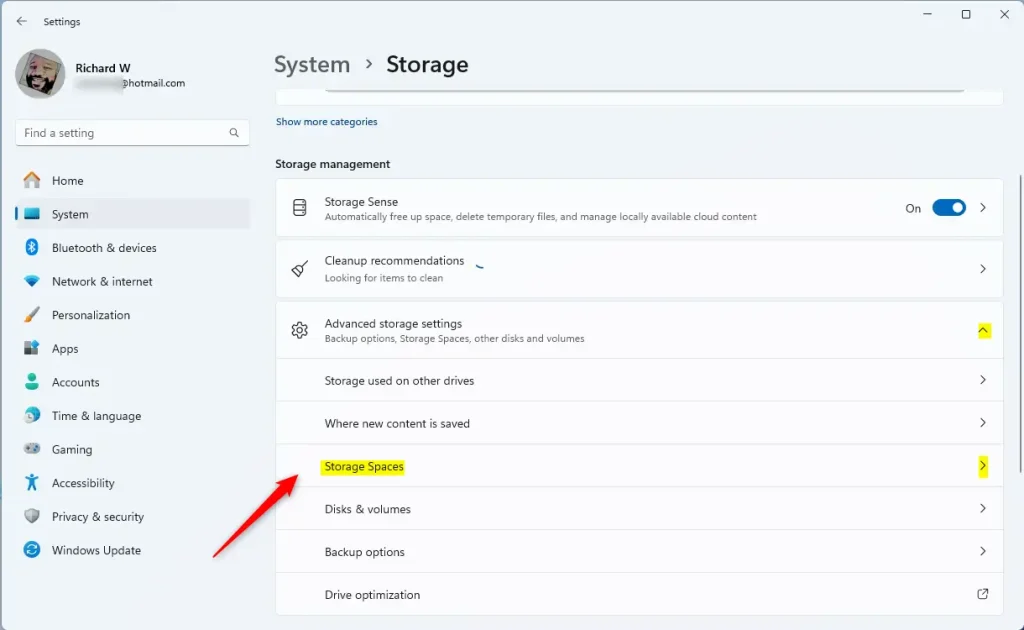
Windows 11 Storage Spaces tile in Settings app - Look for the section labeled “Advanced storage settings” and click it to expand the menu. Select “Storage Spaces” to open that tool.
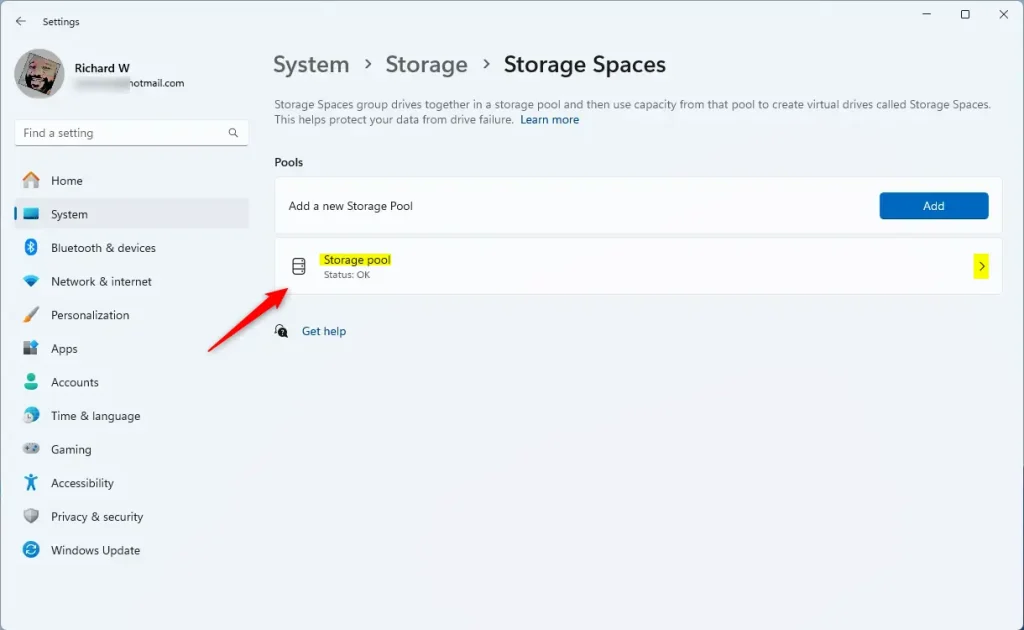
Windows 11 storage pool tile - Find your “Storage pool” and click on it to see the details.
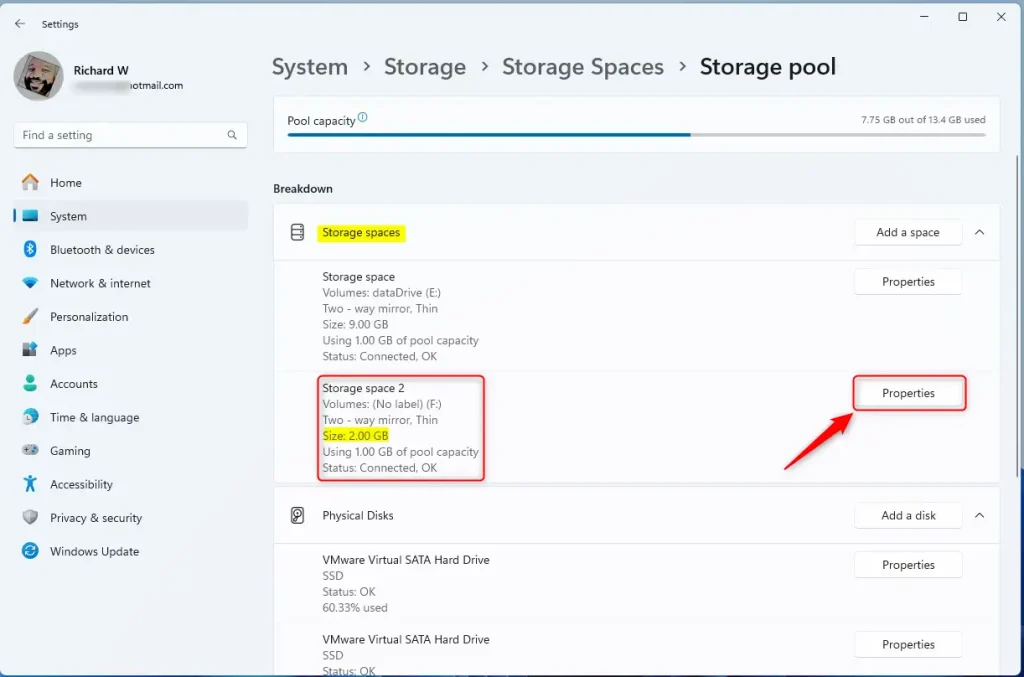
extend storage space size on storage pool - Select the specific storage space you want to resize, then click the “Properties” button.
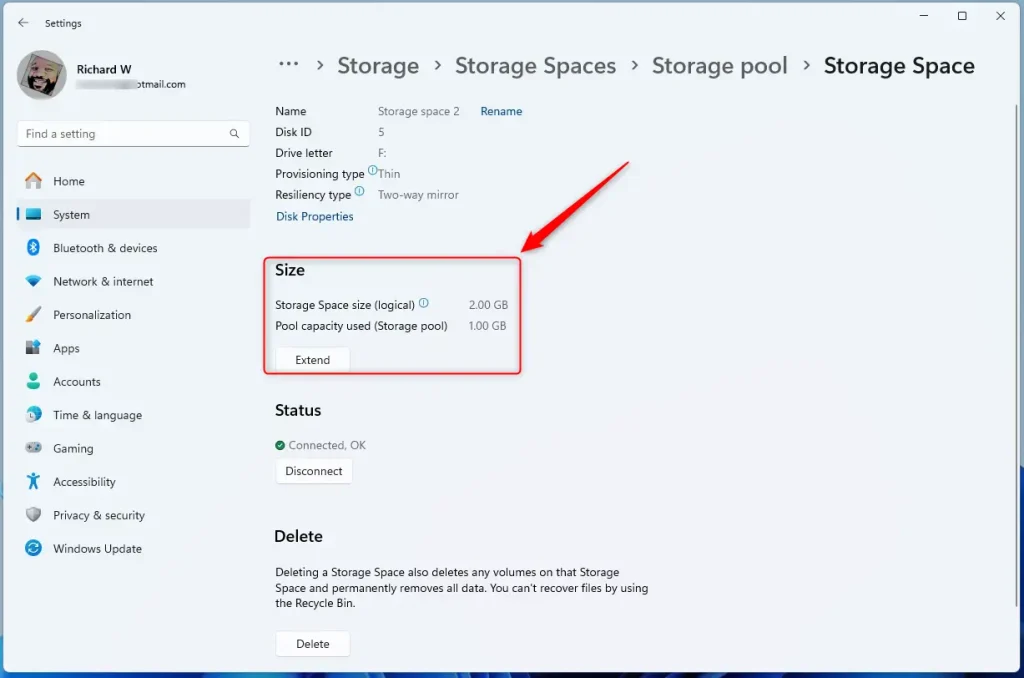
Windows Storage Spaces extend button in Settings application - In the properties window, click the “Extend” button found under the Size section.
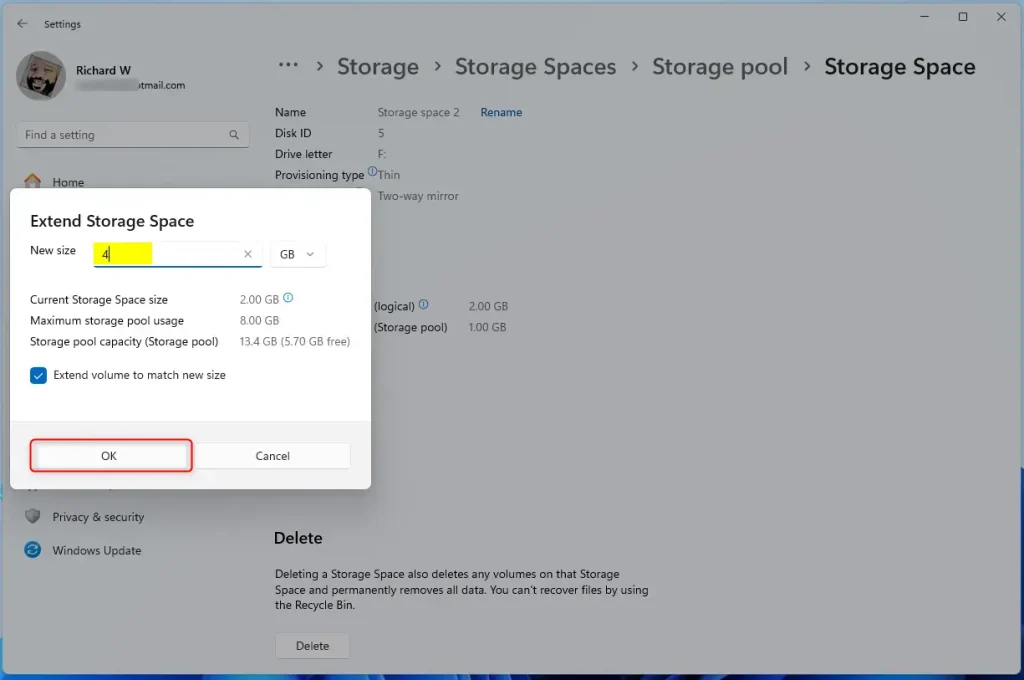
Storage pool size adjustment dialog in Windows 11 Settings - Type in your new, larger size in the pop-up window and click “OK” to finish.
Remember, you can set the size to be larger than what your drives currently hold. If you do this, you will need to add more physical drives to the pool later using adding more disks to make sure the space is actually available.
Summary
Extending your storage space in Windows 11 is a great way to manage your files. By using the Storage Spaces feature, you can combine multiple drives into one and grow your capacity through the Settings menu. Simply navigate to System > Storage > Advanced storage settings > Storage Spaces, choose your drive, and select Extend to update your size.
[ADMIN PRIVILEGES REQUIRED]
Was this guide helpful?

About the Author
Richard
Tech Writer, IT Professional
Richard, a writer for Geek Rewind, is a tech enthusiast who loves breaking down complex IT topics into simple, easy-to-understand ideas. With years of hands-on experience in system administration and enterprise IT operations, he’s developed a knack for offering practical tips and solutions. Richard aims to make technology more accessible and actionable. He's deeply committed to the Geek Rewind community, always ready to answer questions and engage in discussions.



No comments yet — be the first to share your thoughts!