How to Enable Spell Check in Notepad on Windows 11

This article explains how to turn spell check and auto-correct on or off in Notepad on Windows 11.
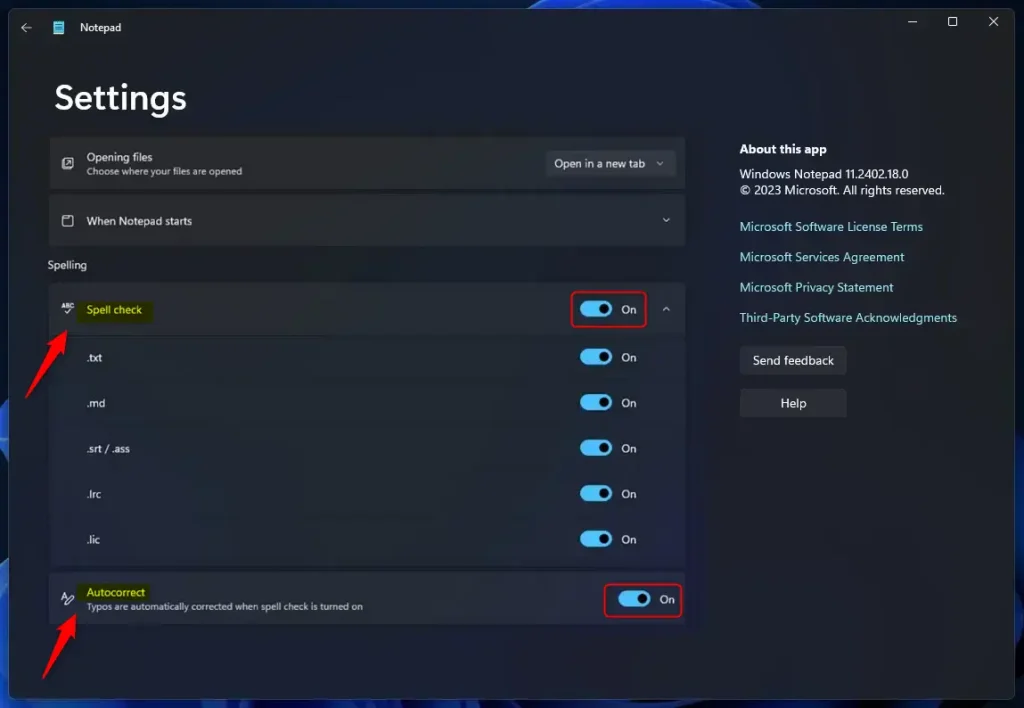
Open Notepad and click the Settings gear icon. Toggle the “Spell check” option to the on position. You can further customize spell check and autocorrect for specific file types within the expanded settings.
What is Notepad?
Notepad is the basic text editor that’s already on your Windows computer. You can use it to create, edit, and look at plain text files.
Why Use Spell Check in Notepad?
Notepad’s new spell check feature in Windows 11 helps you catch typing mistakes easily, making your writing clearer and more accurate.
By default, this feature is turned on. However, you can turn it off anytime if you prefer.
How to Enable or Disable Spell Check and Autocorrect
- Open Notepad on your computer.
- Click on the Settings (gear) icon in the top right corner.
- Toggle the Spell check option on or off based on what you want.
Turning spell check on or off in Notepad on Windows 11 is simple: just open the app and click the Settings gear icon in the top right corner to find the spell check option.
- Once enabled, Notepad will start spell-checking and auto-correcting your text.
What Happens When You Enable Spell Check?
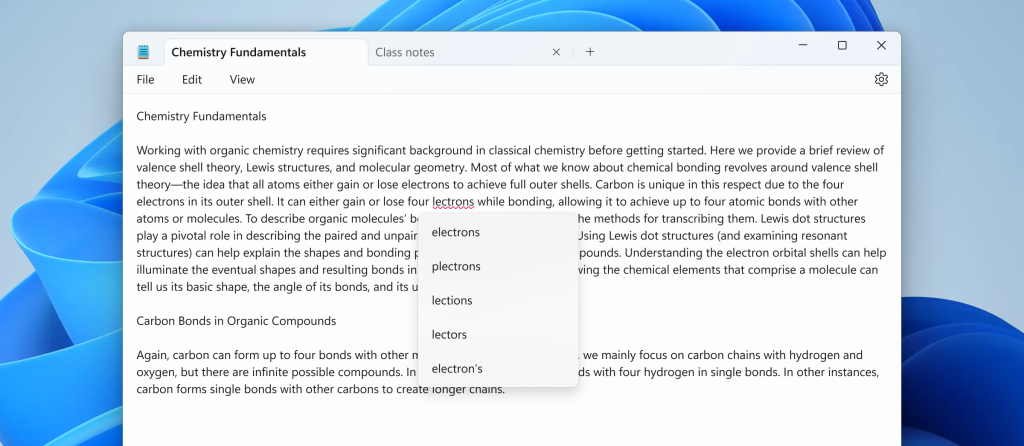
When you turn on spell check in Notepad, misspelled words will show up underlined, and you’ll get helpful suggestions to fix them, while autocorrect can fix common typing mistakes automatically.
You can customize these settings to work only with certain file types. This gives you control over when these features are active.
For more information, visit Microsoft blog
Summary
Notepad on Windows 11 now has spell check and autocorrect to help you fix typing errors quickly and easily.
Is there a spell check in Notepad?
Option here so you click on this. And if you scroll towards the bottom you have the option under spellings that says spell check. And also autocorrection.
How to enable spell check in notes?
Spell checking is off by default in the notes app, but you can easily turn it on by going to the Settings and finding the ‘Spell Check’ option in the ‘Interactions’ tab.
How to get classic Notepad back in 🪟 Windows 11?
Line. So now we're actually going to get notepad.exe. Back so I'm going to click on the start menu here and type in cmd when command prompt pops up we're going to hit run as administrator.
Was this guide helpful?

About the Author
Richard
Tech Writer, IT Professional
Richard, a writer for Geek Rewind, is a tech enthusiast who loves breaking down complex IT topics into simple, easy-to-understand ideas. With years of hands-on experience in system administration and enterprise IT operations, he’s developed a knack for offering practical tips and solutions. Richard aims to make technology more accessible and actionable. He's deeply committed to the Geek Rewind community, always ready to answer questions and engage in discussions.


No comments yet — be the first to share your thoughts!