
Want to build and test a website on your own Windows 11 computer? You can install Drupal — a popular website builder — without needing the internet. This guide shows you how to set up Drupal using XAMPP. XAMPP is a free program that creates a web server right on your PC.
What is XAMPP?
XAMPP is free software that has everything you need to run websites on your computer. It includes:
- Apache (the web server that displays your website)
- MariaDB (a database that stores your website’s information)
- PHP (the programming language that Drupal uses)
With XAMPP, you can run Drupal and other websites without needing an internet connection.
Step 1: Install XAMPP
Don’t have XAMPP yet? Follow this guide first:
How to Install XAMPP on Windows 11
Step 2: Create a Database for Drupal
Why? Drupal needs a place to save all your website information. That place is called a database.
What you’ll do:
- Open the XAMPP Control Panel.
- Click the Shell button on the left side. A command window will open.
- Type this command and press Enter to open the database tool:
mysql -u root - Type these commands one at a time. Press Enter after each one. Replace
your_password_herewith a password you choose. Remember this password!CREATE DATABASE drupaldb CHARACTER SET utf8mb4 COLLATE utf8mb4_general_ci;CREATE USER 'drupaldbuser'@'localhost' IDENTIFIED BY 'your_password_here';GRANT ALL ON drupaldb.* TO 'drupaldbuser'@'localhost';FLUSH PRIVILEGES;exit
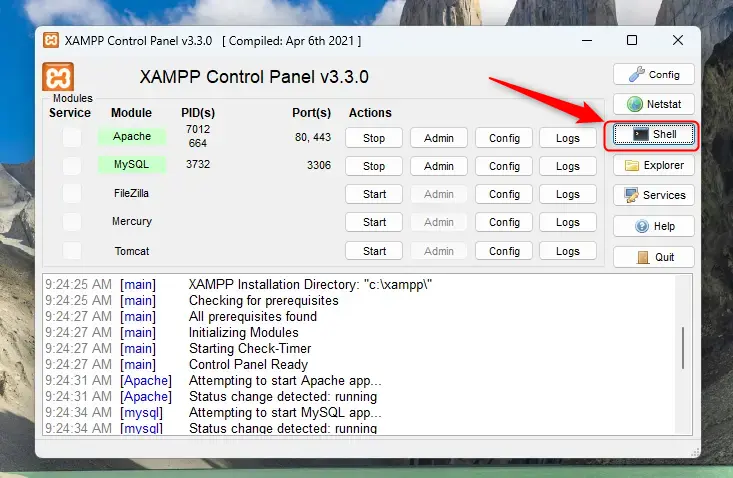
Tip: If you don’t want to use the command line, you can create the database using phpMyAdmin instead. Click the Admin button next to MySQL in the XAMPP Control Panel.
Step 3: Download and Prepare Drupal
What you’ll do:
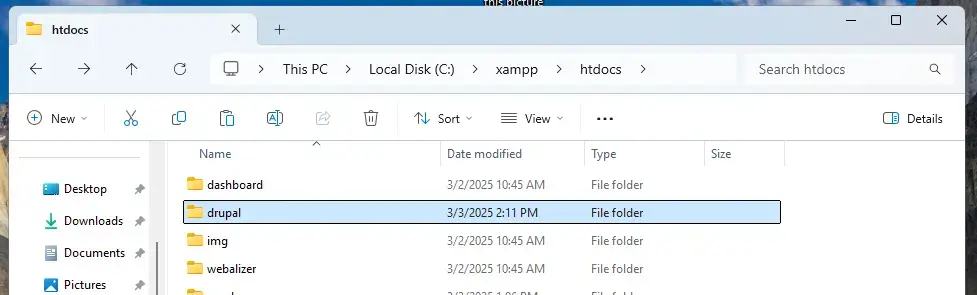
- Open your
C:\xampp\htdocsfolder on your computer. - Create a new folder called
drupalinside thehtdocsfolder. This is where your Drupal files will go. - Download the latest Drupal version from here: Drupal Downloads
- Extract the Drupal files you downloaded directly into the
drupalfolder.
Step 4: Change Apache’s Default Page to Your Drupal Site
Why? By default, XAMPP shows a dashboard page when you open your local server. We want it to go straight to Drupal instead.
What you’ll do:
- Go to
C:\xampp\htdocsand open theindex.htmlfile with a text editor like Notepad. - Replace everything in the file with this code:
<?php

  if (!empty($_SERVER['HTTPS']) && ('on' == $_SERVER['HTTPS'])) {

    $uri = 'https://';

  } else {

    $uri = 'http://';

  }

  $uri .= $_SERVER['HTTP_HOST'];

  header('Location: '.$uri.'/drupal/');

  exit;

?>

Something is wrong with the XAMPP installation :-( - Save the file.
Step 5: Restart Apache
What happens when you do this? Apache will apply the changes you just made.
What you’ll do:
- Go back to the XAMPP Control Panel.
- Stop Apache by clicking the Stop button.
- Start Apache again by clicking the Start button.
Step 6: Start Drupal Installation
What you’ll do:
- Open your web browser and go to:
http://localhost - You should see the Drupal setup page.
- Choose your language and click Save and continue.
- Select the installation type (usually “Standard” works fine) and continue.
- Enter the database information you created earlier:
- Database name:
drupaldb - Username:
drupaldbuser - Password: (the password you chose in Step 2)
- Database host: leave this as
localhost
- Database name:
- Continue and fill in your website’s name.
- Create an admin username and password for yourself.
- Finish the setup. You now have your own Drupal site running locally!


Summary
- Install XAMPP on your Windows 11 computer.
- Create a database and user for Drupal using XAMPP’s Shell or phpMyAdmin.
- Download Drupal and put the files in a
drupalfolder insidehtdocs. - Change the default page to redirect to Drupal.
- Restart Apache to apply the changes.
- Open your browser at
http://localhostto complete Drupal setup.
You now have Drupal running on your computer! You can build and test your website safely before going live on the internet.

Leave a Reply