How to View Microsoft Account Purchase Order History

You can view your Microsoft Account purchase order history directly on the Microsoft website by signing in and navigating to your order history page.
This feature shows you a detailed record of everything you’ve bought with your Microsoft account. That includes digital and physical items like PC games from the Microsoft Store, apps, software licenses (the rights to use software), and subscriptions such as Microsoft 365. You can even find purchase details going all the way back to 2005.
Checking your purchase history is essential for tracking your spending, verifying charges, and managing your digital library. You’ll see the date of purchase, the item name, the amount paid, and the payment method used.
Sign in to your Microsoft Account on their website and navigate to the Order history page to see all past purchases. Alternatively, open Windows Settings, go to Accounts, and select Order history. Use the filters to find specific items.
Steps to View Your Microsoft Account Purchases
There are two ways to check your purchase history. You can use your Windows computer’s Settings app or visit the Microsoft website.
Method 1Using the Windows Settings App
You can check your Microsoft account order history directly from your Windows computer using the Settings app. Simply open Settings, go to Accounts, and then click on Order history to see your past purchases.
Method 2Using the Microsoft Account Website
You can view your Microsoft account order history by going straight to the Microsoft Account website.
Sign in to your Microsoft Account
After signing in, go to the Order history page.
On the order history page, you can:
- Use the View dropdown to select the type of purchase. Choose apps, games, or subscriptions.
- Use the Ordered within dropdown to pick a time frame. Try the last 30 days or last 6 months.
Here’s an example of the order history page:
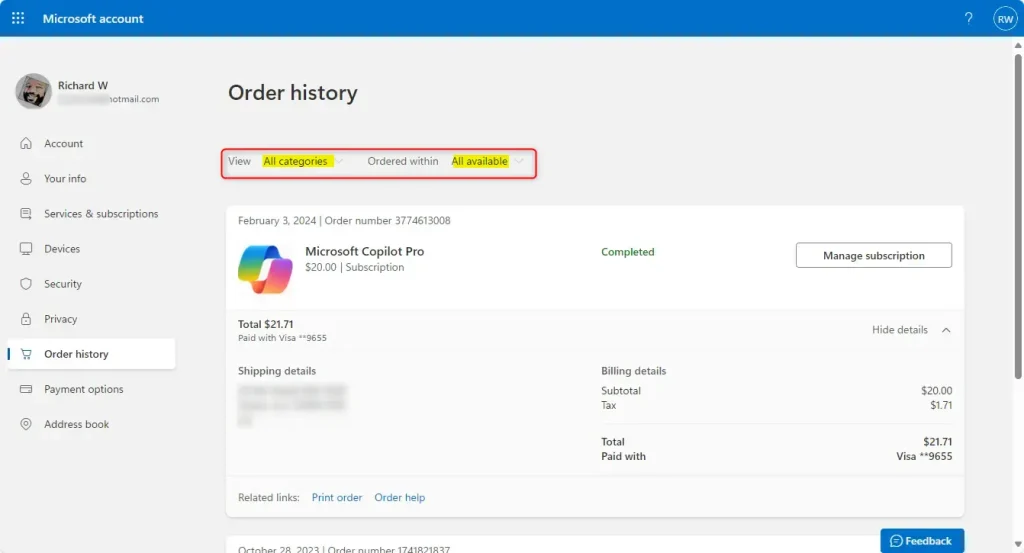
Want more details about a specific order? Click Show details next to it.
Summary
Your Microsoft account order history is a central place to see everything you’ve bought from Microsoft, including apps, games, and subscriptions. You can easily access this list through Windows Settings or the Microsoft Account website to manage your purchases.
Was this guide helpful?

About the Author
Richard
Tech Writer, IT Professional
Richard, a writer for Geek Rewind, is a tech enthusiast who loves breaking down complex IT topics into simple, easy-to-understand ideas. With years of hands-on experience in system administration and enterprise IT operations, he’s developed a knack for offering practical tips and solutions. Richard aims to make technology more accessible and actionable. He's deeply committed to the Geek Rewind community, always ready to answer questions and engage in discussions.




No comments yet — be the first to share your thoughts!