How to Change Purchase Sign-in Settings in Microsoft Store

This guide helps you manage your Microsoft Store purchase settings on Windows 11. You can control whether you need a password to buy apps, games, or movies.
Open the Microsoft Store, click your Profile icon, select Settings, and then toggle the Purchase sign-in option on or off to control password requirements for purchases.
Why This Matters
The Microsoft Store is the main hub for your digital content. By default, it asks for your password to prevent unauthorized purchases. You might want to change this to speed up checkout or to make your account safer.
How to Change Purchase Sign-in Settings
Step 1Open Your Profile
Open the Microsoft Store and click your Profile icon next to the search bar.
Step 2Find Purchase Sign-in
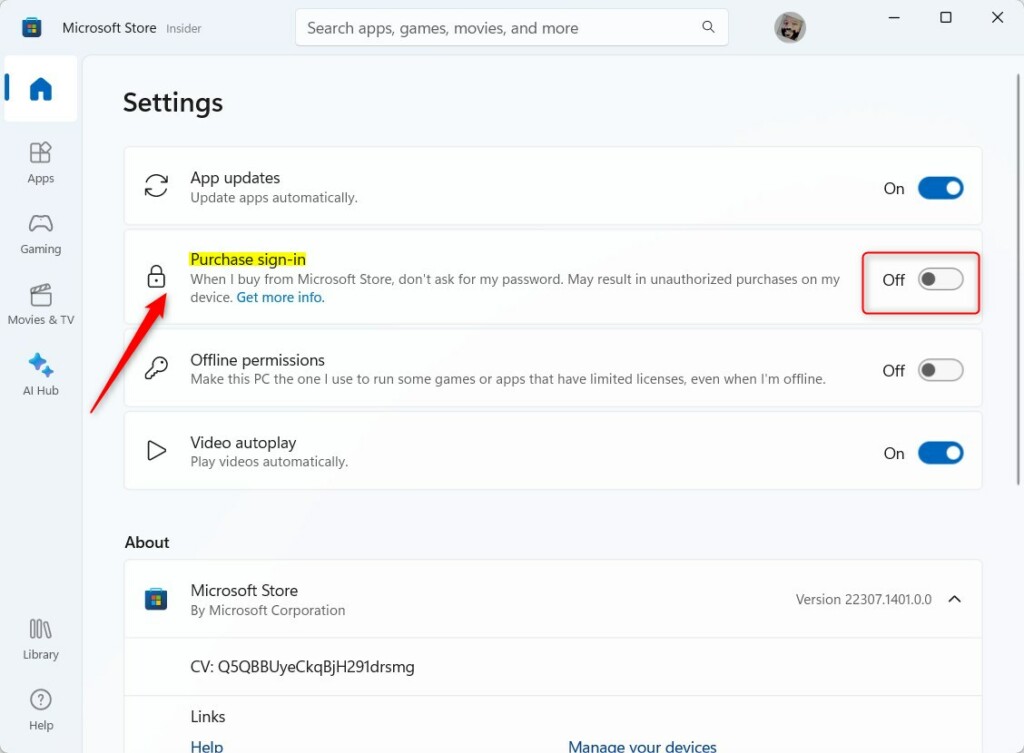
Select Settings and look for Purchase sign-in.
Step 3Toggle Your Preference
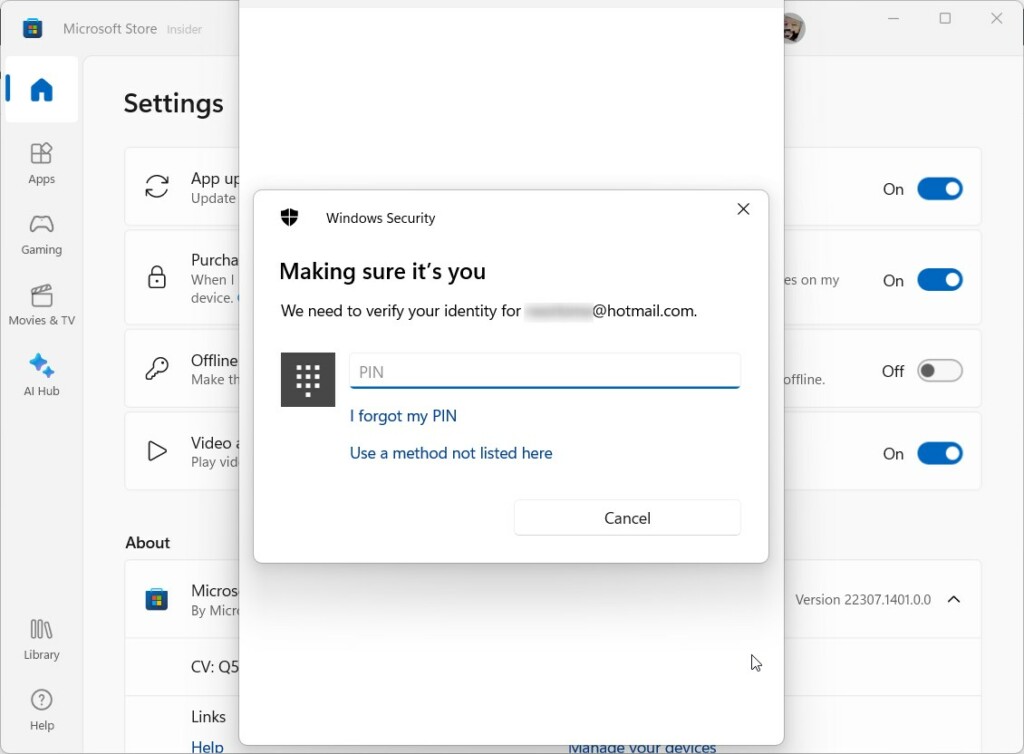
Toggle the switch to On to require a password. Toggle it to Off to skip it. You may need to verify your identity with your PIN or password.
Security Comparison: Password Requirements
| Setting | Pros | Cons |
|---|---|---|
| Always Ask | High security; prevents accidental buys. | Slower checkout. |
| Never Ask | Fast, convenient shopping. | Risk of unauthorized purchases. |
Managing Your Account and Security
Beyond the basic settings, you should manage your payment methods regularly. Visit the Microsoft Account billing page to update cards or remove old ones. If you share your PC, consider setting up a separate Windows user account for each person to keep your Windows store security intact.
Preventing Unauthorized Purchases
To stop others from using your account, enable two-factor authentication on your Microsoft account. This adds an extra layer of security beyond just a password. If you have children, use Microsoft Family Safety to set spending limits and monitor activity. This ensures they cannot make purchases without your approval.
Troubleshooting Purchase Failures
If your purchase fails, check your order history first. Ensure your payment method is valid and not expired. Sometimes, clearing the store’s temporary files (often called the cache) helps. Press the `Win` key + `R` keys together to open the Run dialog. Then, type `wsreset.exe` and press Enter. This command resets the Store app. Note that you might need administrator rights if your system policy restricts this.
What Happens When Done
When you turn off the password requirement, your future purchases will process instantly. When you turn it on, your account remains protected against accidental clicks or unauthorized access. Always remember to check your recurring billing subscriptions to avoid unexpected charges.
Summary
Managing your Microsoft Store purchase settings is vital for both convenience and security. By adjusting your sign-in requirements, using Microsoft Family Safety, and keeping your payment methods updated, you ensure a safe digital shopping experience. Always check your account security if you decide to turn off password prompts for quicker checkouts.
Why am I being asked for a password every time I buy an app?
You are asked for a password because your Purchase sign-in setting is set to ‘Always ask’. This is a security feature designed to prevent unauthorized purchases on your device. You can disable this in the Microsoft Store settings if you prefer a faster checkout experience without password prompts.
What should I do if my purchase settings are greyed out?
If settings are greyed out, it is often because you are using a managed account or a child account linked to a family group. Check your Microsoft Family Safety settings. Additionally, ensure you are signed in with the primary account holder credentials to modify billing and security preferences.
Was this guide helpful?

About the Author
Richard
Tech Writer, IT Professional
Richard, a writer for Geek Rewind, is a tech enthusiast who loves breaking down complex IT topics into simple, easy-to-understand ideas. With years of hands-on experience in system administration and enterprise IT operations, he’s developed a knack for offering practical tips and solutions. Richard aims to make technology more accessible and actionable. He's deeply committed to the Geek Rewind community, always ready to answer questions and engage in discussions.



how to change purchase sign in settings