
Have you ever accidentally deleted a file or moved a folder to the wrong place? Windows 11 has a helpful feature to fix these mistakes. It’s called Undo and Redo. Let’s learn how to use these commands in File Explorer.
What Is File Explorer?
File Explorer is the app you use to view and organize all your files and folders on Windows 11. You can copy, move, delete, or rename files with just a few clicks.
What Are Undo and Redo?
Undo
Undo takes back your last action. Did you delete the wrong file by accident? Undo brings it back. Why use Undo? It saves you time searching for lost files.
Redo
Redo does the opposite of Undo. If you press Undo by mistake, Redo puts the action back. What happens? The change you just reversed happens again.
These two commands help you fix mistakes fast without stress.
How to Use Undo and Redo in File Explorer
- Open File Explorer on your computer.
- Delete, copy, move, or rename a file or folder.
- To undo the action, right-click in the File Explorer window. Select Undo from the menu. Or press
CTRL + Zon your keyboard. - To redo an action you just undid, right-click again. Pick Redo from the menu. Or press
CTRL + Y.
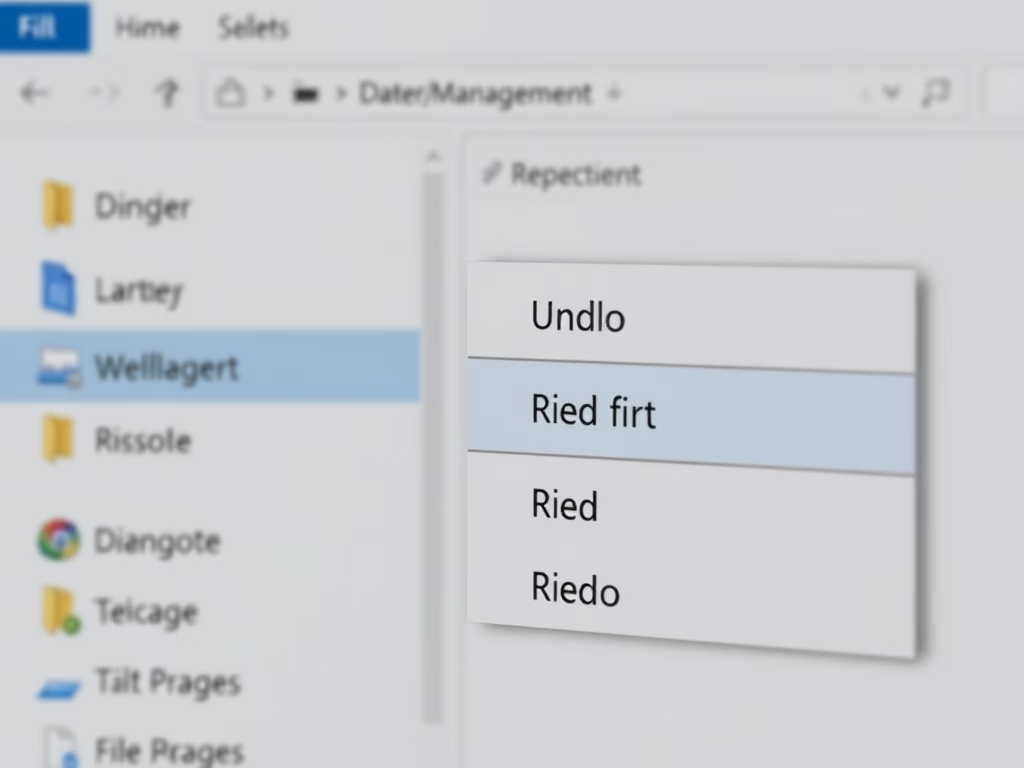
Here are pictures showing where these options appear:

Right-click menu showing the Undo command

Right-click menu showing the Redo command
Quick Tips
- Press
CTRL + Zto undo your last action fast. - Press
CTRL + Yto redo an action you just undid. - These commands work for deleting, moving, copying, and renaming files.
Summary
Undo and Redo are simple tools that help you fix mistakes in Windows 11 File Explorer. They save you time and stress by letting you reverse or repeat actions quickly. The next time you accidentally delete or move a file, remember to use CTRL + Z to undo it. It’s that easy!



Leave a Reply