

This article explains using the “Generative Erase” feature in the Photos app on Windows 11.
The Microsoft Photos app is a built-in image viewer and editor that allows users to view, edit, and organize their photos and images. You can include and display your photos stored on OneDrive within the app.
You can use the Photos app to replace an image background, remove an image background, import photos and videos, show iCloud in the app, change mouse wheel behavior, use filmstrip, and more.
Beginning with the Photos app version 2024.11020.21001.0 for Windows Insiders, a new editing capability called “Generative Erase” allows you to fix and remove distractions from your photos, like background objects or miscellaneous visual clutter.
Unlike Spot fix, Generative erase creates a more seamless and realistic result after objects are erased from the photo, even when erasing large areas.
Use Generative erase with the Photos app
The latest Photos app has a new “Generative erase” feature. Here’s how to use it.
First, open the image you want to edit in the Photos app.
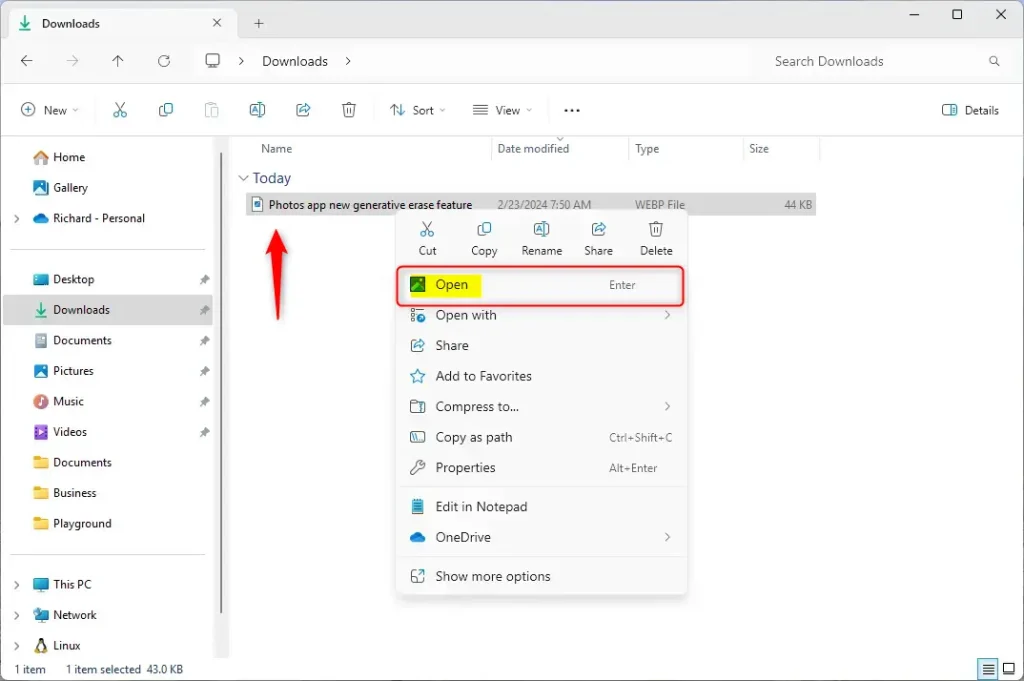
Click or tap the Edit Image button (you can also use the shortcut Ctrl+E).
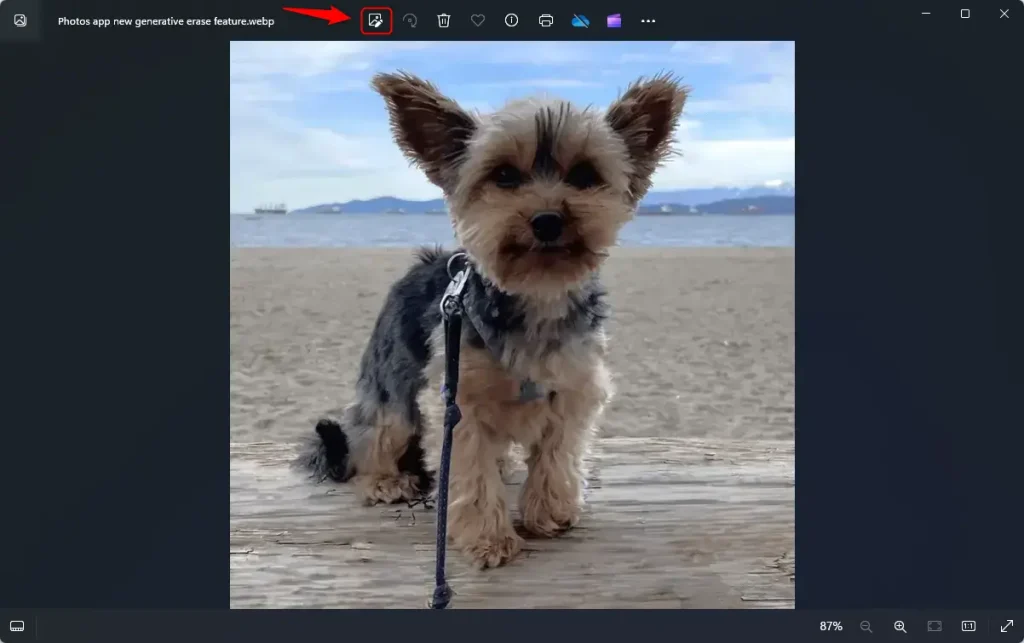
In the editing toolbar, select the Erase tab. Brush over the objects or areas you want to remove.
Adjust the brush size for precision.
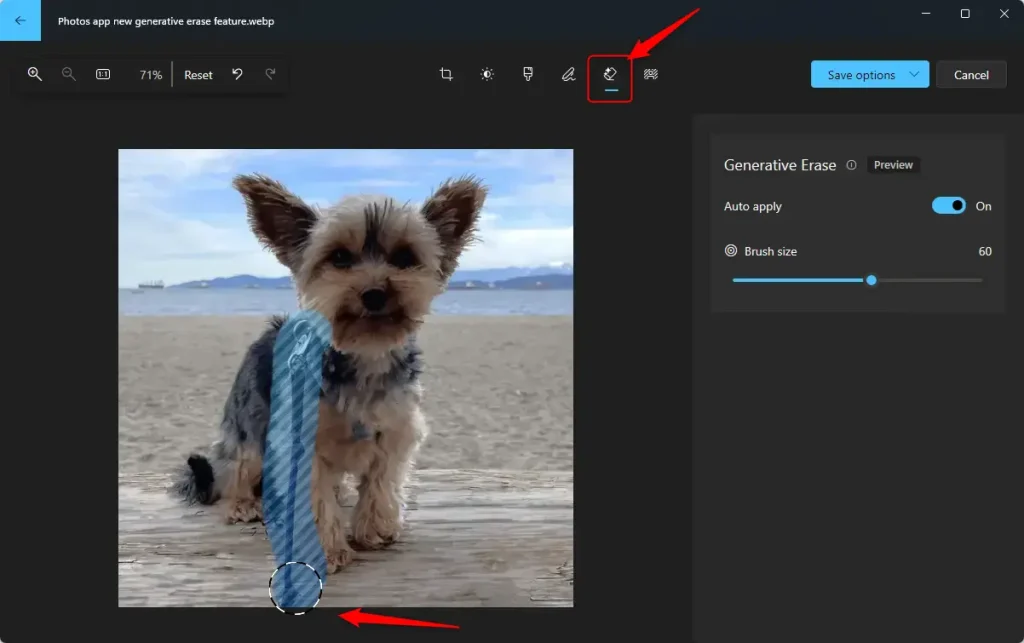
Select the areas you want removed, and watch unwanted objects disappear.
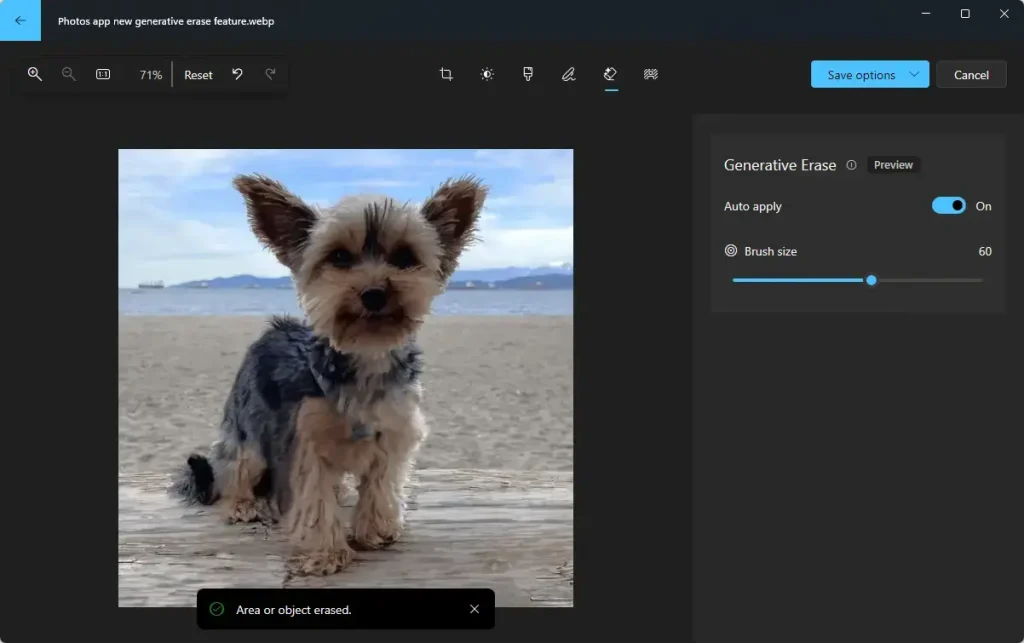
For even finer control or when removing multiple objects simultaneously, you can disable Auto Apply.
By adding or removing masks, each mask represents an area that will be erased.
Save the photo, and you’re done.
That should do it!
Reference:
Conclusion:
- The new “Generative erase” feature in the Photos app offers a seamless and realistic way to remove distractions from photos.
- Users can customize their editing process more effectively by adjusting brush size for precision and disabling “Auto Apply” for finer control.
- For further details and updates, refer to the Microsoft blog, and feel free to provide feedback or additional insights through the comments section below the article.



Leave a Reply Cancel reply