How to Enable WhatsApp Auto-Start on Windows 11

You can enable WhatsApp to auto-start on Windows 11 by adjusting its settings within the app itself. Auto-start means WhatsApp launches automatically every time you log into your Windows 11 PC, saving you the step of manually opening it.
This is especially useful if you rely on WhatsApp for daily communication, whether for work or personal contacts. Having it open immediately means you can start messaging faster.
By default, WhatsApp might not auto-start, but you can change this behavior. Once configured, WhatsApp will either be ready to go when you boot up your computer, or it will wait for you to launch it manually, giving you control over which applications run on startup.
How to change WhatsApp auto-start settings
You do not need special permissions for these steps. Simply follow these instructions:
- Open the Start menu.
- Find WhatsApp in your All Apps list and click it to open the program.
- Once the app is open, look for the Settings button (the gear icon) in the bottom left corner.
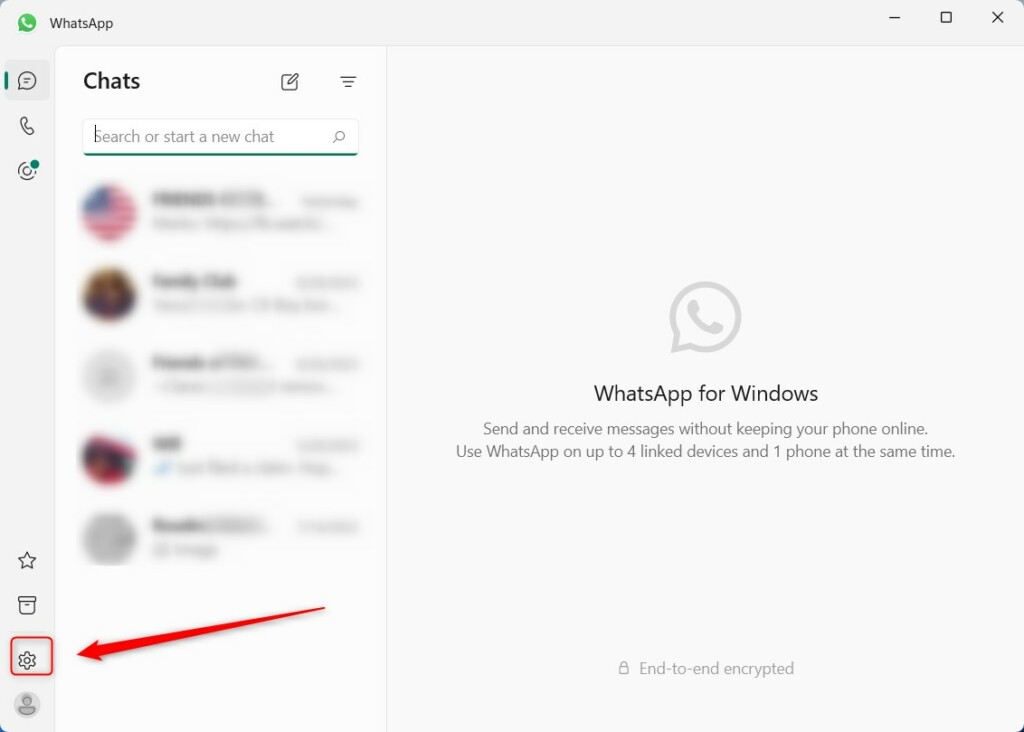
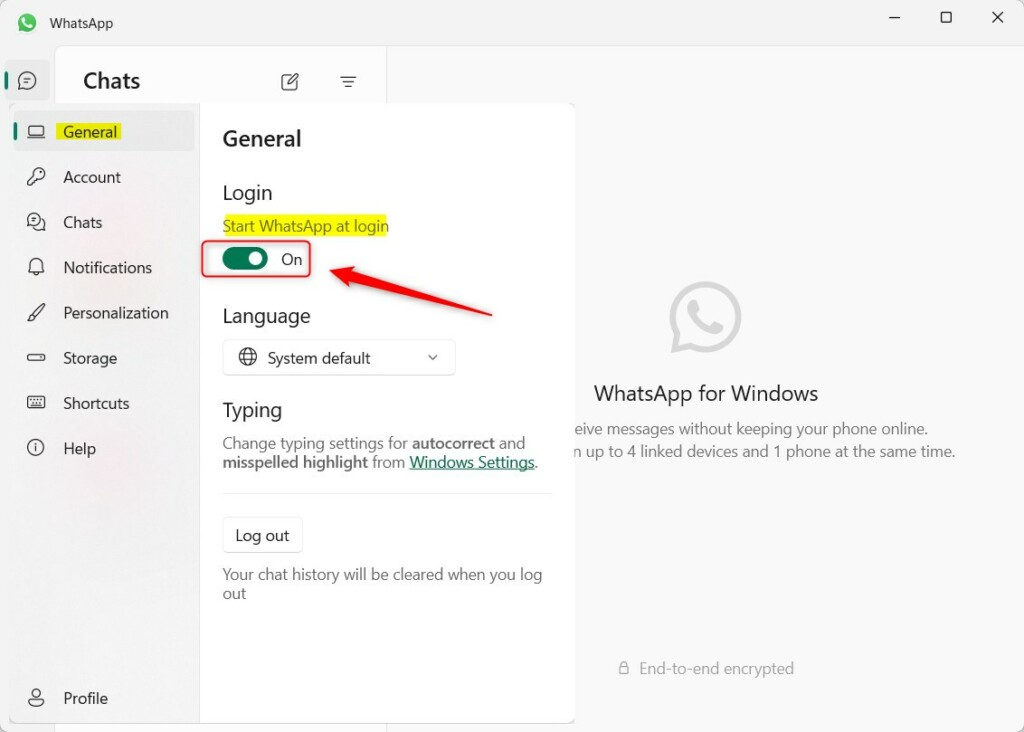
- Click on the General tab located on the left side of the window.
- Find the Login section on the right.
- Click the toggle switch to turn Start WhatsApp at login to On or Off based on your preference.
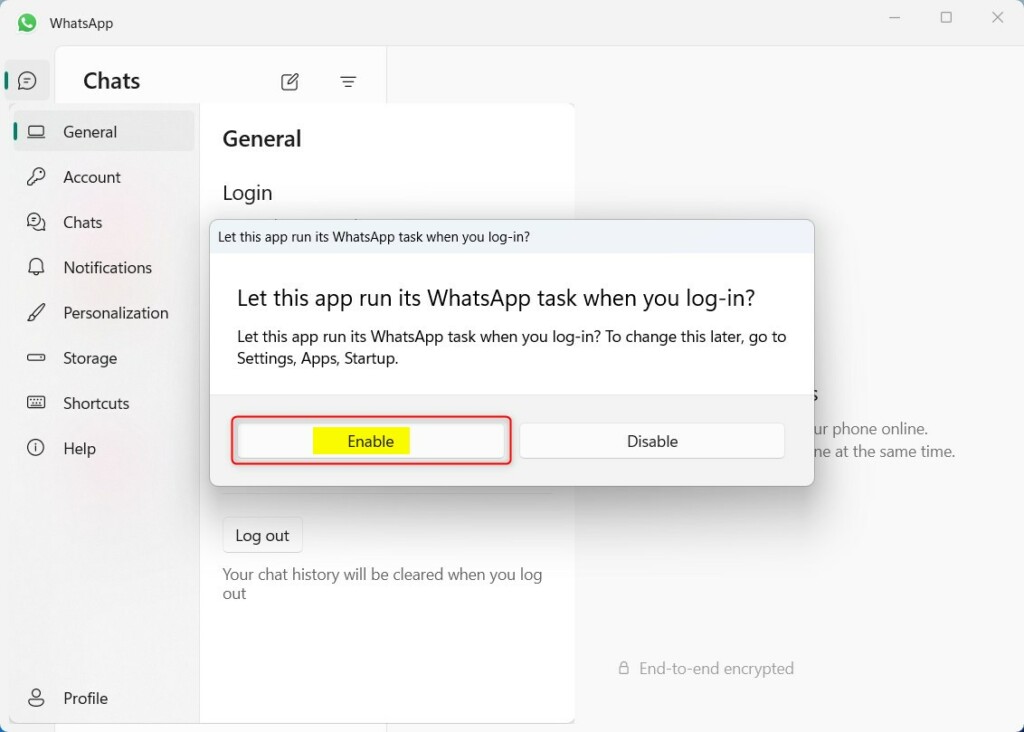
If you turn this feature On, the app will ask for your permission to run in the background whenever you sign in to your Windows account.
Managing Startup Apps in Windows 11 Settings
Windows 11 has a dedicated menu to manage which apps launch at startup. This is often more effective than the in-app settings.
- Press Windows Key + I to open Settings.
- Navigate to Apps > Startup.
- Find WhatsApp in the list.
- Toggle the switch to On or Off.
Using Task Manager to Control Startup
Task Manager gives you a bird’s-eye view of all startup processes. If WhatsApp is ignoring your settings, check here.
- Press Ctrl + Shift + Esc to open Task Manager.
- Click the Startup apps tab on the left sidebar.
- Right-click WhatsApp and select Disable or Enable.
Troubleshooting Persistent Auto-Start
If WhatsApp keeps opening, you may need to check the Windows Registry. Warning: This requires admin privileges and should be done carefully.
- Press Windows Key + R, type regedit, and hit Enter.
- Navigate to:
HKEY_CURRENT_USER\Software\Microsoft\Windows\CurrentVersion\Run - If you see a WhatsApp entry here, you can right-click and Delete it to force it to stop.
Summary
Managing your startup apps is a great way to customize your computer experience. Enabling auto-start for WhatsApp is perfect for users who rely on the service constantly. Disabling it is better if you prefer a clean desktop or want to keep your computer’s startup process fast by limiting the number of apps running in the background.” }
Why does WhatsApp open on startup even if I disabled it?
Sometimes apps have multiple startup triggers. If you disabled it in the app settings but it still opens, check the Windows Startup menu or the Task Manager. Occasionally, a background process or a registry key might be forcing the launch, requiring a manual removal from the startup list.
How to stop WhatsApp from running in the background on Windows 11?
To stop background activity, go to Windows Settings, select Apps, then Installed Apps. Find WhatsApp, click the three dots, and choose Advanced options. Under Background apps permissions, set it to Never. This prevents the app from using system resources when you are not actively using the program.
Was this guide helpful?

About the Author
Richard
Tech Writer, IT Professional
Richard, a writer for Geek Rewind, is a tech enthusiast who loves breaking down complex IT topics into simple, easy-to-understand ideas. With years of hands-on experience in system administration and enterprise IT operations, he’s developed a knack for offering practical tips and solutions. Richard aims to make technology more accessible and actionable. He's deeply committed to the Geek Rewind community, always ready to answer questions and engage in discussions.



[…] can configure many settings with the WhatsApp app in Windows, including starting the WhatsApp app at login, turning read receipts on or off, turning notifications on or off, turning automatic […]
[…] can configure many settings with the WhatsApp app in Windows, including starting the WhatsApp app at login, turning read receipts on or off, turning notifications on or off, turning automatic downloads […]
[…] can configure many settings with the WhatsApp app in Windows, including starting the WhatsApp app at login, turning read receipts on or off, turning notifications on or off, turning automatic […]
[…] can configure many settings with the WhatsApp app in Windows, including starting the WhatsApp app at login, turning read receipts on or off, turning notifications on or off, turning automatic […]
[…] can configure many settings with the WhatsApp app in Windows, including starting the WhatsApp app at login, turning read receipts on or off, turning notifications on or off, turning automatic […]
[…] can configure many settings with the WhatsApp app in Windows, including starting the WhatsApp app at login, turning read receipts on or off, turning notifications on or off, turning automatic […]
[…] can configure many settings with the WhatsApp app in Windows, including starting the WhatsApp app at login, turning read receipts on or off, turning notifications on or off, turning automatic […]
[…] can configure many settings with the WhatsApp app in Windows, including starting the WhatsApp app at login, turning read receipts on or off, turning notifications on or off, turning automatic […]
[…] app in Windows allows users to configure many settings, including installing it, starting the app at login, turning read receipts on or off, turning notifications on or off, turning automatic downloads […]
[…] can configure many settings with the WhatsApp app in Windows, including starting the WhatsApp app at login, turning read receipts on or off, turning notifications on or off, turning automatic […]
[…] many settings with the WhatsApp app in Windows, including installing WhatsApp on Windows, starting the WhatsApp app at login, turning read receipts on or off, turning notifications on or off, turning automatic […]
[…] can configure many settings with the WhatsApp app in Windows, including starting the WhatsApp app at login, turning read receipts on or off, turning notifications on or off, turning automatic downloads […]
[…] calling, and sharing files on your computer. You can change many settings in the app, such as starting the WhatsApp app at login and turning read receipts on or […]