How to Enable or Disable Windows Device Portal in Windows 11

You enable or disable the Windows Device Portal in Windows 11 to remotely manage and debug your PC using a web browser.
The Windows Device Portal (WDP) is a web-based server application that allows you to remotely access and manage various aspects of your Windows 11 device. It provides a dashboard for monitoring performance, managing applications, and configuring settings from another device on your network.
With Windows Device Portal, you can monitor your CPU and memory usage, install apps, and even stream your screen. This tool is especially useful for developers and IT professionals needing to troubleshoot or configure devices without direct physical access.
For Windows 11, enabling WDP is generally recommended only when you have a specific need for remote management. Leaving it disabled enhances your system’s security when not actively in use.
Open Settings, navigate to Accessibility, then For developer, and toggle Device Portal on or off. You must enable Developer Mode first. The portal allows remote management of your PC via a web browser.
How to Enable or Disable Windows Device Portal
You can turn the Windows Device Portal on or off right from your Windows 11 settings, but first, you’ll need to make sure Developer Mode is enabled.
Once Developer Mode is on, follow these simple steps:
- Open the Settings app by clicking the Start button and selecting Settings, or press
Windows key + Ion your keyboard. - In Settings, click Accessibility on the left side menu.
Windows 11 Accessibility in Settings - On the right side, click the For developer section to open it.
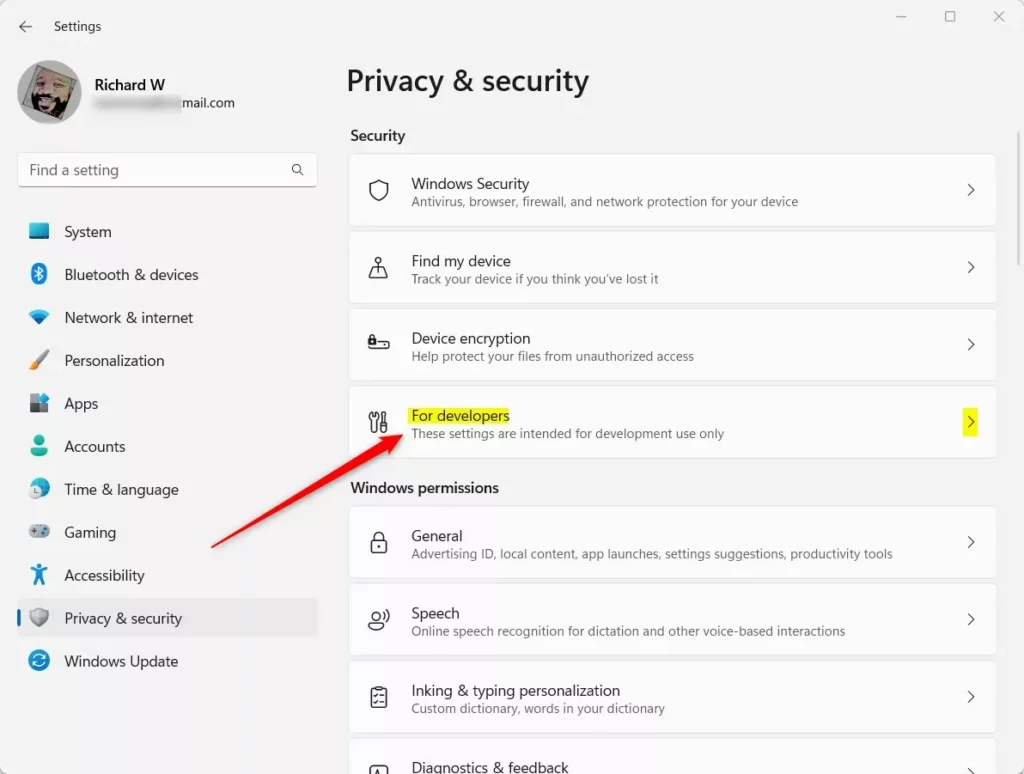
Windows for developer tile in the settings app - Look for Device Portal and turn the switch ON to enable it .
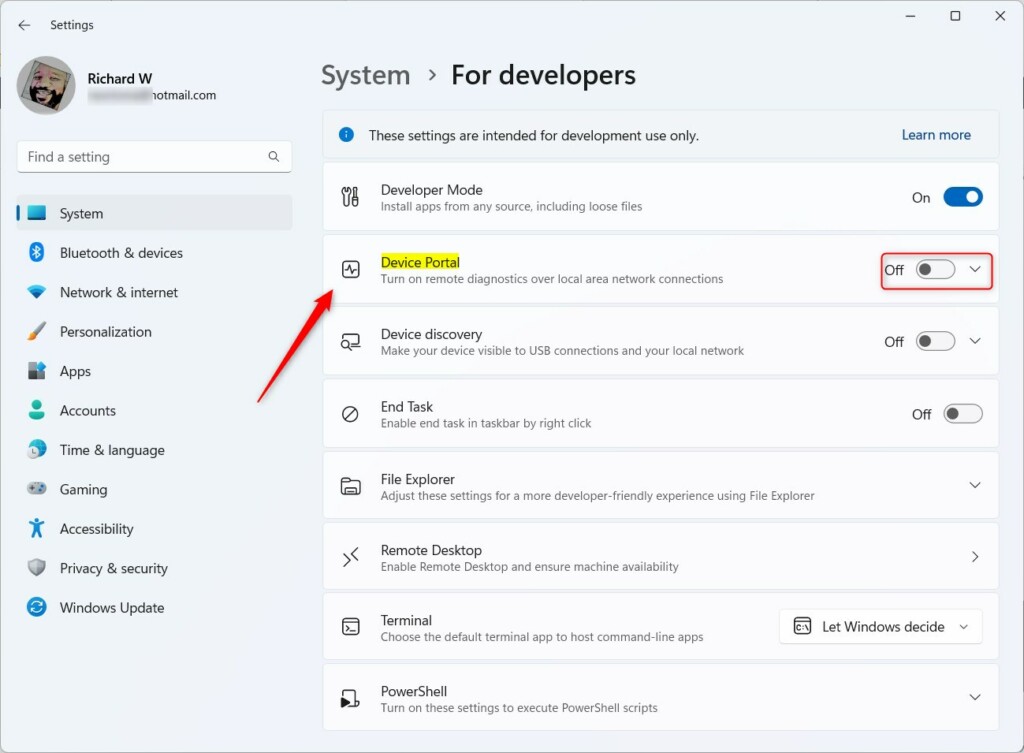
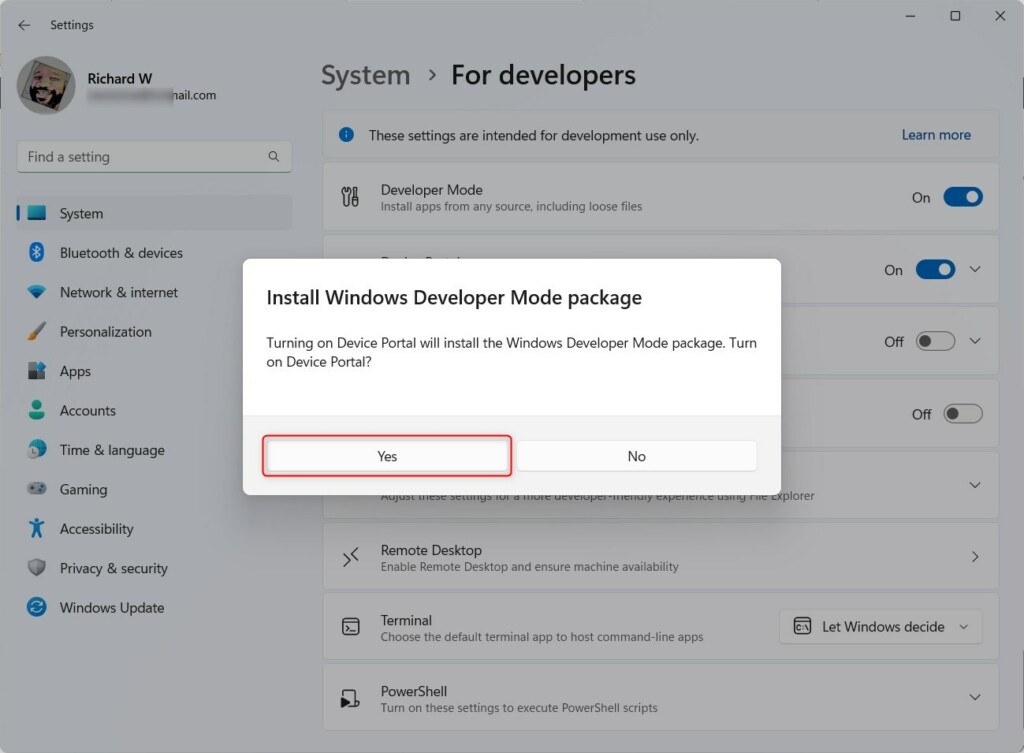
Turn on Device Portal switch - The first time you turn it on, Windows will ask to download a small Developer Mode package. Click Yes to install it.
Install Developer Mode package - After Device Portal is enabled, you can choose to turn on Authentication. This means anyone trying to access your PC through Device Portal will need to enter a username and password for security.
- The page will also show you the web address (local host address) to connect to your PC’s Device Portal.
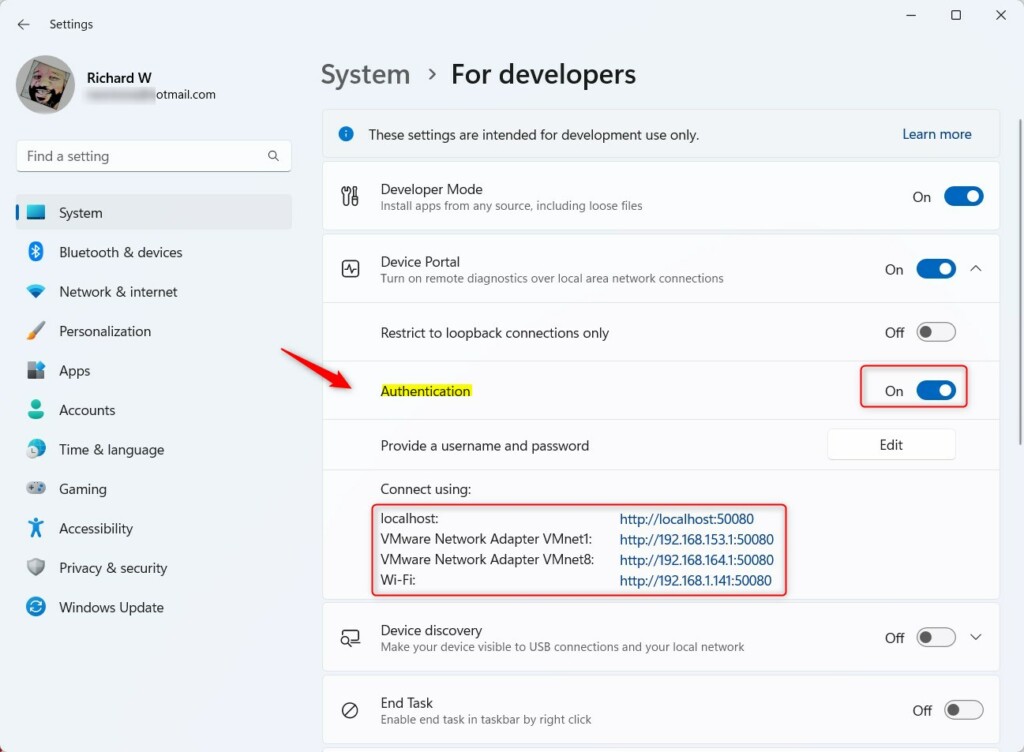
Windows Device Portal settings - Open any web browser on your PC and type the local host address shown. You will see the Device Portal login page.
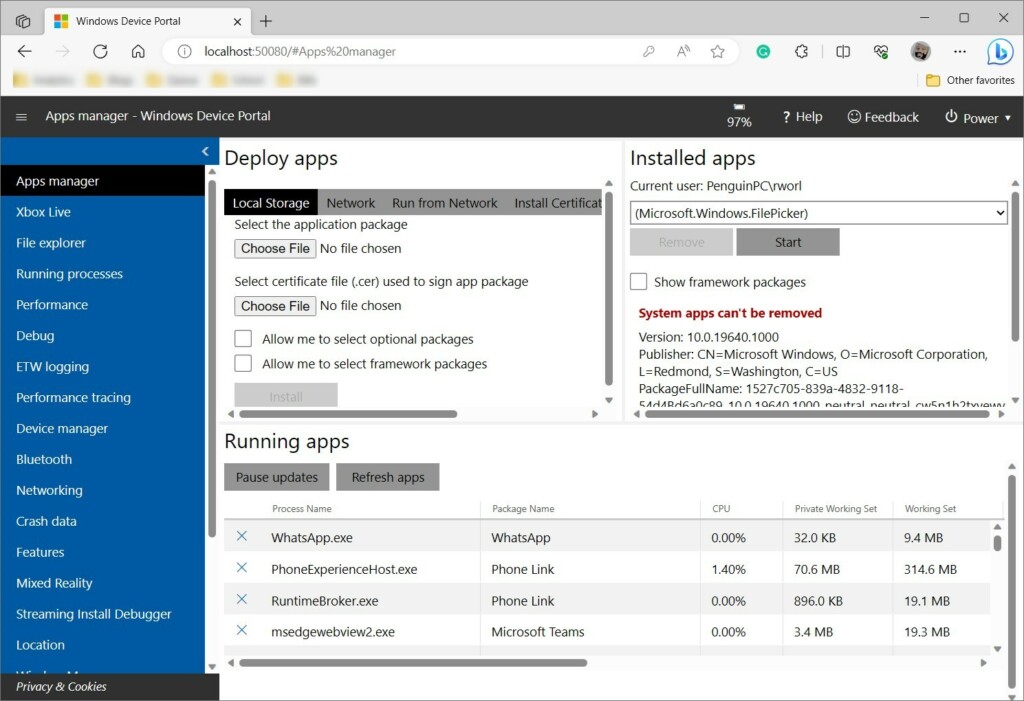
Windows Device Portal web page
That’s it! You have turned on Windows Device Portal and can now use it to manage your PC.
Summary
- Windows Device Portal lets you control and check your Windows 11 PC remotely with advanced tools.
- You need to enable Developer Mode before you can turn on Device Portal.
- Turning on Authentication keeps your PC secure by asking for a username and password.
- You can turn Device Portal on or off anytime depending on your needs.
The Windows Device Portal is a handy tool that lets you manage and check your Windows 11 computer from another device, using some advanced features.
If you have questions or want to share your experience, please leave a comment below!
What is Windows device portal?
The Windows Device Portal (WDP) lets you configure and manage your device remotely over your local network. The main features are documented on the Windows Device Portal overview page.
How do I turn on device portal?
And as soon as you click on. Yes you will see this notification. We are adding a new feature to Windows this could take a minute if you click on that notification you will be taken to optional.
What is the company portal for Windows devices?
The Company Portal on your Windows device is an app that helps you get to your work stuff, like email and files, and makes signing in easier.
How do I check if my Windows has MDM?
Navigate to your device's “Start” menu, type in “Control Panel”, and click “Open”. Next, go to “System and Security”. If your device is managed, you will see a “Configuration Manager”. Click on “Configuration Manager” > “Configurations”.
Was this guide helpful?

About the Author
Richard
Tech Writer, IT Professional
Richard, a writer for Geek Rewind, is a tech enthusiast who loves breaking down complex IT topics into simple, easy-to-understand ideas. With years of hands-on experience in system administration and enterprise IT operations, he’s developed a knack for offering practical tips and solutions. Richard aims to make technology more accessible and actionable. He's deeply committed to the Geek Rewind community, always ready to answer questions and engage in discussions.


No comments yet — be the first to share your thoughts!