

Do you use a touchscreen device with Windows 11? You might see a virtual keyboard called the Touch keyboard. This keyboard appears when you tap on a text box or form to type.
One useful feature on this Touch keyboard is the voice typing mic button. It lets you speak to your computer, and it types what you say. This guide will show you how to turn this mic button on or off.
Why Use Voice Typing?
Voice typing is helpful when you want to enter text faster. Instead of typing with your fingers, you can simply speak. Your computer will convert your words into text.
How to Turn On or Off the Voice Typing Mic Button Using Windows Settings
This is the easiest method. Follow these simple steps:
- Open Windows Settings. Click the Start menu button and choose Settings. Or press
Windows key + Ion your keyboard. - In the Settings window, click on Time & language on the left side.
- On the right side, click the Typing section to open it.
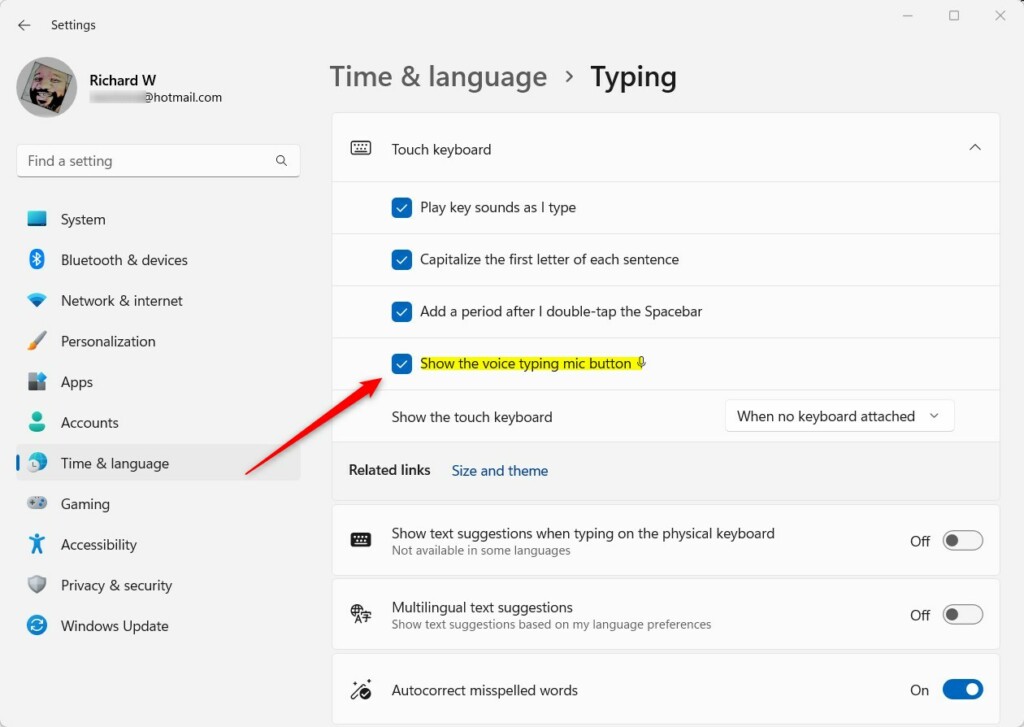
- Find and expand the Touch keyboard section.
- Look for the option “Show the voice typing mic button” and check the box to turn it on. Uncheck it to turn it off.
How to Turn On or Off the Voice Typing Mic Button Using the Registry (For Advanced Users)
If you’re comfortable making changes inside Windows, you can also turn this feature on or off using the Registry Editor.
Warning: Be careful when using the Registry Editor. Changing wrong settings can cause problems.
⚠️ Admin privileges required for this method.
Here’s how:
- Open the Registry Editor by typing
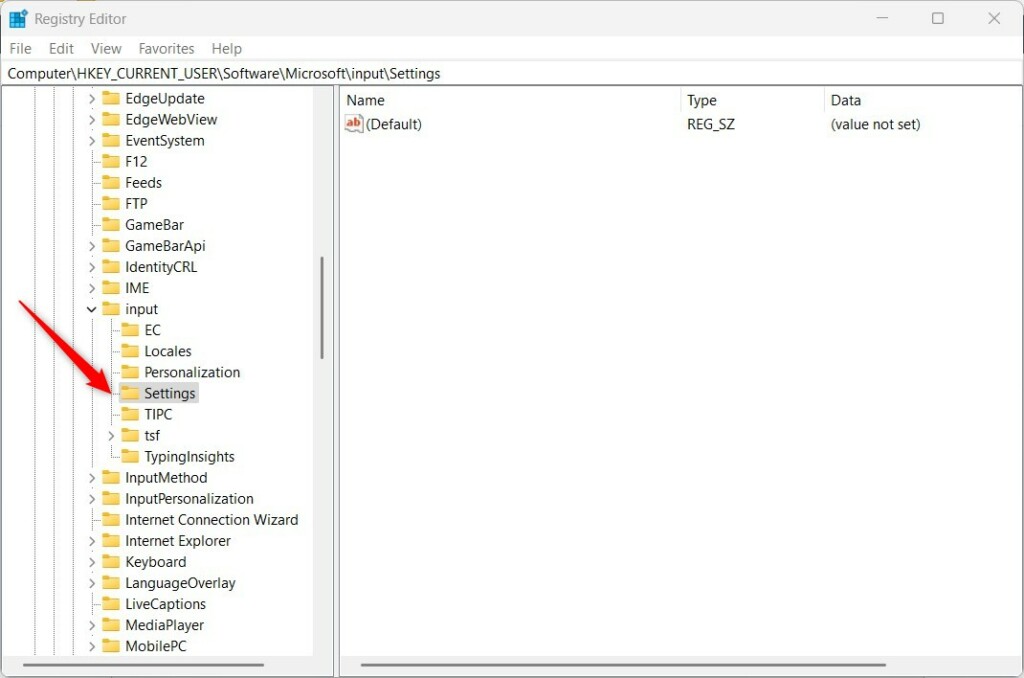
regeditin the Start menu search and pressing Enter. - Go to this folder (key):
HKEY_CURRENT_USER\Software\Microsoft\InputSettings - If you don’t see the Settings folder, right-click on Input. Select New > Key and name it Settings.
- Right-click on the right side of the Settings folder. Choose New > DWORD (32-bit) Value and name it IsVoiceTypingKeyEnabled.
- Double-click this new value. Set the Base to Decimal and enter:
1to turn the mic button ON0to turn the mic button OFF
- Click OK and close the Registry Editor.
- Restart your computer for the changes to take effect.
Summary
You can easily turn the voice typing mic button on or off from the Windows Settings. This is the best method for most users.
For advanced users, the same can be done by changing a setting in the Windows Registry. Just remember to be careful when editing the registry.
This feature helps you type with your voice. It makes entering text easier and faster on touch devices.
Choose the method that works best for you and your comfort level. Enjoy using voice typing on your Windows 11 device!


Leave a Reply