
If you use a touchscreen on your Windows 11 computer, you can make it easier to use by turning on a special touch gesture called the two-finger press and hold. This guide will show you how to turn it on or off.
What is a Touch Gesture?
A touch gesture is an action you do with your fingers on the screen. For example, tapping, swiping, or pressing two fingers down at the same time. These gestures help you control your device quickly without using a mouse or keyboard.
Why Use Two-Finger Press and Hold?
- Easy to use: It helps you open menus or options quickly.
- Better control: It can make your touchscreen experience smoother and faster.
Steps to Turn On Two-Finger Press and Hold Gesture
- Open Windows Settings: Click the Start menu button (the Windows icon at the bottom-left corner) and then click Settings. Or simply press
Windows key + Ion your keyboard. Learn more about opening Settings - Go to Bluetooth & devices: In the Settings window, find and click on Bluetooth & devices on the left side menu.
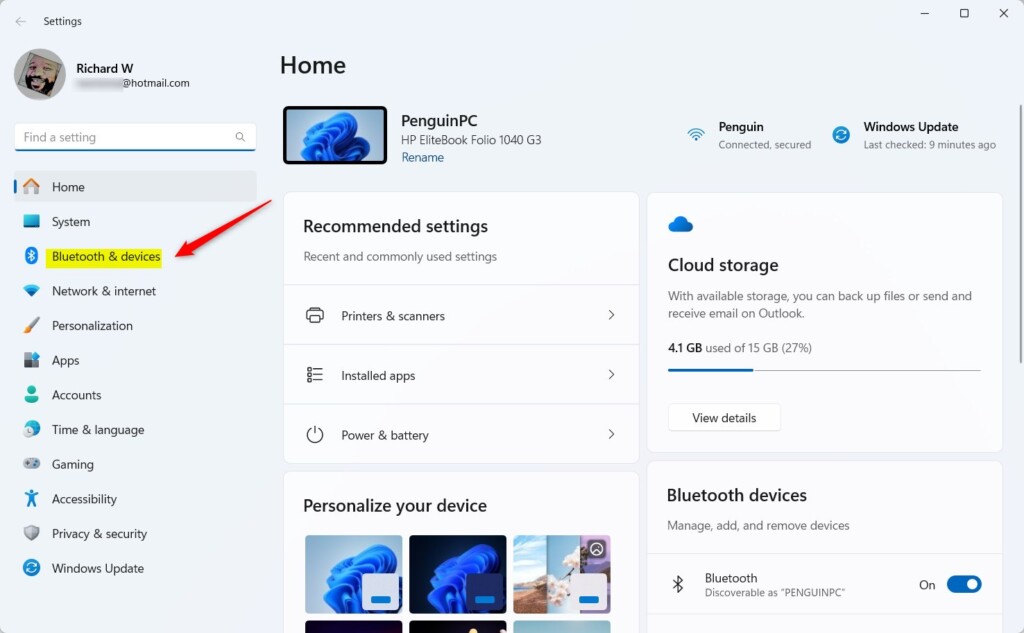
- Open Touch settings: On the right side, click the Touch tile to open touch options.
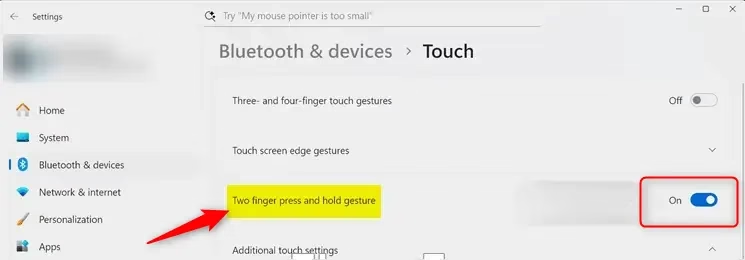
- Turn On Two-Finger Press and Hold: Look for the option called Two finger press and hold gesture. Click it, then toggle the switch to On to enable it. To turn it off, just toggle the switch to Off.
That’s It!
You have now turned on (or off) the two-finger press and hold gesture on your Windows 11 touchscreen device.
Summary
Using this gesture can make your touchscreen easier and faster to use. Remember:
- Personalize your device: You can turn this feature on or off anytime based on your preference.
- Navigate faster: Touch gestures like this help you control your computer in a simple way.
If you want to learn more about Windows 11 tips and tricks, check out Geek Rewind’s Windows 11 guides.
Frequently Asked Questions
What is a Touch Gesture?
Why Use Two-Finger Press and Hold?



Leave a Reply