How to Enable or Disable Windows Update Delivery Optimization in Windows 11

Want to speed up your Windows 11 updates or manage your bandwidth better? You can control Windows Update Delivery Optimization right from your Settings app.
Delivery Optimization is a feature that helps speed up Windows updates and app downloads. It works by letting your PC download pieces of updates from other PCs on your local network or over the internet, and then upload those pieces to other computers. This peer-to-peer sharing can significantly reduce download times and bandwidth usage.
For instance, by default, Windows 11 often has Delivery Optimization set to download updates from both local and internet PCs. You can choose to limit this to just your local network or turn it off entirely.
Open Settings, navigate to Windows Update > Advanced options > Delivery Optimization. Toggle “Allow downloads from other PCs” on or off to enable or disable the feature.
What is Delivery Optimization?
Delivery Optimization in Windows 11 is a clever feature that helps your PC download updates and apps faster by sharing download pieces with other computers on your network or online, saving you internet data.
Here’s the idea:
- Your PC looks for other devices that already have parts of the update or app you need.
- It downloads small pieces from those devices and from Microsoft at the same time.
- This helps the download finish quicker and uses less internet data.
Important: Delivery Optimization only shares Windows updates and apps, never your personal files or information.
Turn On or Off Delivery Optimization in Settings
- Press
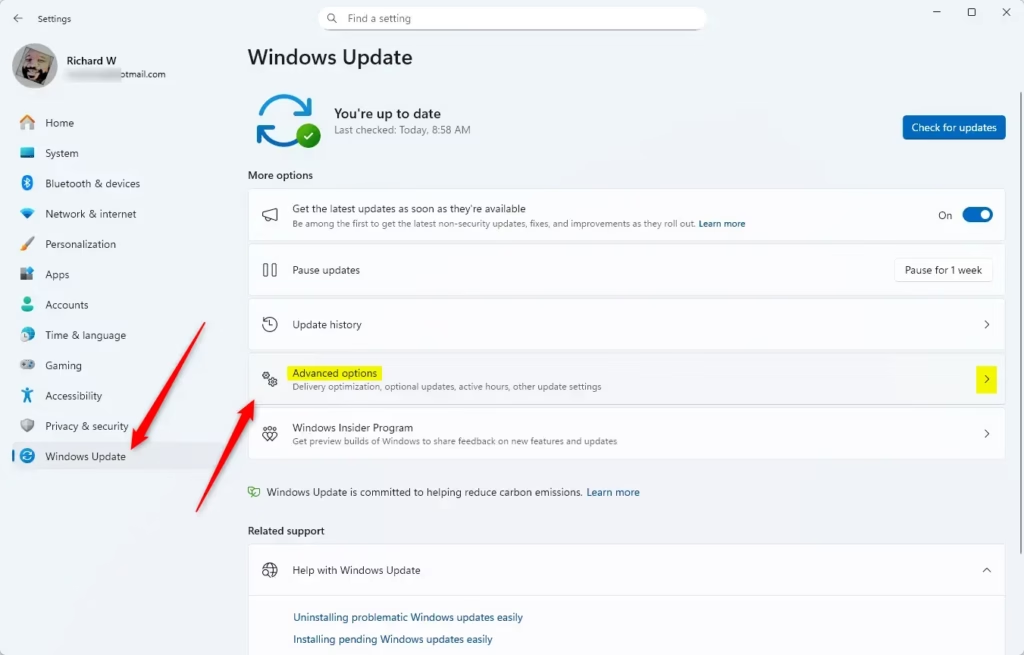
Win + Ion your keyboard to open Settings Settings. - On the left, click Windows Update. Then on the right, click Advanced options.
- Scroll down and click Delivery Optimization.
You can easily turn Delivery Optimization on or off in Windows 11 through the Settings app by going to Windows Update, then Advanced options, and finally Delivery Optimization.
- Switch on Allow downloads from other PCs.
- Choose either:
- Devices on my local network (recommended for home networks)
- Devices on the internet and my local network (allows sharing over the internet too)
To turn off Delivery Optimization:
- Switch off Allow downloads from other PCs.
You can now close Settings.
Enable or Disable Delivery Optimization Using Local Group Policy Editor
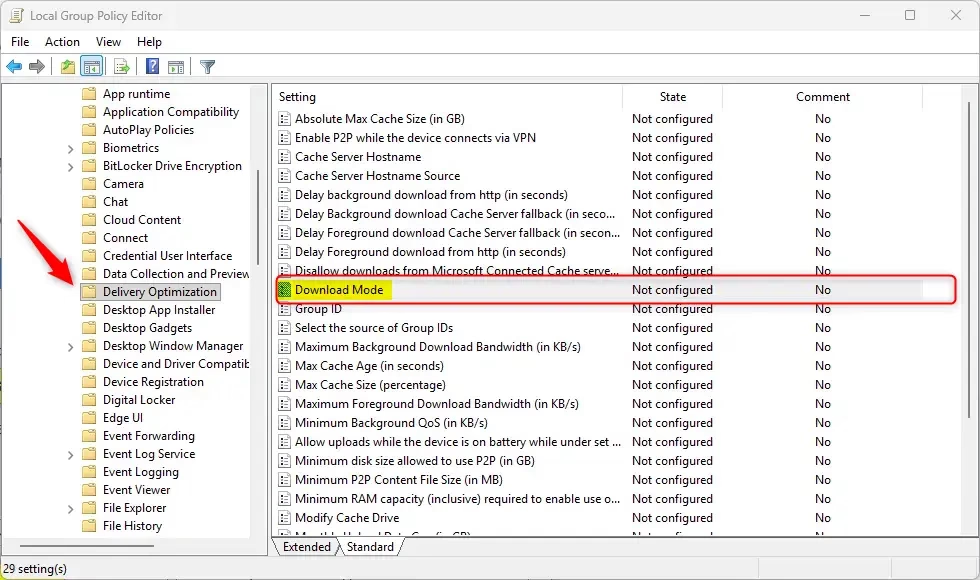
For Windows 11 Pro, Enterprise, and Education users, you can manage Delivery Optimization using the Local Group Policy Editor by opening it and navigating to the Delivery Optimization settings.
- **ADMIN REQUIRED** Press
Win + R, typegpedit.msc, and pressEnterto open the Local Group Policy Editor. - In the left pane, go to:
Computer Configuration\Administrative Templates\Windows Components\Delivery Optimization - On the right, double-click Download Mode.
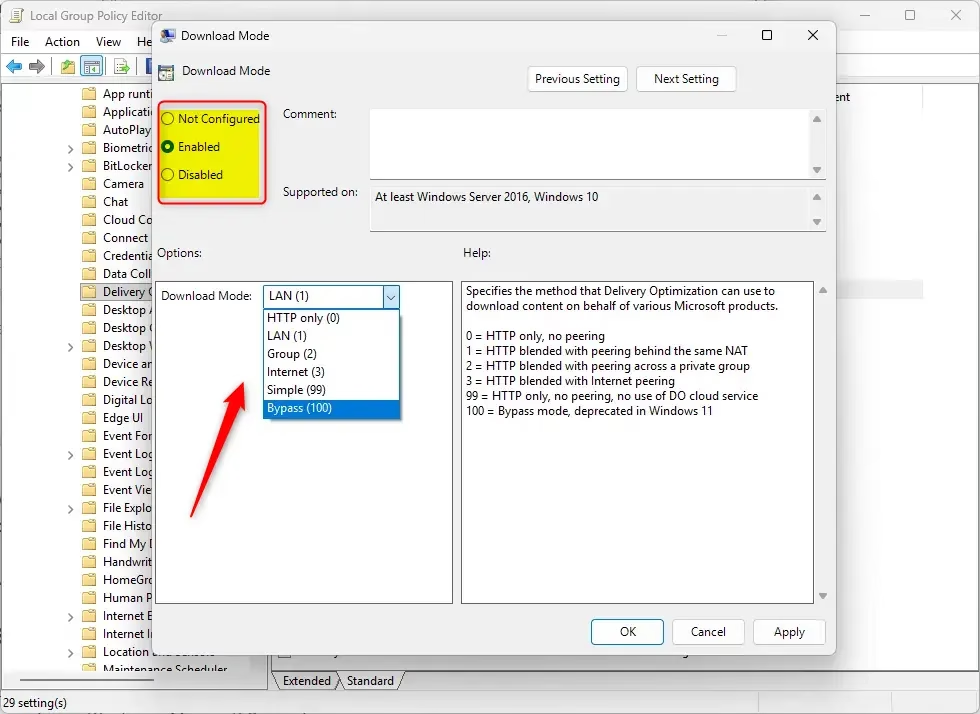
- Choose one of these options:
- Enable and select LAN (1) to allow downloads only from devices on your local network.
- Enable and select Internet (3) to allow downloads from devices on your local network and the internet.
- Enable and select HTTP only (0) to turn off Delivery Optimization (downloads only from Microsoft).
- Not Configured to let users decide in Settings.
- Click OK to save your choice.
- Close the Local Group Policy Editor.
Summary
- Faster updates: Downloads parts from other PCs to speed up updates.
- Data saving: Shares download data between PCs, saving internet bandwidth.
- Safe and private: Only shares Windows updates and apps, not personal files.
- Easy control: You can turn Delivery Optimization on or off anytime.
Delivery Optimization in Windows 11 offers faster updates by downloading parts from other PCs, saves your internet data, and provides easy control to turn the feature on or off.
Learn More
Was this guide helpful?

About the Author
Richard
Tech Writer, IT Professional
Richard, a writer for Geek Rewind, is a tech enthusiast who loves breaking down complex IT topics into simple, easy-to-understand ideas. With years of hands-on experience in system administration and enterprise IT operations, he’s developed a knack for offering practical tips and solutions. Richard aims to make technology more accessible and actionable. He's deeply committed to the Geek Rewind community, always ready to answer questions and engage in discussions.


No comments yet — be the first to share your thoughts!