
Windows 11 has a special hidden administrator account that gives full control over your computer. This account is turned off by default. When you enable it and sign in, you get full access without extra permission prompts.
User Account Control (UAC) is a safety feature. It asks for permission before making big changes to your system. But with the built-in administrator account, UAC might not always ask for confirmation. This can be risky.
This guide shows you simple ways to turn UAC on or off for the built-in administrator account. This helps you avoid accidental changes or problems.
Turn UAC On or Off Using Local Security Policy
This method uses a tool called Local Security Policy Editor. It lets you change security settings on your computer.
Why use this method? It’s straightforward and doesn’t require editing sensitive registry files.
What happens when done? UAC settings for the built-in administrator will change immediately after you restart.
Steps:
- Press Windows key + R on your keyboard to open the Run box.
- Type
secpol.mscand press Enter. - In the window that opens, go to Local Policies → Security Options on the left side.
- Look for the setting called “User Account Control: Admin Approval Mode for the Built-in Administrator account” on the right side.
- Double-click that setting.
- Choose Enabled to turn UAC on or Disabled to turn it off.
- Click OK.
- Close the Local Security Policy Editor.
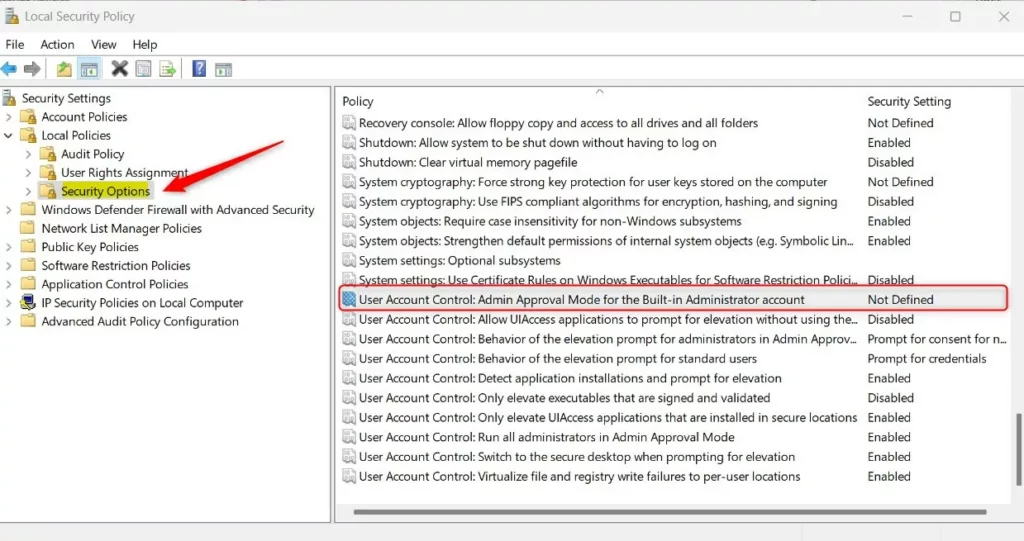 Local Security Policy Editor – Security Options
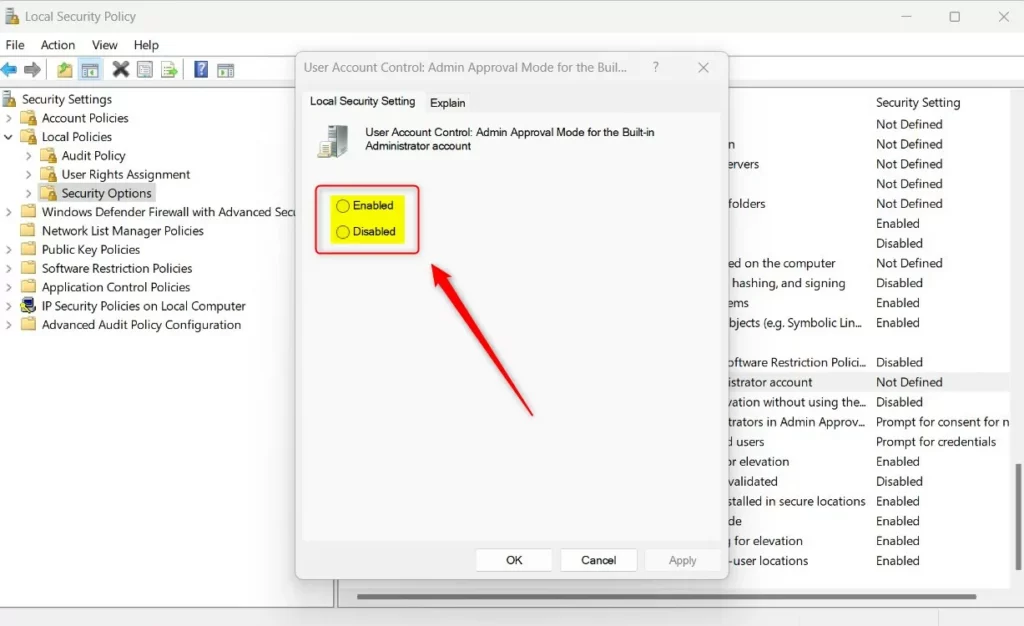 Enable or Disable UAC for Built-in Administrator
Remember to restart your computer after making changes.
Turn UAC On or Off Using Registry Editor
If you prefer, you can also use the Windows Registry Editor to make this change. Be careful, as editing the registry can affect your system.
Why use this method? It gives you direct control over the setting through the registry.
What happens when done? The UAC setting changes for the built-in administrator after you restart.
Steps:
- ⚠️ Requires admin privileges: Press Windows key + R, type
regedit, and press Enter. - If prompted by UAC, click Yes to continue.
- In the Registry Editor, navigate to this path:
HKEY_LOCAL_MACHINE\SOFTWARE\Microsoft\Windows\CurrentVersion\Policies\System - If the System folder is missing, right-click on Policies, select New → Key, and name it System.
- Right-click on the right side pane inside System and select New → DWORD (32-bit) Value.
- Name this new value
FilterAdministratorToken. - Double-click the
FilterAdministratorTokenentry. - Choose Decimal as the base.
- Set the value data:
- 1 to turn UAC ON for the built-in administrator.
- 0 to turn UAC OFF.
- Click OK and close the Registry Editor.
- Restart your computer to apply the changes.
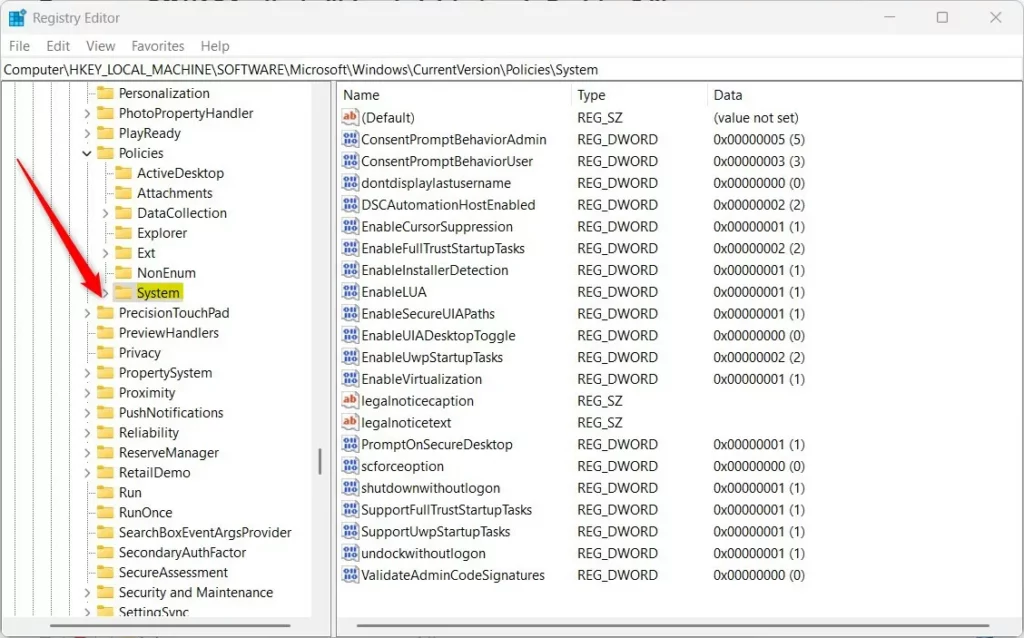 Registry Editor – Navigate to Policies > System
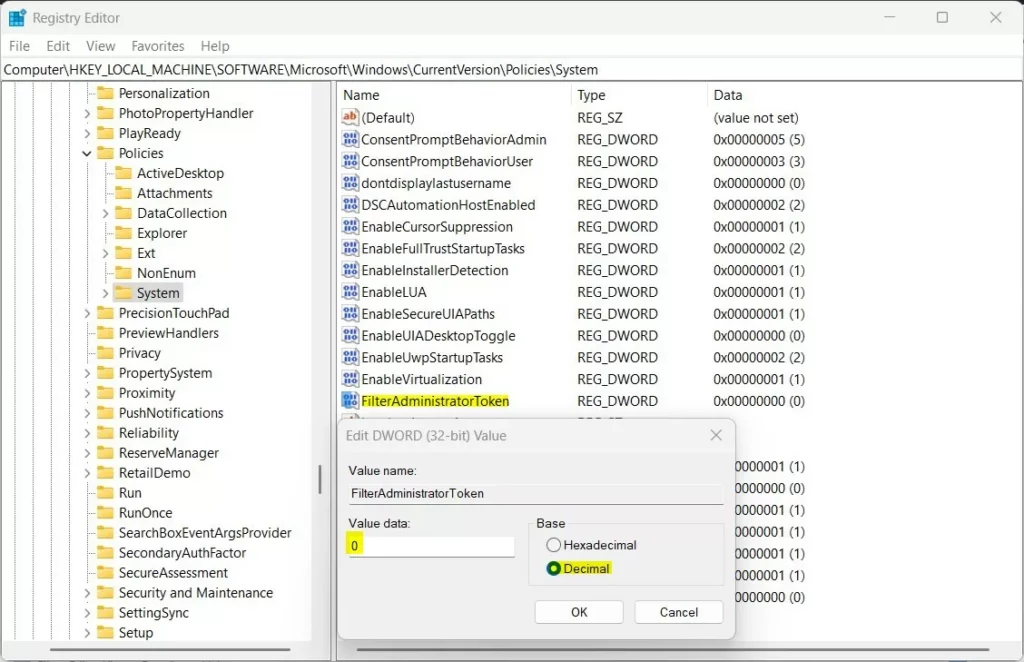 Set FilterAdministratorToken Value Data to 1 or 0
Summary
- The built-in administrator account in Windows 11 has full control and can run without asking for UAC permission.
- Using this account without UAC can be risky, as dangerous changes might happen without warning.
- You can turn UAC on or off for this account by using either the Local Security Policy Editor or the Registry Editor.
- Always restart your PC after making these changes so they take effect.
- If you want to learn more about enabling the built-in administrator account, check out this guide: How to Enable the Administrator in Windows 11.



Leave a Reply