How to Enable or Disable Toggle Keys Tone in Windows 11

Windows 11 includes a feature called Toggle Keys. It plays a sound whenever you press the Caps Lock, Num Lock, or Scroll Lock keys. This helps you know if you have accidentally turned these features on or off without looking at your keyboard lights.
Why use Toggle Keys?
This feature is useful if you want to avoid typing in all capital letters by mistake or if you need to know when your number pad is active. It provides an audible alert so you do not have to look down at your keyboard.
What happens when done?
Once enabled, your computer will beep every time you press those specific lock keys. A high-pitched tone usually signals that the feature is turned on, while a lower-pitched tone signals it is turned off. If you disable it, the computer will remain silent when those keys are pressed.
How to Enable or Disable Toggle Keys
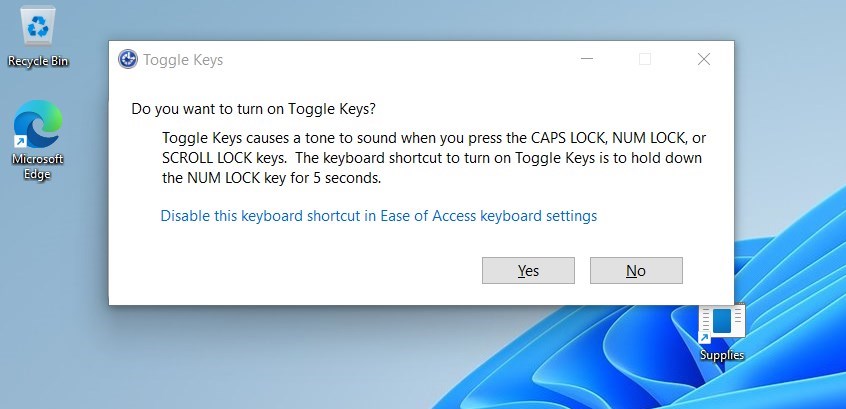
The fastest way to change this setting is using a keyboard shortcut:
- Press and hold the Num Lock key for 5 seconds.
- A window will pop up asking if you want to turn on Toggle Keys.
- Select Yes to confirm.
Using the Settings App
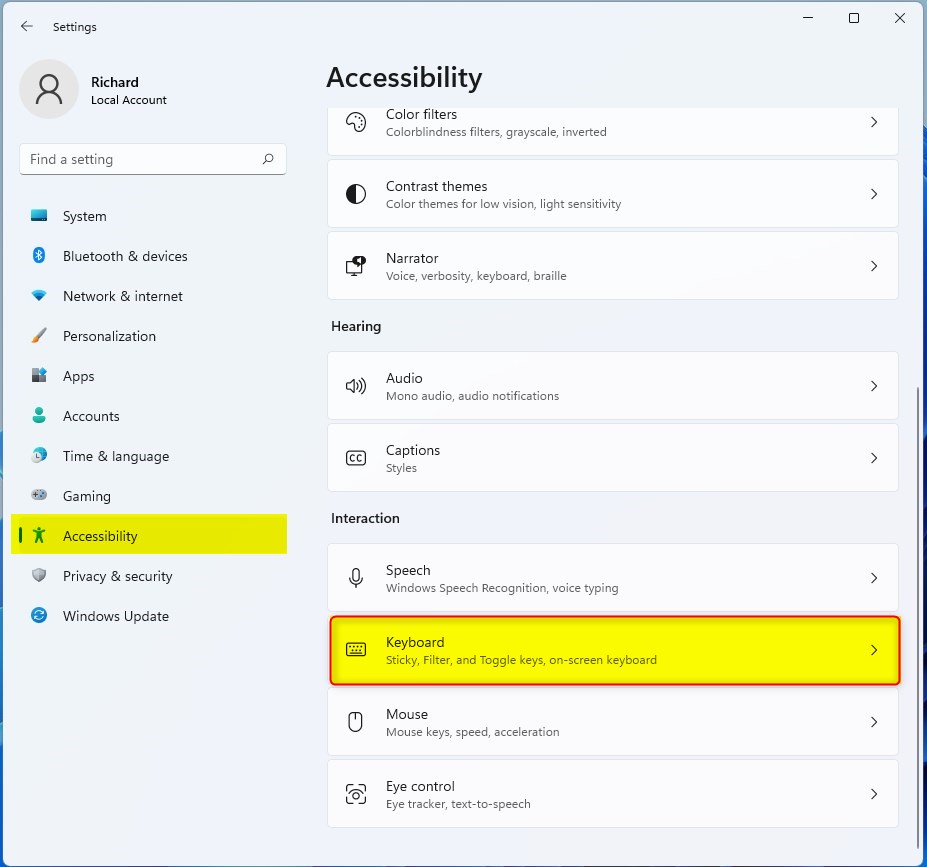
You can manage this through the Windows Settings app:
- Press Windows key + I to open Settings.
- Click on Accessibility in the menu on the left.
- Select the Keyboard tile on the right side.
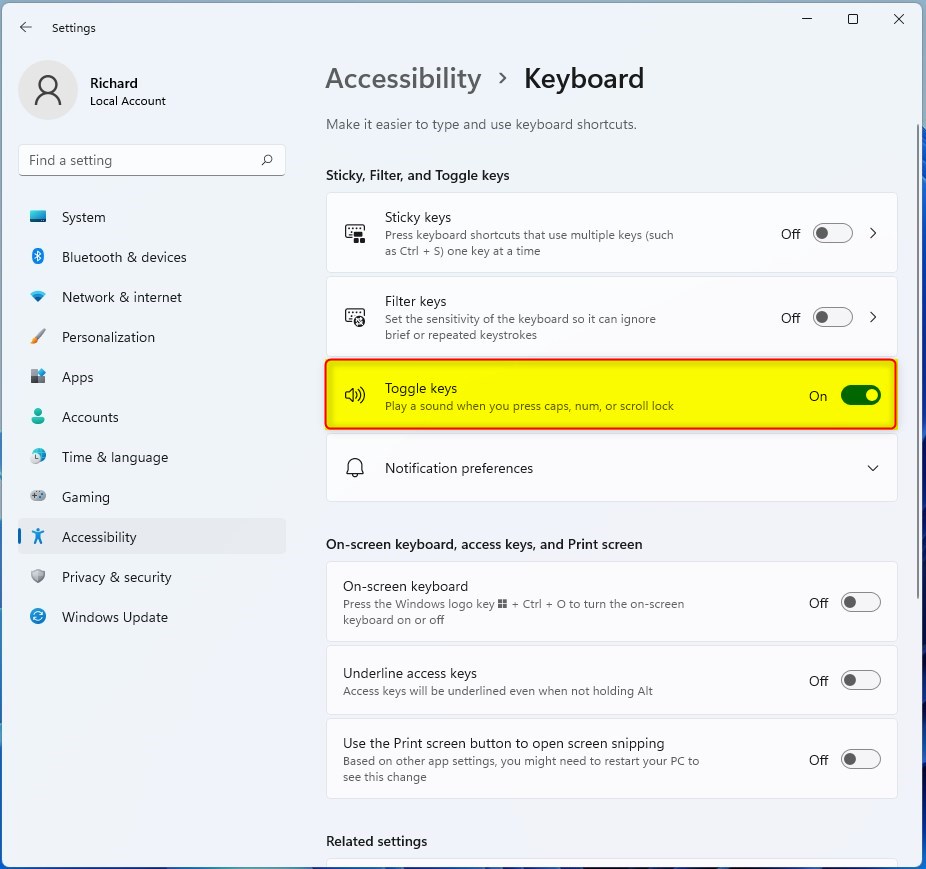
- Click on the Toggle keys option to switch it On or Off.

Control Panel Method
For users who prefer the classic interface, you can use the Control Panel:
- Press Windows key + R, type control, and hit Enter.
- Go to Ease of Access Center.
- Click Make the keyboard easier to use.
- Check or uncheck Turn on Toggle Keys.
Advanced Configuration and Troubleshooting
Registry Editor Method (Admin Required)
Advanced users can modify the registry to force this setting. Warning: Incorrect changes can cause system issues.
- Press Windows key + R, type regedit, and press Enter.
- Navigate to: HKEY_CURRENT_USER\Control Panel\Accessibility\ToggleKeys
- Modify the Flags string value. Setting it to 59 enables the feature, while 58 disables it.
PowerShell for IT Management (Admin Required)
IT administrators can use PowerShell to deploy this setting across multiple machines:
Set-ItemProperty -Path 'HKCU:\Control Panel\Accessibility\ToggleKeys' -Name 'Flags' -Value '59'
Troubleshooting Audio Issues
If you do not hear the tone, ensure your system volume is not muted. Check your audio drivers in Device Manager to ensure your speakers are working correctly. Toggle Keys relies on the default system sound scheme.
Summary
The Toggle Keys feature is a helpful accessibility tool in Windows 11 that provides audio feedback for lock keys. Whether you use the simple keyboard shortcut, the modern Settings app, or advanced registry edits, you can easily customize your experience. Always ensure your system volume is up if you are having trouble hearing the alerts.
Does Toggle Keys work for all keyboard types?
Yes, Toggle Keys works for almost all standard USB, wireless, and laptop keyboards. Since the feature is handled by the Windows operating system rather than the hardware itself, it will trigger the sound as long as the keyboard sends the standard lock key signals to the computer.
Can I change the pitch of the Toggle Keys tone?
Windows does not provide a native setting to change the specific pitch or frequency of the Toggle Keys sound. The tones are hardcoded into the system accessibility features to ensure they are distinct from other system notifications, helping you identify the status of your lock keys instantly.
Is Toggle Keys enabled by default in Windows 11?
No, Toggle Keys is disabled by default in Windows 11. Most users prefer to keep it off to avoid unnecessary beeping. You must manually enable it through the Accessibility settings or the keyboard shortcut if you want to receive auditory feedback when pressing the Caps, Num, or Scroll Lock keys.
Was this guide helpful?




[…] Assistive technology is a suite of features allowing people with disabilities to use Windows easily. These include a Narrator to help users read text on the screen, a Magnifier to make items on the screen larger, Stikcy keys to help press keyboard shortcuts one key at a time, Filter keys to help ignore extras presses with repeated keys, and Toggle Keys. […]
[…] Toggle Keys play a tone each time you press the Caps Lock, Num Lock, or Scroll Lock keys, indicating whether those keys are on or off. […]
[…] How to use Toggle Keys sounds […]