

In this guide, you’ll learn how to turn touch keyboard sounds on or off in Windows 11. It’s simple and takes just a few clicks.
Why This Matters
Windows 11 has a touch keyboard. You can tap it on your screen to type letters. This is helpful if your device has a touchscreen but no physical keyboard.
When you tap the keys, you hear a clicking sound. It’s like typing on a real keyboard. Some people like this sound. Others prefer to type quietly. You can choose what works best for you.
The Easy Way: Using Settings
Step 1: Open Settings
Click the Start button. Or press Win + I on your keyboard. The Settings app will open.
Step 2: Find Typing Settings
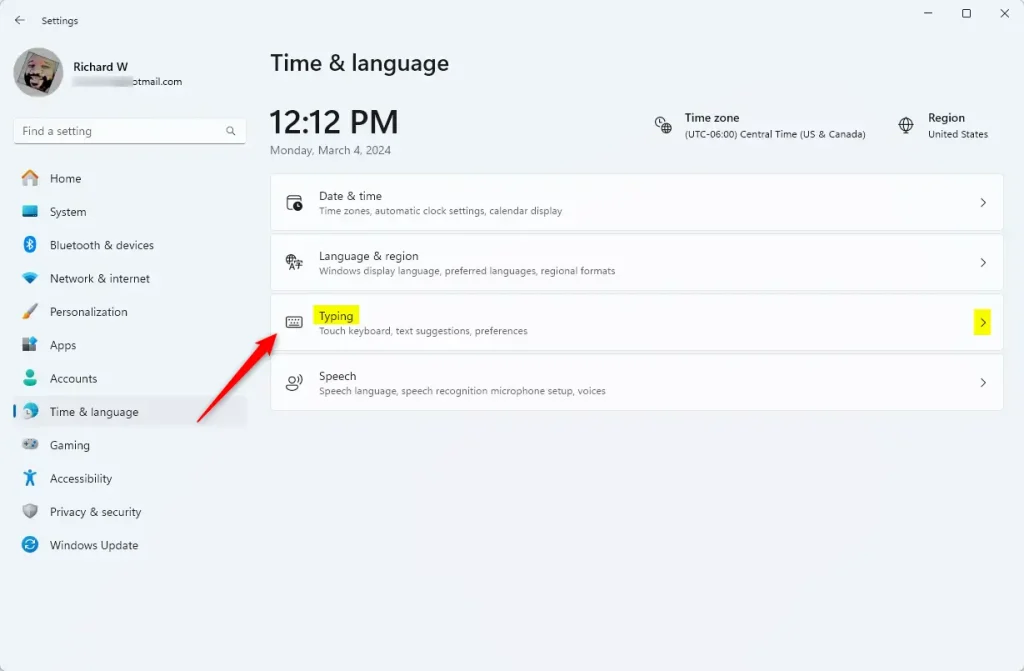
Click Time & language on the left side. Then click Typing on the right side.
Or use this shortcut: Open Typing Settings
Step 3: Open Touch Keyboard Options
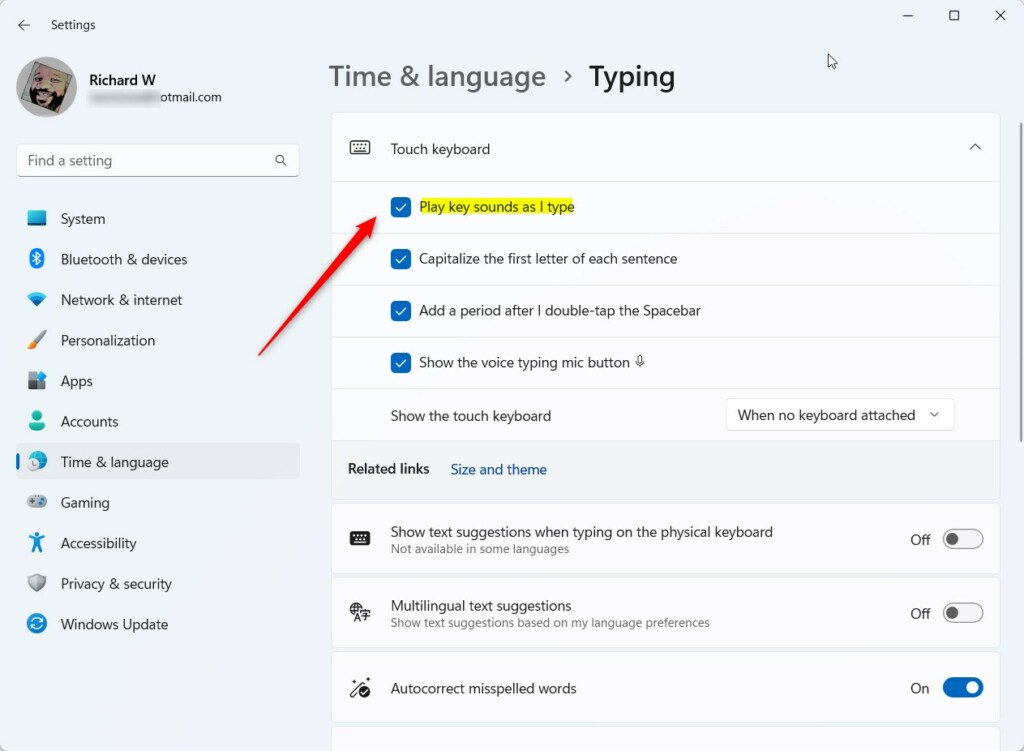
Look for Touch keyboard. Click the arrow next to it to see more options.
Step 4: Turn Sounds On or Off
You’ll see a box that says Play key sounds as I type.
- Check the box to turn sounds ON.
- Uncheck the box to turn sounds OFF.
Step 5: You’re Done
Close the Settings window. Your choice is saved automatically.
The Advanced Way: Using the Registry
What Happens: The Registry is where Windows stores settings. You can change the touch keyboard sound there too. Only do this if you’re comfortable making changes to your computer.
To Turn Sounds ON:
Open Command Prompt or PowerShell and type:
reg add "HKEY_CURRENT_USER\Software\Microsoft\TabletTip\1.7" /v EnableKeyAudioFeedback /t REG_DWORD /d 1 /fTo Turn Sounds OFF:
Open Command Prompt or PowerShell and type:
reg add "HKEY_CURRENT_USER\Software\Microsoft\TabletTip\1.7" /v EnableKeyAudioFeedback /t REG_DWORD /d 0 /fAnother option: Save the code to a file with a .reg extension. Then double-click the file to apply the change.
Summary
The touch keyboard is useful on devices with touchscreens but no physical keyboard. You can easily turn typing sounds on or off using the Settings app. The Settings method is the simplest choice for most people. If you’re comfortable with advanced tools, you can also use the Registry Editor. Choose the sound option that feels right for your needs. Try these steps and see what works best for you.



Leave a Reply