

This guide will help you turn on or off a helpful new feature in Windows 11 called the Settings Search Helper. It uses smart AI to help you find and change settings on your computer more easily.
What is the Settings Search Helper?
Starting with Windows 11 version 24H2, Microsoft added a smart assistant inside the Settings app on special Copilot+ PCs. This helper understands questions you type in plain language. It gives you advice or even helps fix problems automatically if you allow it.
Why use it? If you want to change your Wi-Fi settings but don’t know where to find them, just open Settings and type your question. The helper will guide you to the right place or make the change for you.
Note: Right now, this helper works best if your Windows language is set to English.
How to Turn the Settings Search Helper On or Off
You need to be signed in as an administrator to make these changes.
Option 1: Using the Local Group Policy Editor (For Windows 11 Pro, Enterprise, Education)
The Group Policy Editor lets you control Windows settings more easily. It’s only available in some Windows 11 editions.
- Press Windows key + R on your keyboard to open the Run box.
- Type
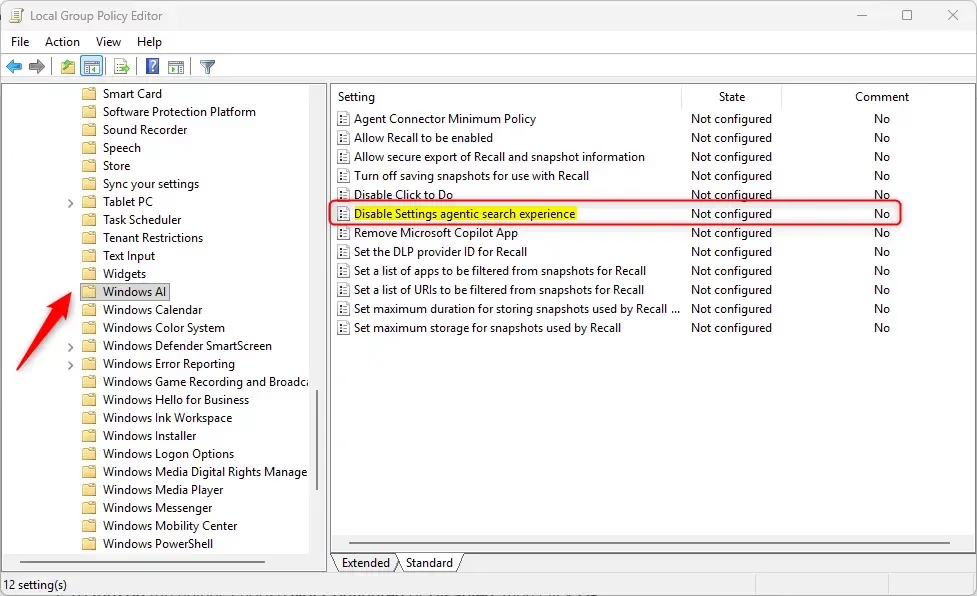
gpedit.mscand press Enter to open the Local Group Policy Editor. - In the left panel, go to: Computer Configuration > Administrative Templates > Windows Components > Windows AI
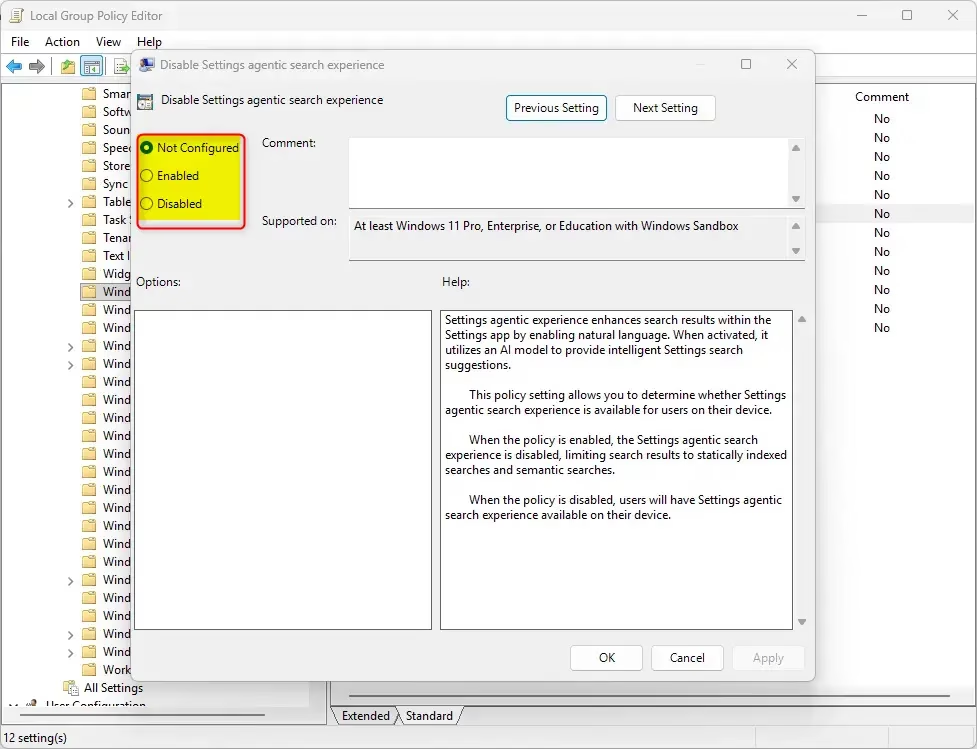
- In the right panel, find and double-click on “Disable Settings agentic search experience”.
- To turn on the helper, choose Not Configured or Disabled, then click OK.
- To turn off the helper, choose Enabled, then click OK.
Option 2: Using the Windows Registry (For All Windows Editions)
If you don’t have the Group Policy Editor, you can change the setting by editing the Registry. Be careful and follow these steps exactly.
⚠️ Admin privileges required for this step.
To Turn On the Settings Search Helper (Default):
reg delete "HKEY_LOCAL_MACHINE\SOFTWARE\Policies\Microsoft\Windows\WindowsAI" /v DisableSettingsAgent /fTo Turn Off the Settings Search Helper:
reg add "HKEY_LOCAL_MACHINE\SOFTWARE\Policies\Microsoft\Windows\WindowsAI" /v DisableSettingsAgent /t REG_DWORD /d 1 /fWhat Does This Feature Do For You?
- Easier to Find Settings: Just type your question like you would ask a person. The helper understands you.
- Helps Fix Problems: It can suggest solutions or even fix some settings automatically if you allow it.
- Works on More PCs: Available on many new Windows 11 computers with different processors like Snapdragon, AMD, and Intel.
- Quick Links: Gives you direct buttons to open the right settings page from your search.
- Language Support: Works in English now. French support is coming soon for some users.
- Easy to Turn On or Off: You decide if you want to use this helper or not.
By using this new Settings Search Helper, managing your Windows 11 computer settings becomes faster and easier!
For more official information, check out Microsoft’s guide: Configure the agent in Windows Settings.
Summary
The Settings Search Helper is a new AI feature in Windows 11 version 24H2 that helps you find settings and fix problems by understanding plain language questions. You can turn it on or off using either the Group Policy Editor (on Pro, Enterprise, or Education editions) or by editing the Windows Registry (on all editions). Admin privileges are required to make these changes. This feature makes managing your Windows 11 settings faster and easier, currently available in English with more language support coming soon.



Leave a Reply