How to Turn On or Off the Notifications Bell Icon in Windows 11

This guide will help you show or hide the notifications bell icon on your Windows 11 taskbar. The notifications bell shows up when you get new alerts and lets you see them all in one place.
What is the Notifications Bell Icon?
The notifications bell icon appears on the taskbar (bottom of your screen) when you get new notifications, like messages or reminders. When there are no notifications, the bell looks empty and you can still see the clock next to it.
How to Enable or Disable the Notifications Bell Icon (Easy Way)
This option is hidden in Windows 11 but you can turn it on using a free tool called ViVeTool. Follow these simple steps:
- Go to this page and download ViVeTool.
- Open the Command Prompt as an administrator:
- Click the Start button, type
cmd, right-click Command Prompt, and select Run as administrator. ⚠️ Admin privileges required
- Click the Start button, type
- In the Command Prompt, type this command and press Enter:
vivetool /enable /id:49082522 - Restart your computer to apply the change.
- Now, open Settings by pressing Windows + I.
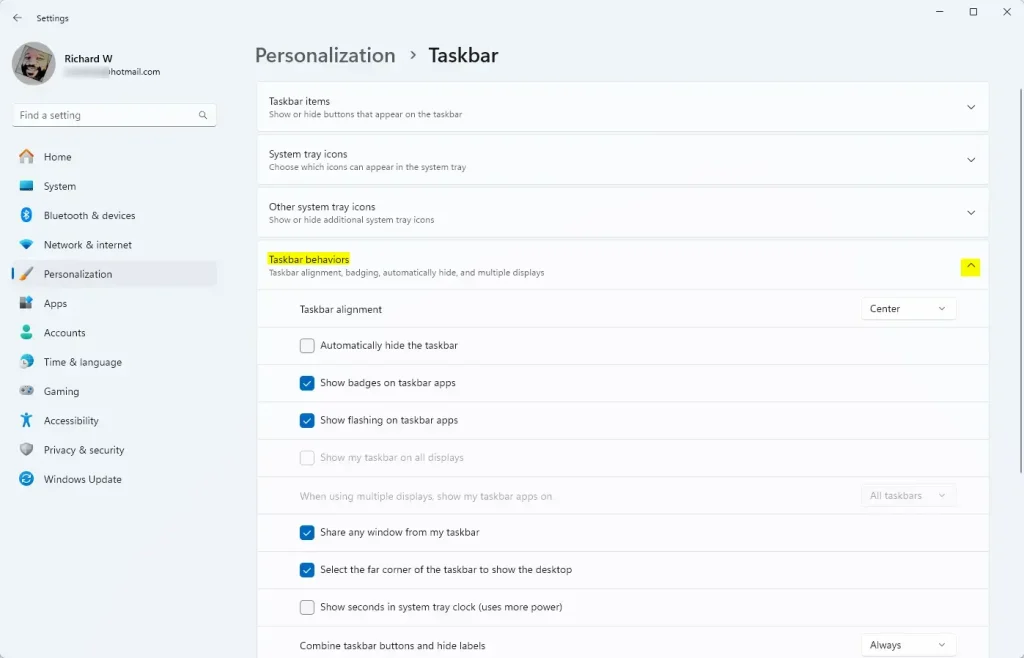
- Click Personalization on the left, then choose Taskbar on the right.
- Click Taskbar behaviors to open more options.
- Check or uncheck the box for Show notifications bell icon to turn it on or off.
- Close Settings when done.

How to Show or Hide Notifications Bell Using Windows Registry (Advanced Users)
If you prefer not to use ViVeTool, you can change a setting in the Windows Registry. This method is a bit more technical.
Warning: Be careful when editing the Registry. Making wrong changes can cause problems with your computer.
- Open the Registry Editor:
- Press Windows + R, type
regedit, and press Enter. ⚠️ Admin privileges required - If asked for permission, click Yes.
- Press Windows + R, type
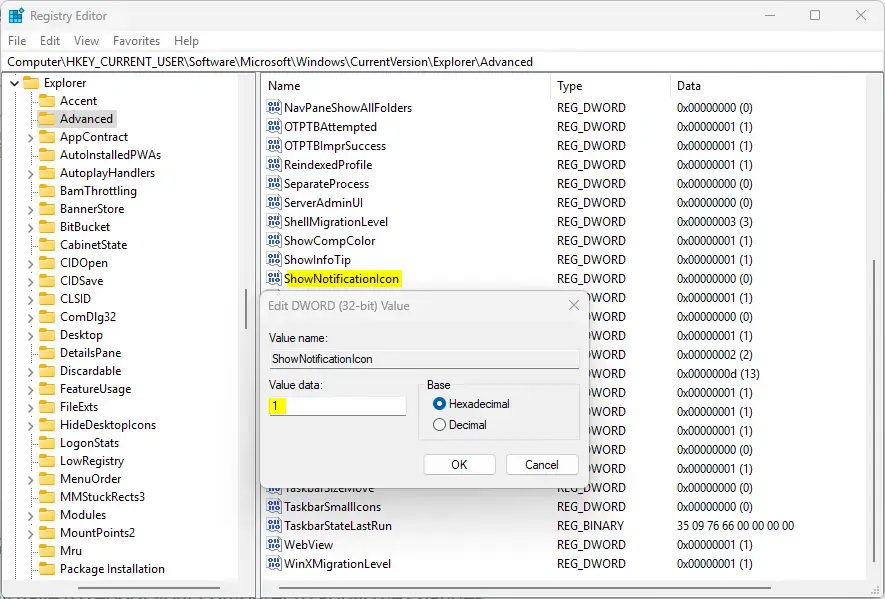
- Go to this folder (key):
Computer\HKEY_CURRENT_USER\Software\Microsoft\Windows\CurrentVersion\Explorer\Advanced - Look for a setting named
ShowNotificationIconin the right pane. - If it exists, double-click it and set its value to:
1to show the notifications bell0to hide the notifications bell
- If it doesn’t exist:
- Right-click on a blank spot in the right pane.
- Choose New > DWORD (32-bit) Value.
- Name it
ShowNotificationIcon. - Double-click it and set the value to 1 or 0 as above.
- Close the Registry Editor and restart your PC to see the changes.
Summary
Why use this? The notifications bell icon helps you quickly see alerts and messages on your Windows 11 taskbar.
What happens when done? Once enabled, the bell shows your notifications and a shorter clock format on the taskbar.
- You can turn the notifications bell icon on or off on your Windows 11 taskbar.
- The easiest way is by using the free ViVeTool app and then adjusting Taskbar settings.
- If you’re comfortable with advanced tools, you can also enable or disable it using the Windows Registry Editor.
- That’s all! Enjoy customizing your Windows 11 experience.
Was this guide helpful?



Leave a Reply Cancel reply