How to Turn On or Off the Notifications Bell Icon in Windows 11

To turn the notifications bell icon on or off in Windows 11, you’ll adjust a setting in the Personalization settings, specifically under ‘Taskbar behaviors’.
When new alerts arrive in Windows 11, a notification bell icon appears on your taskbar. This icon helps you see all your new alerts in one place. It acts as a quick gateway to your Action Center.
This icon is part of the broader taskbar customization options available within Windows 11. You can also change whether the clock or search icon shows up from this same spot.
If the bell icon bothers you or you prefer a cleaner taskbar, you can turn it off. Turning it on, on the other hand, means you won’t miss important app alerts.
You can turn the Windows 11 notifications bell icon on or off by using the ViVeTool app to enable the feature, then going to Settings > Personalization > Taskbar > Taskbar behaviors and checking or unchecking the “Show notifications bell icon” box. Alternatively, advanced users can modify the Windows Registry.
What is the Notifications Bell Icon?
The notifications bell icon appears on the taskbar (bottom of your screen) when you get new notifications, like messages or reminders. When there are no notifications, the bell looks empty and you can still see the clock next to it.
How to Enable or Disable the Notifications Bell Icon (Easy Way)
You can turn the Windows 11 notifications bell icon on or off easily using a free tool called ViVeTool.
- Go to this page and download ViVeTool.
- Open the Command Prompt as an administrator:
- Click the Start button, type
cmd, right-click Command Prompt, and select Run as administrator. ⚠️ Admin privileges required
- Click the Start button, type
- In the Command Prompt, type this command and press Enter:
vivetool /enable /id:49082522 - Restart your computer to apply the change.
- Now, open Settings by pressing ⊞ Win+I.
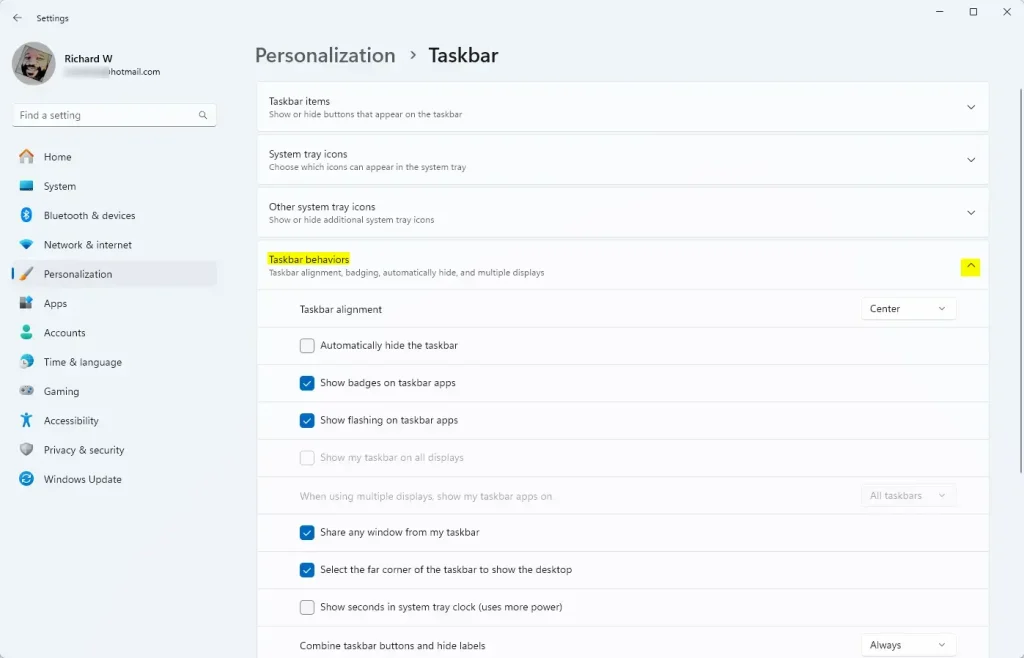
- Click Personalization on the left, then choose Taskbar on the right.
- Click Taskbar behaviors to open more options.
- Check or uncheck the box for Show notifications bell icon to turn it on or off.
- Close Settings when done.

How to Show or Hide Notifications Bell Using Windows Registry (Advanced Users)
For advanced users who don’t want to use ViVeTool, you can show or hide the Windows 11 notifications bell by changing a setting in the Windows Registry.
Warning: Be careful when editing the Registry. Making wrong changes can cause problems with your computer.
- Open the Registry Editor:
- Press ⊞ Win+R, type
regedit, and press Enter. ⚠️ Admin privileges required - If asked for permission, click Yes.
- Press ⊞ Win+R, type
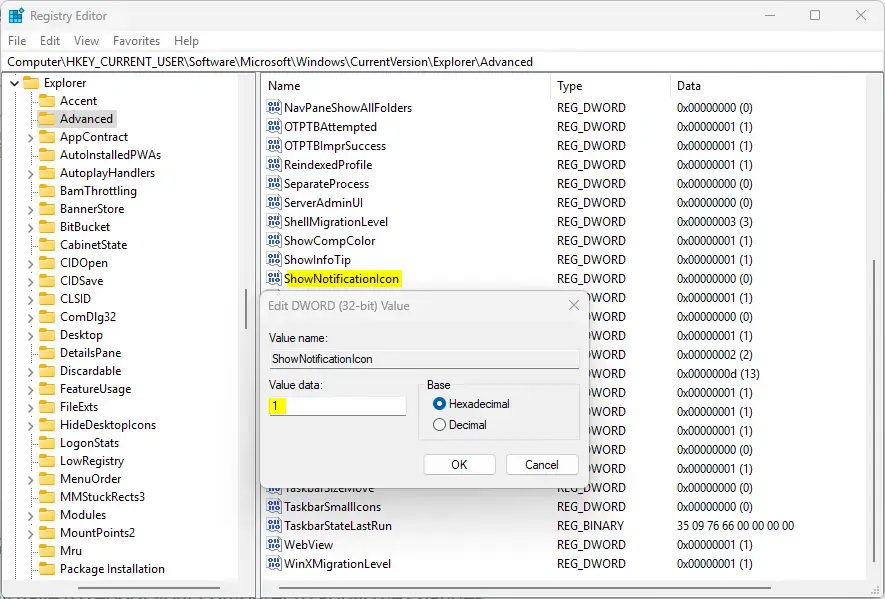
- Go to this folder (key):
Computer\HKEY_CURRENT_USER\Software\Microsoft\Windows\CurrentVersion\Explorer\Advanced - Look for a setting named
ShowNotificationIconin the right pane. - If it exists, double-click it and set its value to:
1to show the notifications bell0to hide the notifications bell
- If it doesn’t exist:
- Right-click on a blank spot in the right pane.
- Choose New > DWORD (32-bit) Value.
- Name it
ShowNotificationIcon. - Double-click it and set the value to 1 or 0 as above.
- Close the Registry Editor and restart your PC to see the changes.
Summary
The Windows 11 notifications bell icon is useful for quickly seeing alerts and messages right on your taskbar.
What happens after you make the change? Once you enable it, the bell will show your notifications and a shorter clock on the taskbar.
- You can turn the notifications bell icon on or off on your Windows 11 taskbar.
- The easiest way is by using the free ViVeTool app and then adjusting Taskbar settings.
- If you’re comfortable with advanced tools, you can also enable or disable it using the Windows Registry Editor.
- That’s all! Enjoy customizing your Windows 11 experience.
How to get rid of the bell icon?
This covers how to get rid of the bell icon and turn off the show and status bar. That’s it! I need to grab another battery. But yeah, if you were wondering, now you know how to do it.
Was this guide helpful?

About the Author
Richard
Tech Writer, IT Professional
Richard, a writer for Geek Rewind, is a tech enthusiast who loves breaking down complex IT topics into simple, easy-to-understand ideas. With years of hands-on experience in system administration and enterprise IT operations, he’s developed a knack for offering practical tips and solutions. Richard aims to make technology more accessible and actionable. He's deeply committed to the Geek Rewind community, always ready to answer questions and engage in discussions.



No comments yet — be the first to share your thoughts!