

This article explains how to enable or disable the “Automatically hide window” option with the Terminal app.
Windows Terminal is a modern host application for the command-line shells, including Command Prompt, Windows PowerShell, and bash (via Windows Subsystem for Linux (WSL)).
The Terminal app in Windows allows many customizations. You can change the language, adjust the launch size, set the default profile, change the startup behavior, open the admin window, open Terminal automatically at startup, add copy selection to the clipboard automatically, and more.
The Terminal app also has a feature that automatically hides the window when you switch to a different app’s window.
Enabling or disabling the “Automatically hide window” option with the Terminal app can be useful depending on your preferences and how you use the app.
If you frequently switch between different apps and windows, automatically hiding the Terminal window can help keep your desktop less cluttered. However, if you prefer to have the Terminal window always visible, you may want to disable this option.
It ultimately comes down to personal preference and how you use the Terminal app.
Automatically hide the Terminal window
As mentioned, users can choose to hide the Terminal window automatically as soon as they switch to another window.
Here’s how to do it.
First, open the Windows Terminal app.
You can do that by clicking on the Start menu and searching for Terminal. Then, under “Best match,” select and open the Windows Terminal app.

When the Terminal app opens, click the down arrow button on the top bar and select Settings (Ctrl +,).

On the Settings window, click on the Appearance tab on the left. Then, select the “Automatically hide window” tile and toggle the switch button to the On position to enable it.
To disable it, toggle the switch button to the Off position.
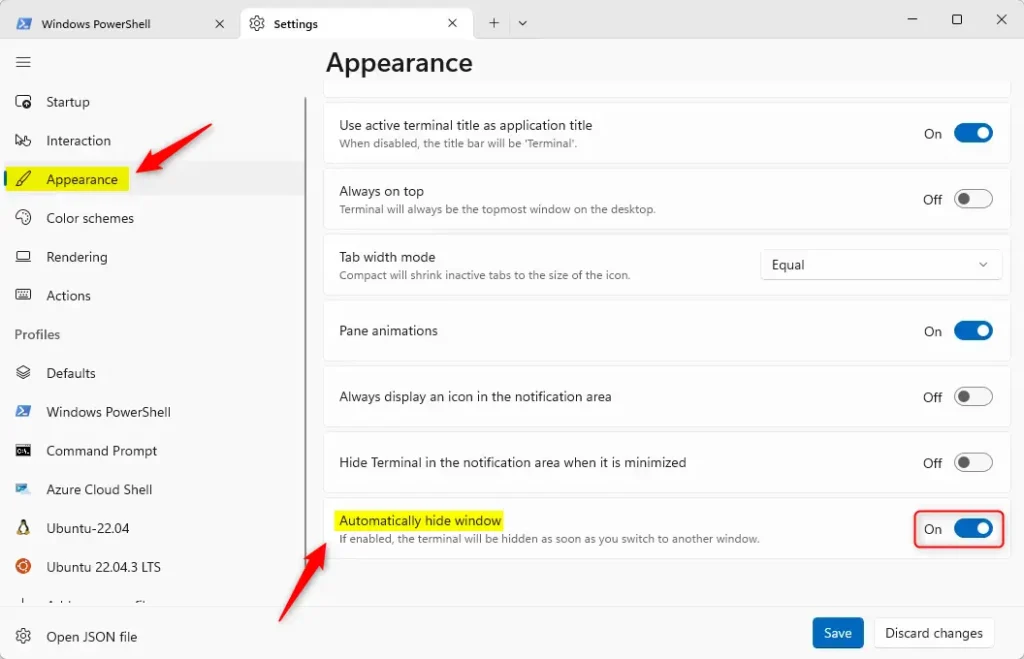
Click the Save button at the bottom to save your changes, then exit.
That should do it!
Conclusion:
- Enabling or disabling the “Automatically hide window” option in the Windows Terminal app can greatly enhance user experience and productivity.
- This customization allows users to tailor the visibility of the Terminal window based on their preferences and workflow.
- This feature can be easily adjusted to suit your needs, whether you prefer a clutter-free desktop or the convenience of having the Terminal window always visible.
- Following the simple steps outlined in this article, you can seamlessly enable or disable the “Automatically hide window” option, empowering you to optimize your Terminal app usage.


Leave a Reply Cancel reply