How to Enable Multiple Windows in Snipping Tool on Windows 11

You enable multiple windows in Windows 11’s Snipping Tool by changing a specific setting in the application’s preferences.
This feature allows each new screenshot you take to open in its own independent window, rather than stacking within a single tab as it does by default.
For instance, if you’re comparing two different parts of your screen, each snip appearing in its own window makes direct comparison significantly easier.
This contrasts with the default behavior in Windows 11, where all your recent captures are consolidated into one interface.
Open Snipping Tool, click the three dots menu, select Settings, and toggle “Multiple windows” to On. This allows each new screenshot to open in its own independent window for easier management.
Why use Snipping Tool multiple windows?
Using Snipping Tool with multiple windows open lets you see and manage several snips at once, which speeds up your workflow significantly.
What happens when done?
When you turn on the multiple windows feature in Snipping Tool, each new screenshot you take opens in its own separate window.
How to enable or disable multiple windows
You can turn the Snipping Tool’s multiple windows feature on or off directly from the app’s settings menu.
- Open the Start menu and search for Snipping Tool.
- Click on the app to launch it.
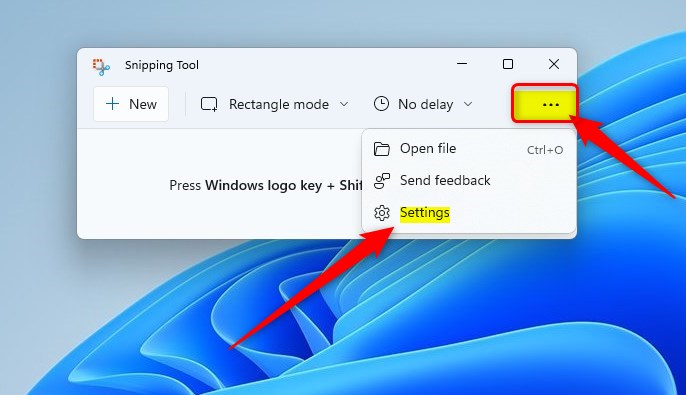
- Click the three horizontal dots (the menu icon) in the top right corner.
- Select Settings from the list.
- Look for the Multiple windows option.
- Toggle the switch to On to allow separate windows, or Off to keep them in one.
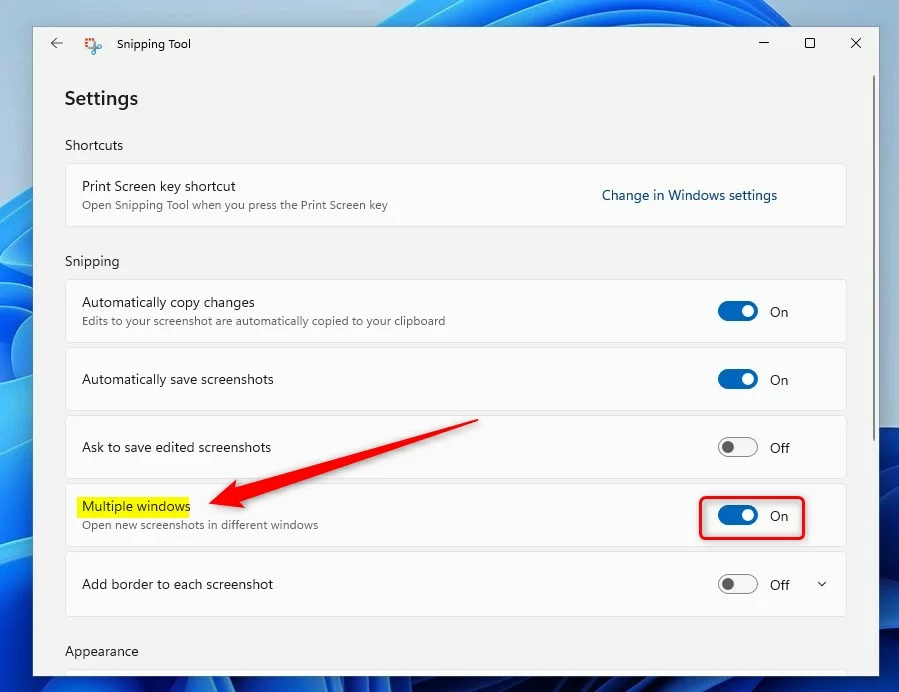
Your changes apply the moment you flip the switch. You can close the menu and continue taking screenshots. Ensure you have the latest version via the Microsoft Store to access this feature.
Troubleshooting and Error Handling
If you can’t find the ‘Multiple windows’ option in Snipping Tool, it’s likely because your app needs an update from the Microsoft Store.
Technical Considerations
Running Snipping Tool with multiple windows open uses slightly more computer memory, but this is usually not noticeable on modern PCs.
Related Articles
Summary
You’ve learned how to turn the Snipping Tool’s multiple windows feature on or off to better manage your screenshots.Does this setting affect the Snipping Tool shortcut (⊞ Win+Shift+S)?
No, the shortcut remains the same. The shortcut will still trigger the capture overlay. If you have multiple windows enabled, the new capture will simply open in a new, separate window instead of replacing the previous one in the existing instance.
Can I open more than two windows simultaneously?
Yes, you can open as many windows as you need. Each time you take a new screenshot while the setting is enabled, a new instance of the Snipping Tool will launch. This is ideal for complex screenshot workflows where you need to reference many images at once.





[…] The Snipping Tool is a built-in screenshot tool in Windows that allows you to capture screenshots of any part of your screen, including full-screen captures, individual windows, or user-defined capture areas. […]
[…] The Snipping Tool is a built-in screenshot tool in Windows that allows you to capture screenshots of any part of your screen, including full-screen captures, individual windows, or user-defined capture areas. […]
[…] The Snipping Tool is a built-in screenshot tool in Windows that lets you capture screenshots of any part of your screen, including full-screen captures, individual windows, or user-defined capture areas. […]
[…] The Snipping Tool is a built-in screenshot tool in Windows that lets you capture screenshots of any part of your screen, including full-screen captures, individual windows, or user-defined capture areas. […]
[…] The Snipping Tool is a built-in screenshot tool in Windows that lets you capture screenshots of any part of your screen, including full-screen captures, individual windows, or user-defined capture areas. […]
[…] The Snipping Tool is a built-in screenshot tool in Windows that lets you capture screenshots of any part of your screen, including full-screen captures, individual windows, or user-defined capture areas. […]
[…] The Snipping Tool is a built-in screenshot tool in Windows that lets you capture screenshots of any part of your screen, including full-screen captures, individual windows, or user-defined capture areas. […]
[…] Snipping Tool is a free program built into Windows 11. It helps you take pictures of your screen, whether it’s […]
[…] Snipping Tool is a built-in app on Windows 11 that helps you take screenshots and record your screen. You can […]
[…] Snipping Tool is a handy program built into Windows. You can use it to take pictures of your whole screen, just […]
[…] Snipping Tool is a tool included with Windows that lets you take pictures of your screen. You can capture the […]
[…] Snipping Tool is a built-in tool in Windows. It lets you take pictures of your whole screen, a single window, or […]
[…] Snipping Tool is a tool built into Windows. It lets you take pictures of your screen. You can capture your whole […]
[…] guide shows you how to control your microphone settings in the Snipping Tool on Windows 11. The Snipping Tool is a built-in app that lets you take screenshots or record videos of your […]