How to Enable or Disable Ask to Save Edited Screenshots in Windows 11

Ever get annoyed with the Snipping Tool asking to save every edited screenshot? Here’s how to control that prompt in Windows 11.
Open Snipping Tool, click the three dots menu, select Settings, and toggle “Ask to save edited screenshots” on or off. This controls whether the app prompts you to save changes after editing a screenshot.
What Is the Snipping Tool?
The Snipping Tool is Windows’ built-in app that lets you take screenshots of your screen, whether you need the whole thing, just one window, or a specific area.
The Snipping Tool lets you do more: redact text, control screen recording (including audio and microphone), disable automatic saving, and even change where screenshots are stored.
Where Do Screenshots Get Saved?
By default, your screenshots are automatically saved to the C:\Users\username\Videos\Screen Recordings folder on your computer.
Why Use This Feature?
In newer versions of the Snipping Tool, Microsoft added a toggle. This toggle lets you turn the “Ask to save edited screenshots” feature on or off. This gives you more control over how the app works.
How to Enable or Disable “Ask to Save Edited Screenshots”
Step 1Open the Snipping Tool
First, open the Snipping Tool app on your computer.
Step 2Open the Settings Menu
Look for the See more button. It looks like three dots. Click it and select Settings.
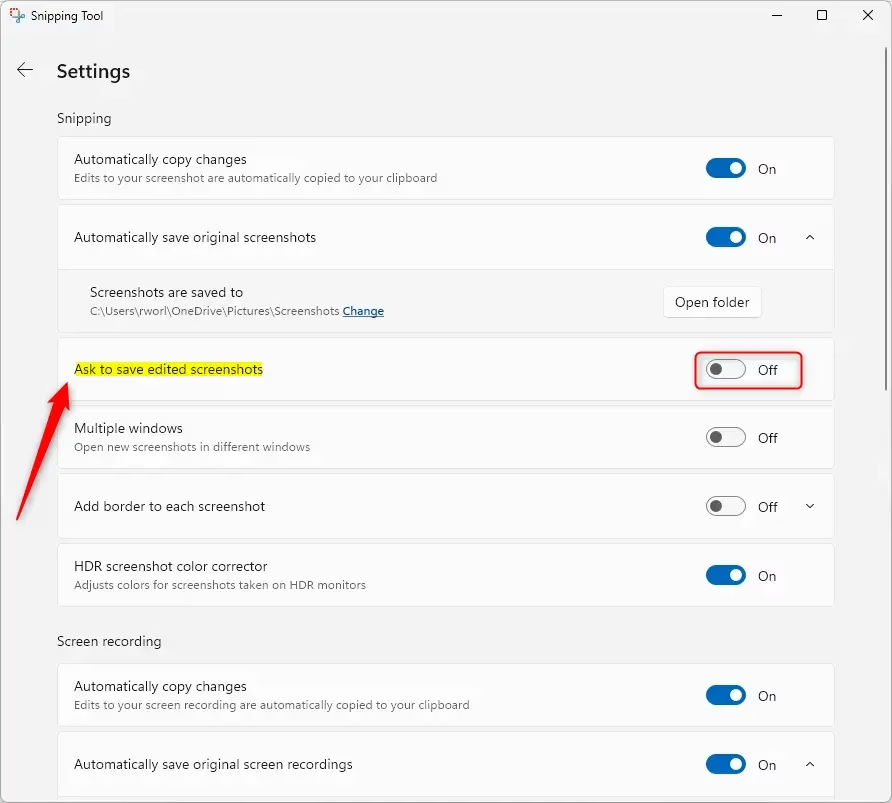
Step 3Toggle the Setting
Find the “Ask to save edited screenshots” option on the Settings pane. Toggle the button to turn it on or off.
Step 4Close the App
Close the Snipping Tool when you are done.
That’s it! Your setting is now saved.
Summary
Windows 11’s Snipping Tool lets you choose if you want it to ask you before saving edited screenshots.
How to enable screenshot settings?
How do you enable other screenshot settings? You can often access these by pulling down a quick settings menu. Look for the ‘take screenshot’ option in that menu.
Was this guide helpful?

About the Author
Richard
Tech Writer, IT Professional
Richard, a writer for Geek Rewind, is a tech enthusiast who loves breaking down complex IT topics into simple, easy-to-understand ideas. With years of hands-on experience in system administration and enterprise IT operations, he’s developed a knack for offering practical tips and solutions. Richard aims to make technology more accessible and actionable. He's deeply committed to the Geek Rewind community, always ready to answer questions and engage in discussions.



No comments yet — be the first to share your thoughts!