How to Show Encrypted NTFS Files in Color

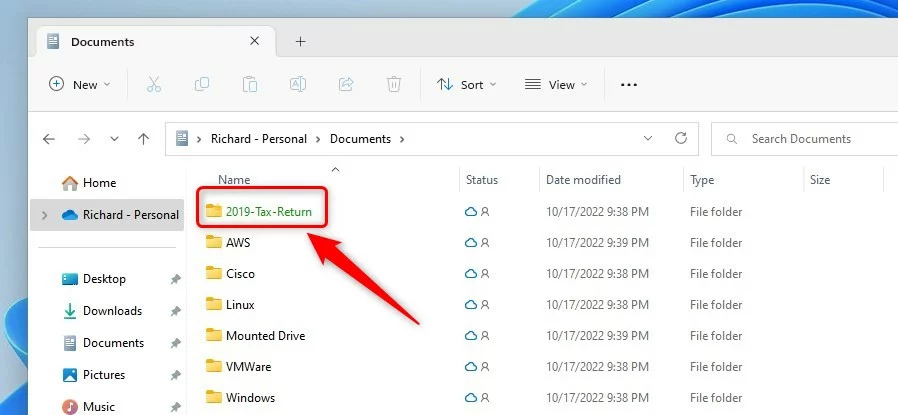
You can highlight encrypted NTFS files in Windows File Explorer by enabling a specific folder option. This feature visually distinguishes files protected by the Encrypted File System (EFS) by displaying their names in a distinct color, typically green.
This visual cue helps you quickly identify sensitive data at a glance, improving your file management efficiency. Compressed files, for comparison, appear in blue, indicating they’ve been shrunk to save disk space.
You don’t need extra software; this is a built-in setting accessible in Windows 10 and later versions through the Folder Options window.
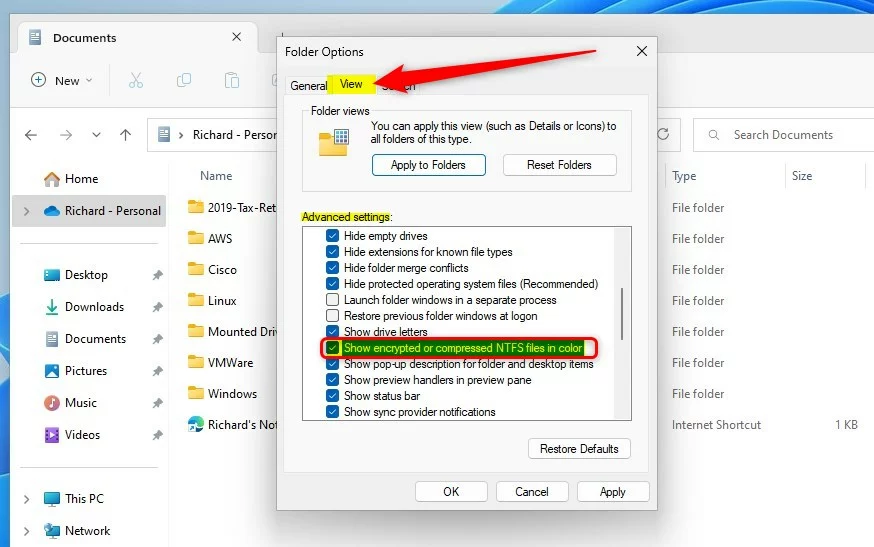
Enable the “Show encrypted or compressed NTFS files in color” option in File Explorer’s Folder Options. Navigate to View tab, check the box, and click OK. This visually distinguishes encrypted (green) and compressed (blue) files.
How to Show Encrypted NTFS Files in Color
You can easily show encrypted NTFS files in color by changing a setting in File Explorer Options.
- Open File Explorer by clicking the folder icon or pressing Windows key + E.
- Click the three-dot menu icon at the top and select Options.
- Click the View tab.
- Find Show encrypted or compressed NTFS files in color in the list.
- Check the box and click OK.
Advanced Configuration: Registry Editor
For advanced users, you can use the Registry Editor to show encrypted NTFS files in color, but be careful when making changes.
You can force this setting using the Registry Editor. You’ll need administrator privileges for this task.
HKEY_CURRENT_USER\Software\Microsoft\Windows\CurrentVersion\Explorer\Advanced
Look for the DWORD value named ShowEncryptCompressedColor. Setting this to 1 enables the feature, while 0 disables it.
Enterprise Deployment via Group Policy
System administrators can deploy this setting across a network. Use Group Policy Preferences to set the registry key mentioned above for all users in your domain. This ensures consistent visual indicators across your organization.
Summary
Showing encrypted NTFS files in color helps you quickly see which files are secured with encryption or compression.
Why are my encrypted files not showing in color?
If your encrypted files aren’t showing in color, the most common reason is that the setting isn’t turned on in File Explorer.
Does enabling this feature impact system performance?
No, enabling the colored display for encrypted or compressed files does not impact your system performance. It’s a visual setting in Windows that changes file name colors based on their attributes. It does not require extra processing power.
Is this feature available on Windows Home editions?
Yes, this feature is available on Windows Home editions. The ability to view encrypted or compressed files in color is a standard feature of the Windows File Explorer across all versions, including Windows 10 and Windows 11. You can enable it through the Folder Options menu at any time.
Was this guide helpful?

About the Author
Richard
Tech Writer, IT Professional
Richard, a writer for Geek Rewind, is a tech enthusiast who loves breaking down complex IT topics into simple, easy-to-understand ideas. With years of hands-on experience in system administration and enterprise IT operations, he’s developed a knack for offering practical tips and solutions. Richard aims to make technology more accessible and actionable. He's deeply committed to the Geek Rewind community, always ready to answer questions and engage in discussions.



No comments yet — be the first to share your thoughts!