How to Turn On or Off OneDrive Folder Backup Syncing Across Windows 11 Devices

You can easily turn on or off OneDrive folder backup syncing for your Desktop, Documents, and Pictures folders across all your Windows 11 devices.
This feature automatically backs up and syncs these specific folders to your OneDrive cloud storage, making them accessible from any PC signed in with your Microsoft account.
Controlling this sync prevents unwanted file duplication or ensures your important data is always available, even if you switch computers.
For example, if you’re using OneDrive’s Personal Vault feature, you can selectively sync sensitive files between your Windows 11 PC and other devices without exposing them unnecessarily.
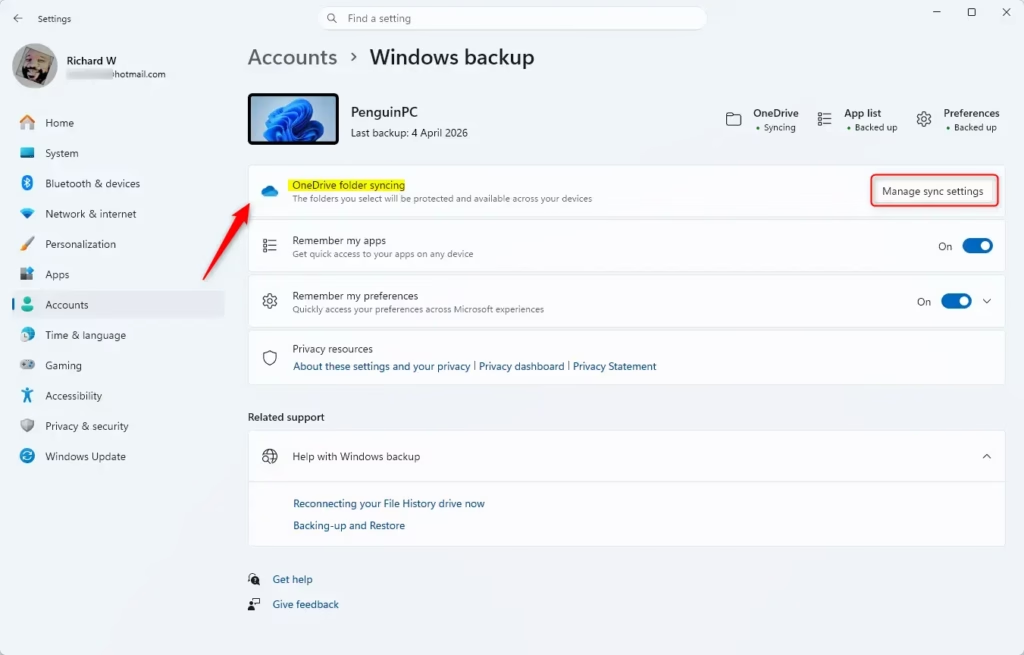
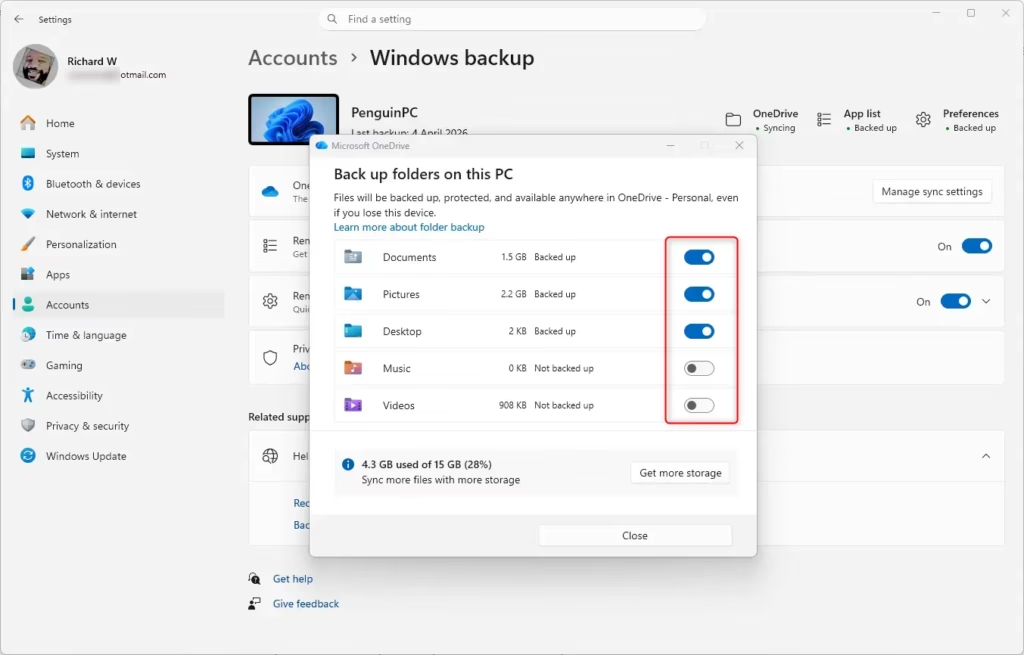
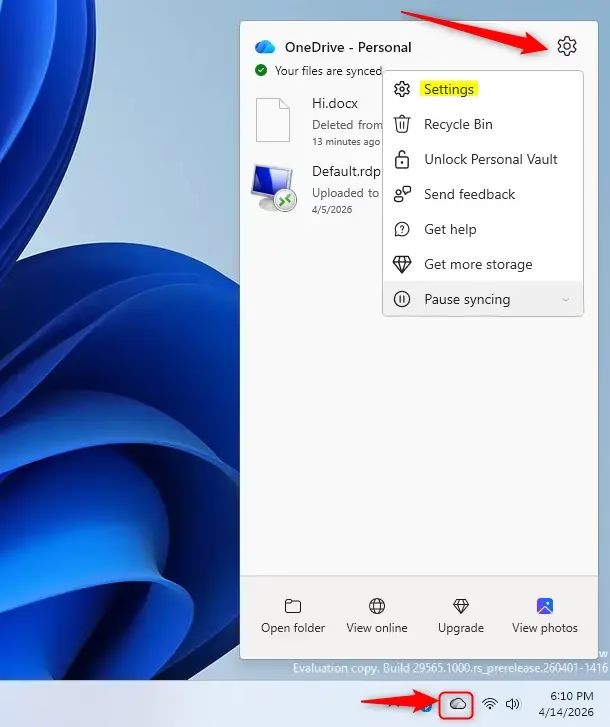
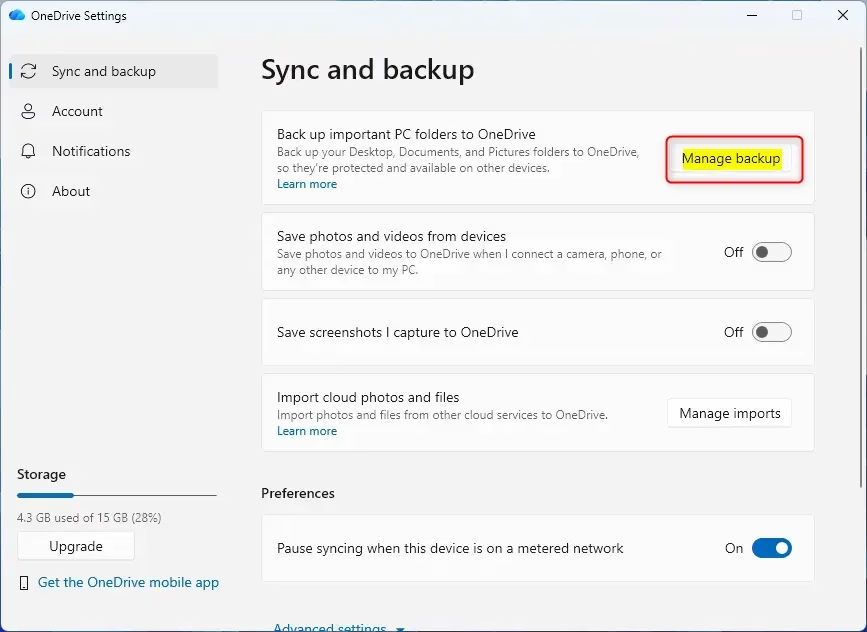
Open Settings, go to Accounts, then Windows backup, and click Manage sync settings for OneDrive. Alternatively, click the OneDrive icon, select Help & Settings, then Settings, and choose Manage backup. Toggle folders on or off to start or stop syncing.
What is OneDrive Folder Backup?
OneDrive folder backup is a feature that automatically saves copies of your important files and folders, like your Desktop, Documents, and Pictures, to Microsoft’s cloud storage.
You can also back up your important folders (Desktop, Documents, Music, Pictures, and Videos folders) on your Windows PC with OneDrive folder backup syncing, so they’re protected and available on other devices.
Why Back Up Your Folders?
Backing up your folders to OneDrive means your files are safely stored in the cloud, so you can access them from any device and won’t lose them if your computer breaks.
New Features in 🪟 Windows 11
Windows 11 now offers new ways to manage your OneDrive folder backup reminders, letting you snooze or turn off prompts directly in File Explorer if you’re not currently backing up folders.
Starting with Windows 11 build 26100.4484 (24H2), the PC-to-PC migration experience in Windows is starting to roll out. You’ll begin to see the landing and pairing page in the Windows Backup app. In the full experience, you’ll be able to transfer files and settings from an old PC to a new one during setup. Support for this feature during PC setup will arrive in a future update.
What You Need
OneDrive Folder Backup Syncing requires OneDrive running and you signed in to OneDrive with your Microsoft account.
Option 1Turn On or Off OneDrive Folder Backup Syncing in Settings
- Open Settings (⊞ Win+I).
- Click/tap on Accounts on the left side, and click/tap on Windows backup on the right side.
- Click/tap on Set up syncing or Manage sync settings for OneDrive folder syncing.
- Continue
Option 2Turn On or Off OneDrive Folder Backup Syncing in OneDrive Settings
- Click/tap on the OneDrive icon on the taskbar corner, click on Help & Settings (gear) icon, and click/tap on Settings.
- Click/tap on Sync and backup on the left pane, and click on Manage backup.
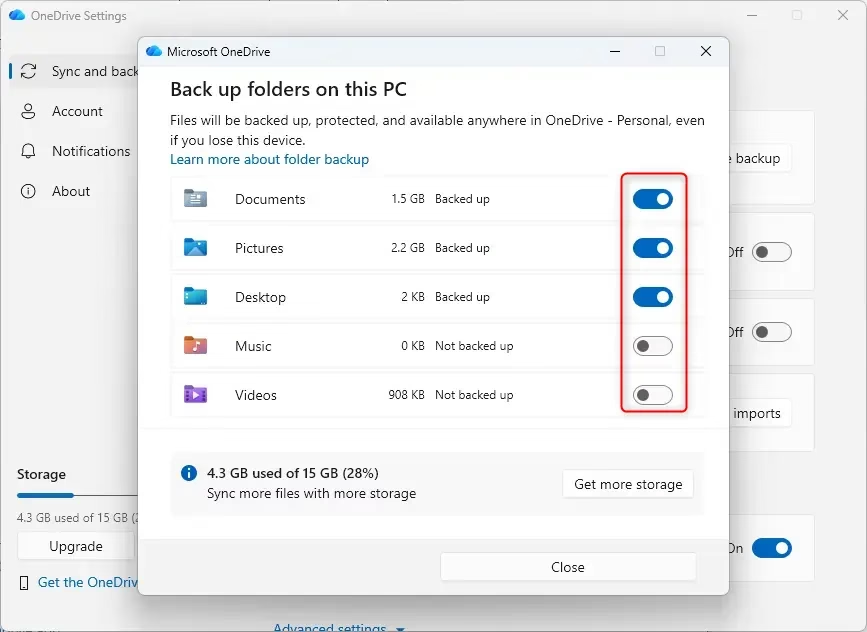
Turn On Folder(s) to Start Backing Up to OneDrive
- Turn On any folder(s) you want to backup to OneDrive, and click on Save changes when finished.
- Click on View sync progress to see your OneDrive backup progress.
Turn Off Folder(s) to Stop Backing Up to OneDrive
You can stop backing up specific folders to OneDrive by changing their settings, which prevents them from syncing to the cloud and frees up storage space.Related Resources
For more detailed help, Microsoft’s official support pages explain how to set up, manage, and fix issues with OneDrive PC folder backup.
Sync your computer’s files and folders with OneDrive – Microsoft Support — Learn how to install and use OneDrive to sync files and folders between your computer and the OneDrive cloud.
Back up and restore with Windows Backup – Microsoft Support — Learn how to back up and restore apps, settings, files, photos, and Microsoft Edge favorites and preferences on your Windows PC using Windows Backup.
Getting the most out of your PC backup – Microsoft Support — Learn why it’s important to have a backup, and how Windows Backup can help you keep your files and settings safe.
Windows Backup: How to Back Up Files to Transfer Between Devices | Microsoft — Explore seamless data transfer solutions between Windows PCs from Microsoft. Learn how to effortlessly transfer your data between devices with Windows Backup.
Summary
OneDrive folder backup automatically syncs key folders like Desktop and Documents to the cloud, ensuring your files are safe and accessible everywhere, and you can easily control this feature.
Can OneDrive backup any folder?
No, OneDrive folder backup is specifically designed to sync your primary user folders, including Desktop, Documents, Pictures, Music, and Videos. While you can manually move other files into your OneDrive folder to sync them, the automated 'Backup' feature is restricted to these specific system-defined folders for seamless cloud integration.
How do you backup your folders on OneDrive?
To back up your folders with OneDrive, click the OneDrive icon in your taskbar, go to Settings, then ‘Sync and backup’, and click ‘Manage backup’ to select which folders to protect.
What are the disadvantages of storing files in OneDrive?
The main disadvantages include reliance on a stable internet connection for real-time syncing, potential privacy concerns regarding cloud-stored data, and storage limits based on your subscription plan. Additionally, syncing large volumes of files can consume significant bandwidth and may cause performance issues if your local storage space is insufficient.
How to backup only a specific folder in OneDrive?
While OneDrive’s automatic backup feature only supports system folders like Desktop and Documents, you can back up any specific folder by simply moving or copying it directly into your main OneDrive folder.
Was this guide helpful?

About the Author
Richard
Tech Writer, IT Professional
Richard, a writer for Geek Rewind, is a tech enthusiast who loves breaking down complex IT topics into simple, easy-to-understand ideas. With years of hands-on experience in system administration and enterprise IT operations, he’s developed a knack for offering practical tips and solutions. Richard aims to make technology more accessible and actionable. He's deeply committed to the Geek Rewind community, always ready to answer questions and engage in discussions.



No comments yet — be the first to share your thoughts!