

This article explains enabling or disabling downloading instead of always opening Office files with the Microsoft Edge browser.
The Microsoft Edge browser is the default browser in Windows 11. However, users can switch to their preferred or favorite browser anytime. Edge is based on Chromium, similar to Google Chrome and other Chromium-based browsers today.
By default, the Microsoft Edge browser will try to open Office files automatically instead of downloading them to your device. Files such as Word, Spreadsheets, and other documents will open in your browser.
If you prefer to download Office files instead of opening them in your browser, the steps below will show you how to turn them off.
Disable or enable opening Office files with Edge
As described above, the Microsoft Edge browser will automatically open Office files instead of downloading them by default.
Here’s how to turn on or off opening Office files with the Microsoft Edge browser.
First, open the Microsoft Edge browser.
Then click on Setting and more (Alt+F) 3 horizontal dots button on the top right corner and select Settings.

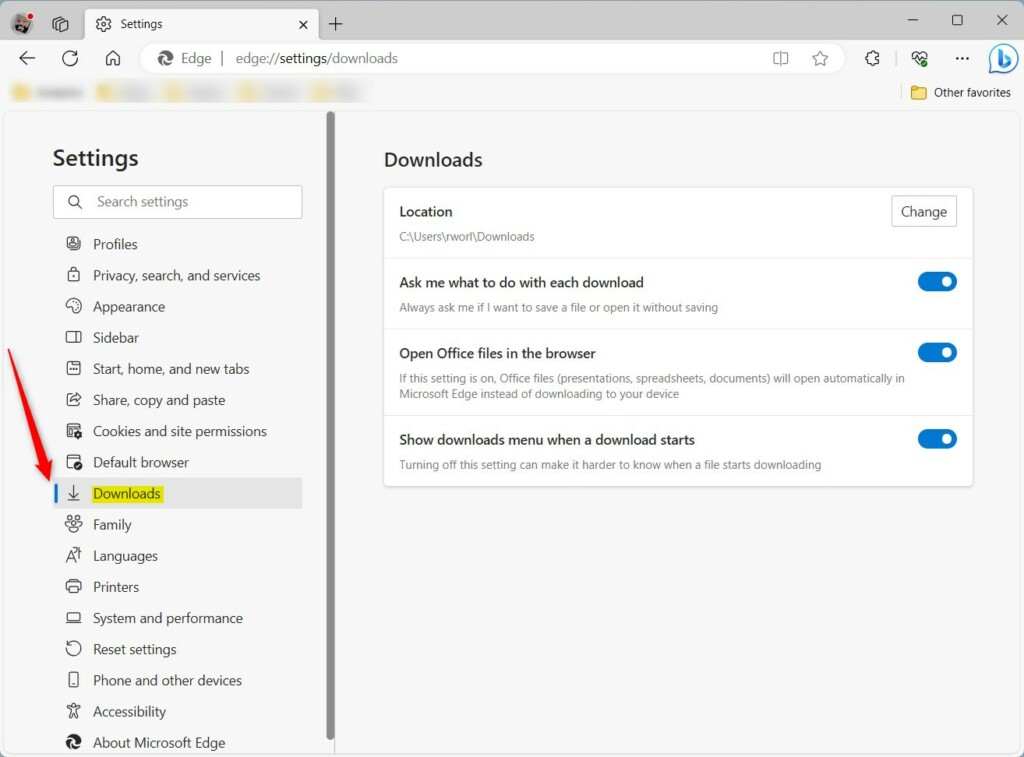
On the Settings page on the left panel, click the Downloads button.
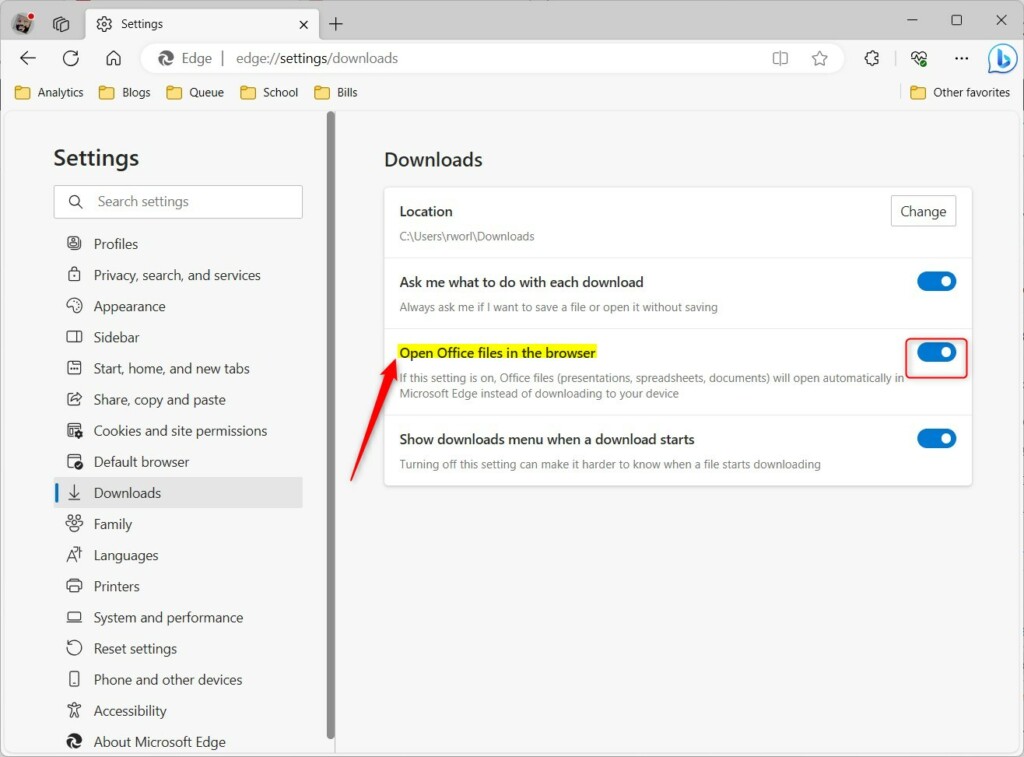
On the right, select the Open Office files in the browser tile under Downloads. Then, toggle the switch to the Off position to turn off.
To enable it again, toggle the button switch to the On position.
Close the Edge browser when done.
Turn on or off open Office files in the browser via Windows Registry Editor
Another way to enable or disable opening Office files in the Microsoft Edge browser is to use the Windows Registry Editor.
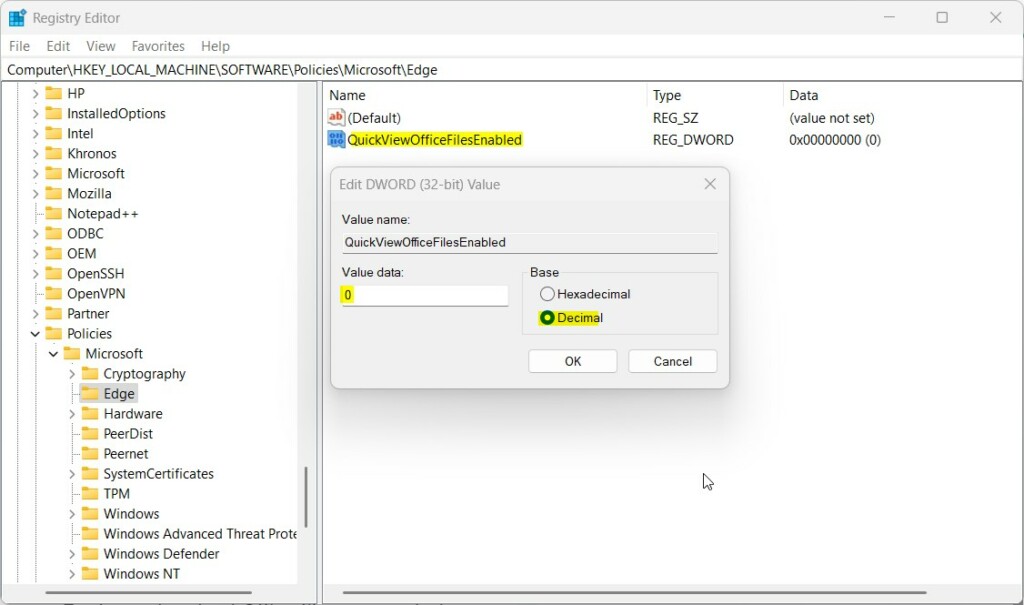
The QuickViewOfficeFilesEnabled controls the policy for the open Office files in the browser setting in Microsoft Edge.
To do that, open the Windows Registry and navigate to the folder key below.
HKEY_LOCAL_MACHINE\SOFTWARE\Policies\Microsoft\Edge
If you don’t see the Edge folder key, right-click on the Microsoft parent key, then create the subkey (Edge) folder.

Right-click on the Edge folder key’s right pane and select New -> DWORD (32-bit) Value. Type a new item named QuickViewOfficeFilesEnabled.
Double-click each of the items you created (QuickViewOfficeFilesEnabled) and make sure the Base option is Decimal, and then update the Value data:
- To always open Office files in the Microsoft Edge browser, type 1.
- To always download Office files to your device, type 1.
That should do it. Restart your computer to apply the changes.
That should do it!
Conclusion:
- In this article, you have learned how to disable the automatic opening of Office files in the Microsoft Edge browser and opt for downloading them instead.
- Two methods were provided to turn off or on the opening of Office files in the browser: through the Microsoft Edge browser settings and via the Windows Registry Editor.
- Following these steps, you can customize your browsing experience and choose the most suitable option for handling Office files in Microsoft Edge.

Leave a Reply Cancel reply