How to Remove Fingerprint Sign-in from Your Windows 11 Account

Want to stop using your fingerprint to sign into your Windows 11 PC? This guide will walk you through removing it, step-by-step.
Open Settings, go to Accounts, then Sign-in options. Under Ways to sign in, click Fingerprint recognition (Windows Hello) and select Remove. This will delete your fingerprint sign-in option.
What is Windows Hello?
Windows Hello is a feature that lets you sign into your Windows 11 PC using your face or fingerprint instead of a password, making logins quicker and more secure.
Using these sign-in methods helps keep your PC secure and makes logging in faster. Your PIN is unique to your device and is also backed up by your Microsoft account.
When Can You Use Fingerprint Sign-in?
If your PC has a fingerprint sensor or a connected reader, you can enable fingerprint sign-in.
You can even add multiple fingers to unlock your device if you want.
How to Remove Fingerprint Sign-in in 🪟 Windows 11
- Open Settings: Press the Windows key + I on your keyboard to open the Settings app.
- Go to Accounts: On the left menu, click Accounts.
- Select Sign-in options: On the right side, click Sign-in options.
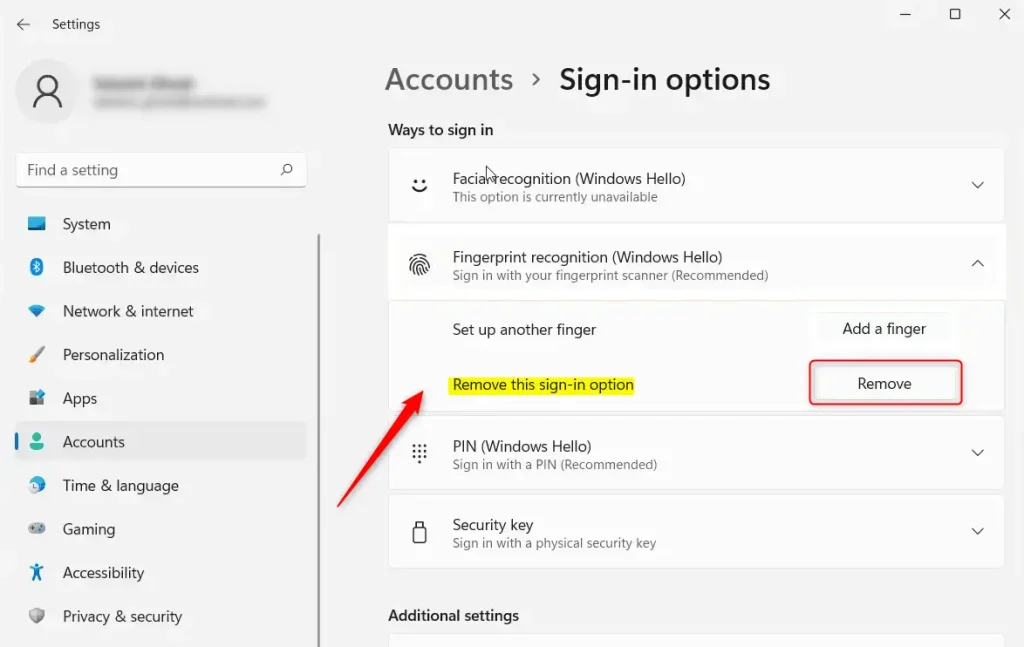
- Find Fingerprint recognition: Under Ways to sign in, click on Fingerprint recognition (Windows Hello) to expand it.
- Remove Fingerprint: Click the Remove button to delete your fingerprint sign-in option.
- Close Settings: You can now close the Settings window. Your fingerprint sign-in is removed.
To remove fingerprint sign-in from your Windows 11 account, you’ll need to go into your Settings and adjust the sign-in options.
Step-by-step Images
Helpful Links
- More about Windows Hello fingerprint authentication
- Windows Hello biometric requirements
- Windows Hello biometrics in business environments
- Troubleshoot Windows Hello problems
That’s it! Your fingerprint sign-in is now removed, and you can use your PIN or other methods to log in.
How do I remove the fingerprint from my PC?
If you’re looking to disable the fingerprint sensor itself (rather than just the sign-in option), you can do so through Device Manager. Right-click the fingerprint driver and select ‘Disable device.’
Was this guide helpful?

About the Author
Richard
Tech Writer, IT Professional
Richard, a writer for Geek Rewind, is a tech enthusiast who loves breaking down complex IT topics into simple, easy-to-understand ideas. With years of hands-on experience in system administration and enterprise IT operations, he’s developed a knack for offering practical tips and solutions. Richard aims to make technology more accessible and actionable. He's deeply committed to the Geek Rewind community, always ready to answer questions and engage in discussions.




No comments yet — be the first to share your thoughts!