Remove PIN from Account in Windows 11

Ready to remove your PIN sign-in option from Windows 11? This guide walks you through it.
Open Settings, go to Accounts, then Sign-in options. Click PIN (Windows Hello), then Remove. Confirm by entering your Microsoft account password. This will also remove any associated face or fingerprint sign-in options.
What is Windows Hello and PIN?
Windows Hello is a feature that lets you sign into your Windows 11 computer using your face, fingerprint, or a PIN, making it fast and secure.
A PIN is a numeric code, or sometimes a combination of letters and symbols. It’s unique to your device, making it more secure than a standard password.
Why is a PIN better than a password?
- PIN is tied to your device
Your PIN only works on your computer or device. If someone steals your PIN, they still can’t get into your account without your device. - PIN stays on your device
Unlike a password, your PIN isn’t sent over the internet or stored on Microsoft’s servers. It stays safe on your device only. - PIN is backed by special hardware
Your device has a special chip called TPM that protects your PIN and stops hackers from breaking in. - PIN can be as strong as a password
Your PIN can be simple or very complex with letters, numbers, and symbols, depending on your settings. - PIN is needed for biometrics
You must have a PIN to use fingerprint or face sign-in. The PIN works as a backup if the biometric sign-in doesn’t work.
A PIN is often better than a password because it’s tied only to your specific device, meaning it won’t work if someone steals your PIN but doesn’t have your computer.
How to Remove PIN on Your 🪟 Windows 11 PC
Option 1Remove PIN Using Settings
- Press Windows key + I to open Settings.
- Click on Accounts in the left menu.
- Click on Sign-in options on the right.
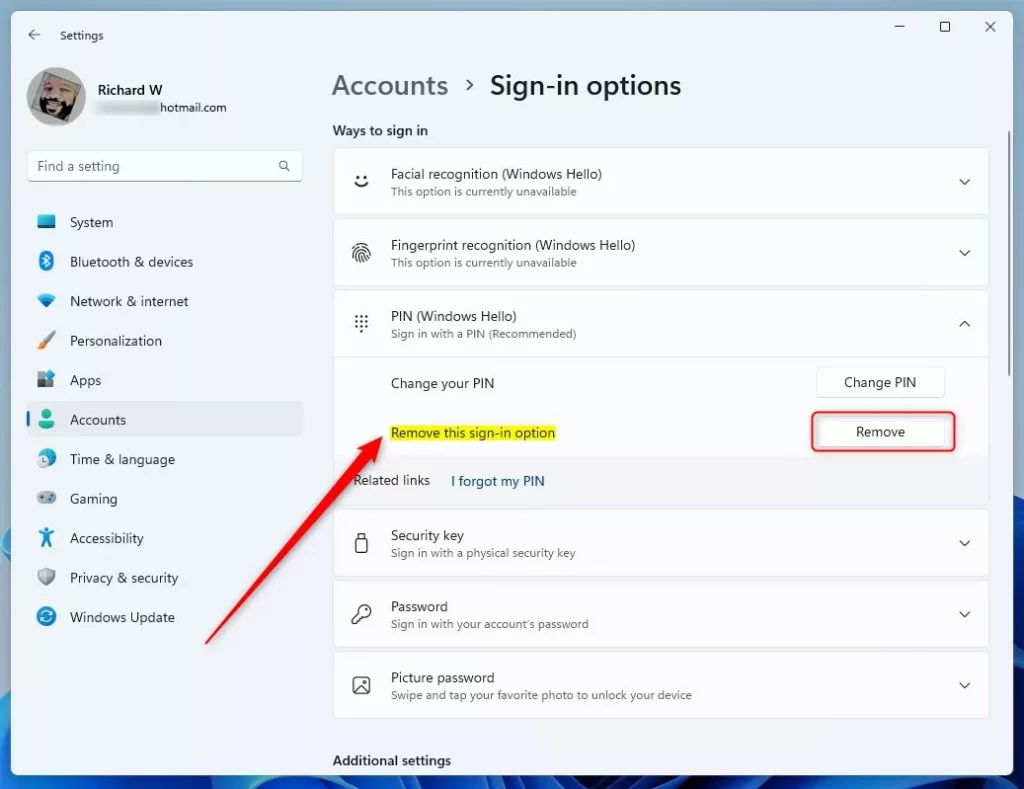
- Under Ways to sign in, find PIN (Windows Hello) and click it to expand.
- Click the Remove button next to “Remove this sign-in option”.
- If the Remove button is gray, make sure “For improved security, only allow Windows Hello sign-in for Microsoft accounts on this device” is turned off.
- Confirm by clicking Remove again when asked.
- Enter your Microsoft account password (not PIN) to verify and click OK.
- You can now close Settings.
You can easily remove your PIN from your Windows 11 account using the Settings app by following a few simple steps.
Quick Link to Sign-in Options Settings
You can open the Sign-in options directly by clicking this link on your Windows 11 PC: Open Sign-in options
Option 2Remove PIN for All Users Using a Batch File (Advanced)
For advanced users facing PIN sign-in errors in Windows 11, a special batch file can be used to remove the PIN for all user accounts on the computer.
Sometimes, the folder storing PIN information can become corrupted. This can lead to errors like:
- “Something went wrong (code: 0x8009002d)” when signing in with PIN.
- “Something went wrong. Try again later” when adding or changing a PIN.
- PIN sign-in option missing or not working.
To fix this, you can reset the folder where Windows stores your PIN data by running this code in a batch file (a text file with a .bat extension):
@echo off
powershell -windowstyle hidden -command "Start-Process cmd -ArgumentList '/s,/c,takeown /f C:WindowsServiceProfilesLocalServiceAppDataLocalMicrosoftNGC /r /d y & icacls C:WindowsServiceProfilesLocalServiceAppDataLocalMicrosoftNGC /grant administrators:F /t & RD /S /Q C:WindowsServiceProfilesLocalServiceAppDataLocalMicrosoftNgc & MD C:WindowsServiceProfilesLocalServiceAppDataLocalMicrosoftNgc & icacls C:WindowsServiceProfilesLocalServiceAppDataLocalMicrosoftNgc /T /Q /C /RESET' -Verb runAs"
How to use this code:
- Open Notepad and copy-paste the above code.
- Save the file with a
.batextension, for example,ResetPIN.bat. - Right-click the file and choose Run as administrator.
- Your PIN data will be reset. You can now try setting up a PIN again.
Summary
Removing your PIN in Windows 11 also removes face and fingerprint sign-in options, but your account remains safer because the PIN is unique to your device and not stored online.
- Removing the PIN also removes face and fingerprint sign-in.
- The PIN works only on your device, so it helps keep your account safe.
- PIN data is stored securely on your PC, not online.
- Admins can fix PIN problems for all users by resetting the PIN folder.
- Removing the PIN may turn off some account protection features in Windows Security.
By following these steps, you can manage your Windows 11 sign-in preferences while keeping your account secure.
More Help
Want to learn more about sign-in options in Windows? Visit this official Microsoft page:
Sign-In Options in Windows – Microsoft Support
How do I remove a PIN from 🪟 Windows 11 start?
A quick note on the Start menu: If you were looking to remove an app shortcut from the Start menu, you’d right-click it and select ‘ Unpin from Start’.
Was this guide helpful?

About the Author
Richard
Tech Writer, IT Professional
Richard, a writer for Geek Rewind, is a tech enthusiast who loves breaking down complex IT topics into simple, easy-to-understand ideas. With years of hands-on experience in system administration and enterprise IT operations, he’s developed a knack for offering practical tips and solutions. Richard aims to make technology more accessible and actionable. He's deeply committed to the Geek Rewind community, always ready to answer questions and engage in discussions.



No comments yet — be the first to share your thoughts!