How to Fix Grayed Out Remove PIN Button in Windows 11

If your “Remove PIN” button is grayed out in Windows 11, don’t worry. You can usually fix this by switching to a local account or turning off Windows Hello for Business if it’s enabled.
When your “Remove PIN” button is grayed out in Windows 11, it means you can’t delete your sign-in PIN. This usually happens due to specific account setups or advanced security settings.
Windows 11’s Windows Hello feature offers handy sign-in methods like PINs, facial recognition, and fingerprint scanning, but sometimes managing your PIN can get a bit complicated.
This problem often pops up when your account is linked to a Microsoft account, or if Windows Hello for Business (a more advanced setup for organizations) is set up incorrectly, especially on computers managed by a company network.
Disable the “For improved security, only allow Windows Hello sign-in for Microsoft accounts on this device” setting in Sign-in options. After that, the “Remove” button for your PIN should become active. You can then click it to delete your PIN.
How to Fix the Grayed Out Remove PIN Button
Follow these steps:
Step 1 Open Settings on Your 🪟 Windows 11 PC
To start fixing the grayed out remove PIN button, you’ll first need to open the Settings app on your Windows 11 computer.
Or press Windows key + I on your keyboard to open Settings directly.
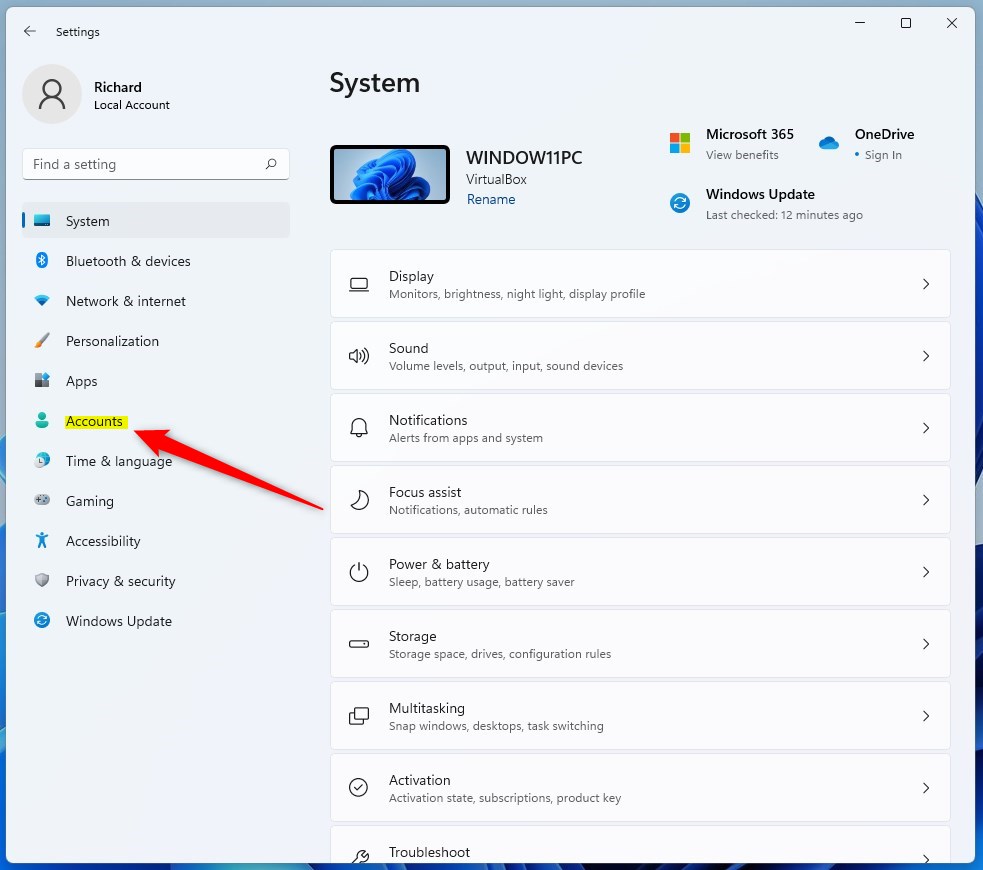
Step 2Click Accounts
In Settings, click Accounts from the menu on the left side.
Step 3Select Sign-in Options
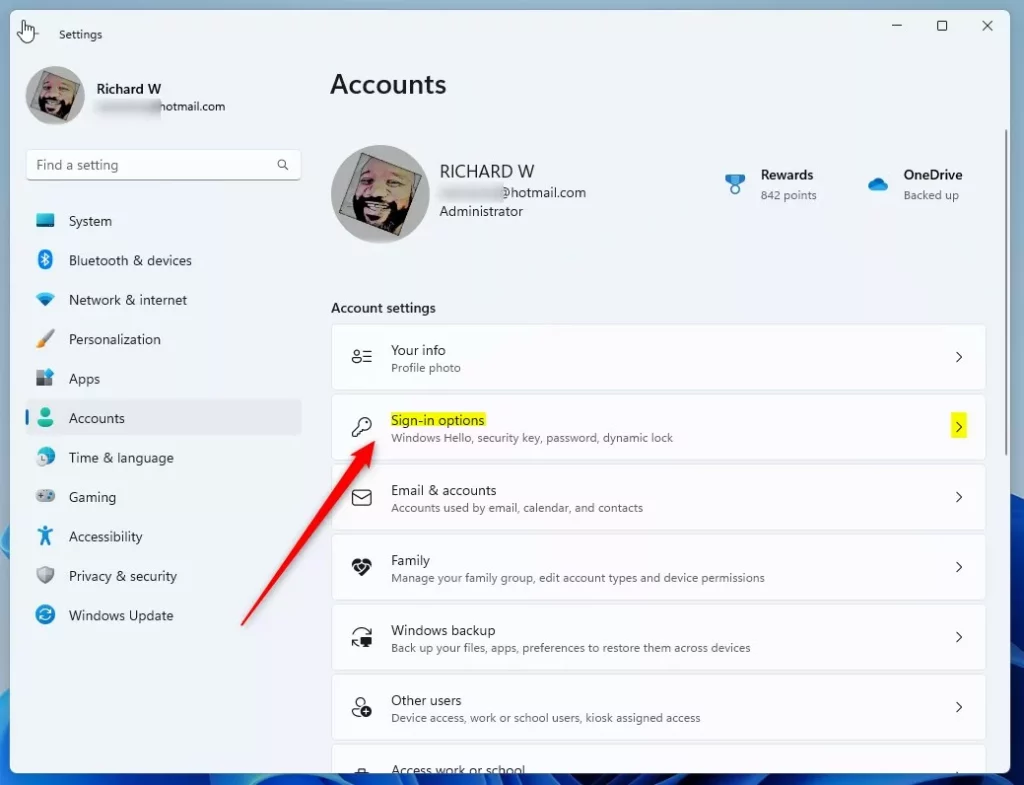
Now, click Sign-in options on the right panel.
Step 4Find the PIN Section
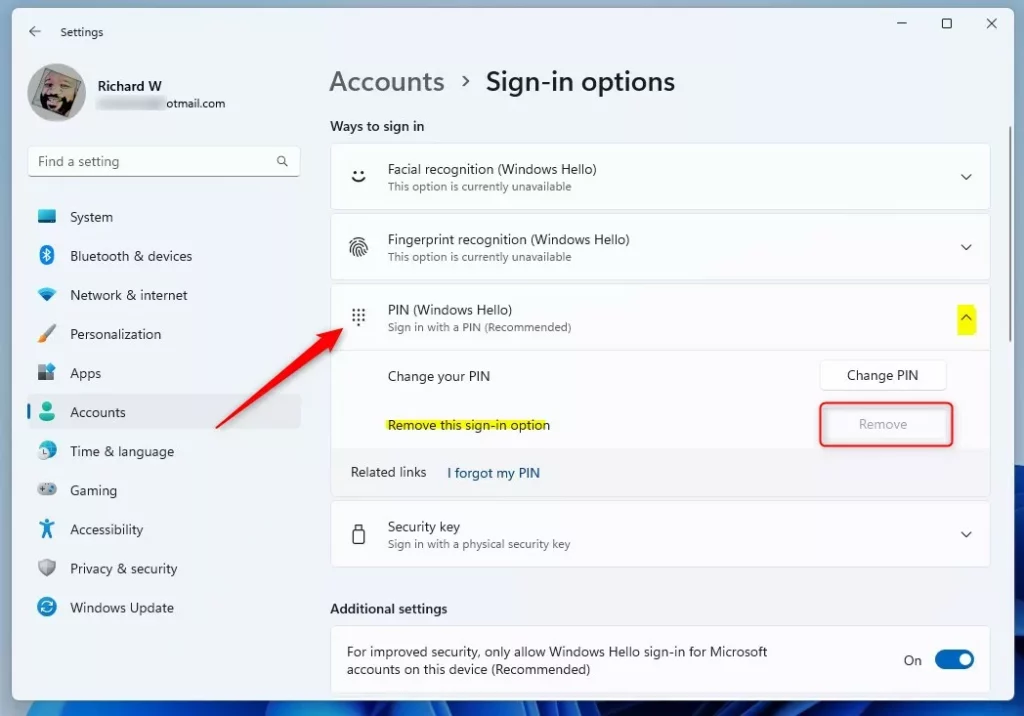
Find the PIN (Windows Hello) section and click to expand it.
Step 5Turn Off the Security Setting
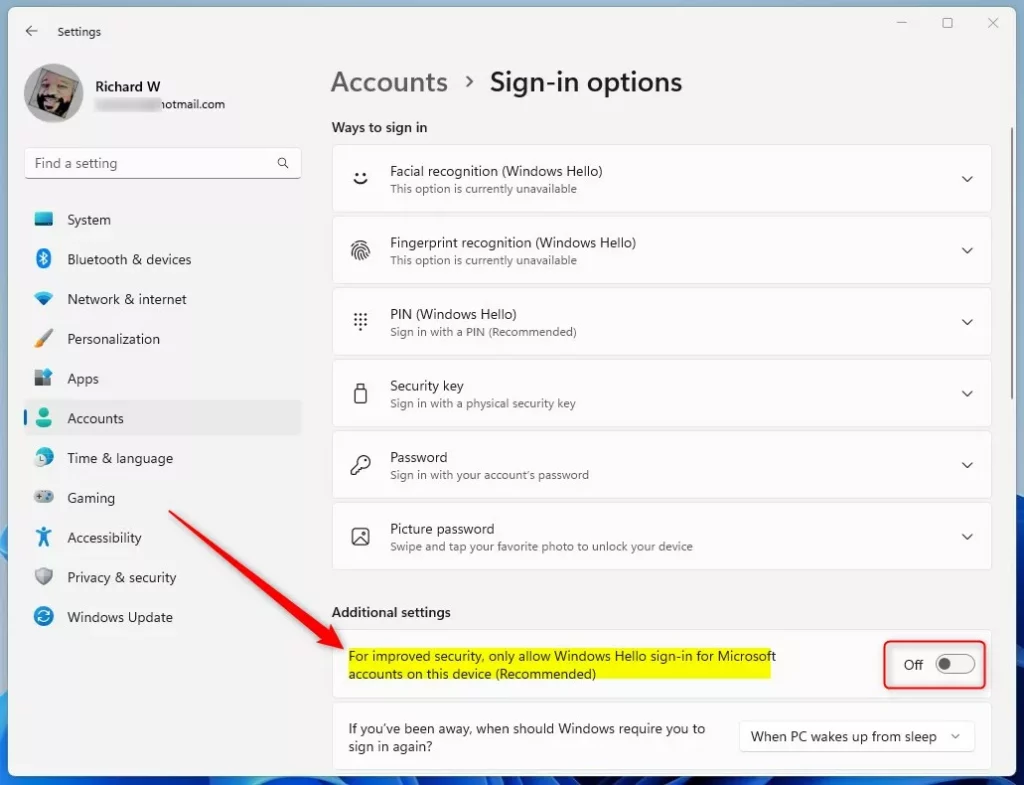
Scroll down inside the PIN section to find Additional settings.
⚠️ Note: The next step requires admin privileges.
Turn off the toggle that says: “For improved security, only allow Windows Hello sign-in for Microsoft accounts on this device.”
Step 6Remove Your PIN
Go back to the PIN (Windows Hello) section. Now, the Remove button should be clickable!
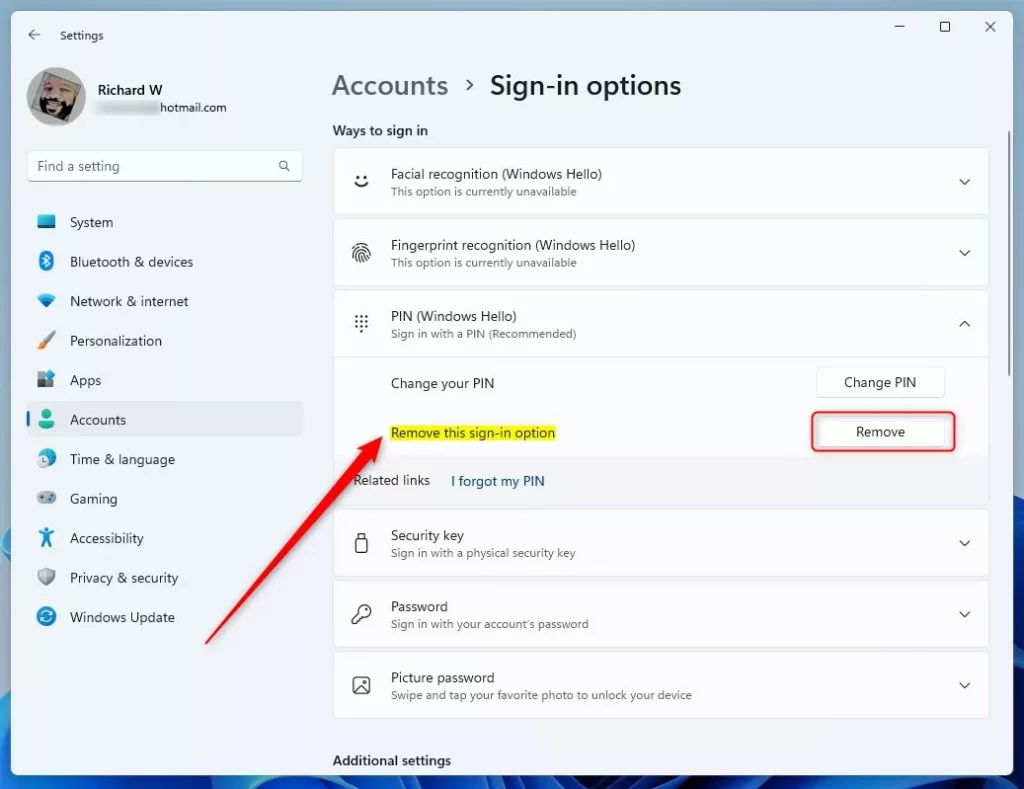
Click Remove to delete your PIN. Now you can use your password to sign in instead.
Summary
- The “Remove PIN” button can be grayed out because of a security setting.
- Turning off the setting that says “only allow Windows Hello sign-in” lets you remove your PIN.
- Now you can switch back to signing in with your password if you prefer.
The “Remove PIN” button often appears grayed out because Windows requires you to sign in using Windows Hello, like a PIN or face scan, for security.
How to Login with a PIN in Windows 11
How to Reset a PIN in Windows 11
How to Remove an Account PIN in Windows 11
Why is the PIN to the taskbar greyed out?
If your “ Pin to Taskbar” option is missing or grayed out in Windows, it’s often due to a recent system update or incorrect settings.
Was this guide helpful?

About the Author
Richard
Tech Writer, IT Professional
Richard, a writer for Geek Rewind, is a tech enthusiast who loves breaking down complex IT topics into simple, easy-to-understand ideas. With years of hands-on experience in system administration and enterprise IT operations, he’s developed a knack for offering practical tips and solutions. Richard aims to make technology more accessible and actionable. He's deeply committed to the Geek Rewind community, always ready to answer questions and engage in discussions.



No comments yet — be the first to share your thoughts!