Enable Night Light in Ubuntu Linux: A Quick Guide

You enable Ubuntu Linux’s Night Light feature to reduce blue light emission from your screen, which helps prevent eye strain and improves sleep.
Night Light is a built-in Ubuntu utility that automatically shifts your screen’s color temperature to warmer tones, especially after sunset, to simulate natural light patterns.
This is a fantastic tool if you frequently use your PC in the evening. For instance, you can easily activate it in Ubuntu 22.04 LTS through the Display settings.
Open Settings, select Displays, and toggle the Night Light switch to On. You can schedule it for Sunset to Sunrise or set a Manual Schedule. The top bar indicates when Night Light is active.
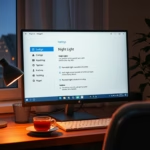
How to enable or disable night light in Ubuntu Linux
Ubuntu Linux includes a feature called Night Light that can help with eye strain when you’re using your computer late at night.
Ubuntu Linux keeps most of its settings in one central place. You can adjust system configurations, create new users, and update software all from the System Settings panel.

Alternatively, click on the System menu at the top-right corner of your desktop’s top bar.
On the System menu, select Settings, as shown below.

Click on the Displays tile in the Settings app to open that panel.
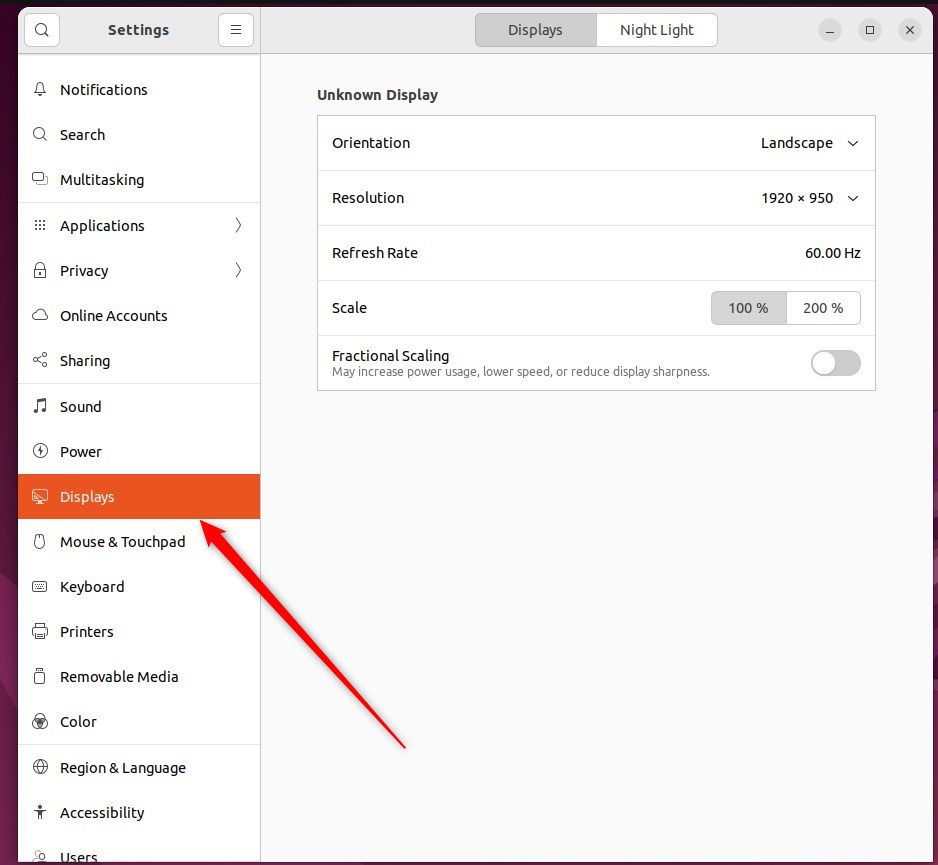
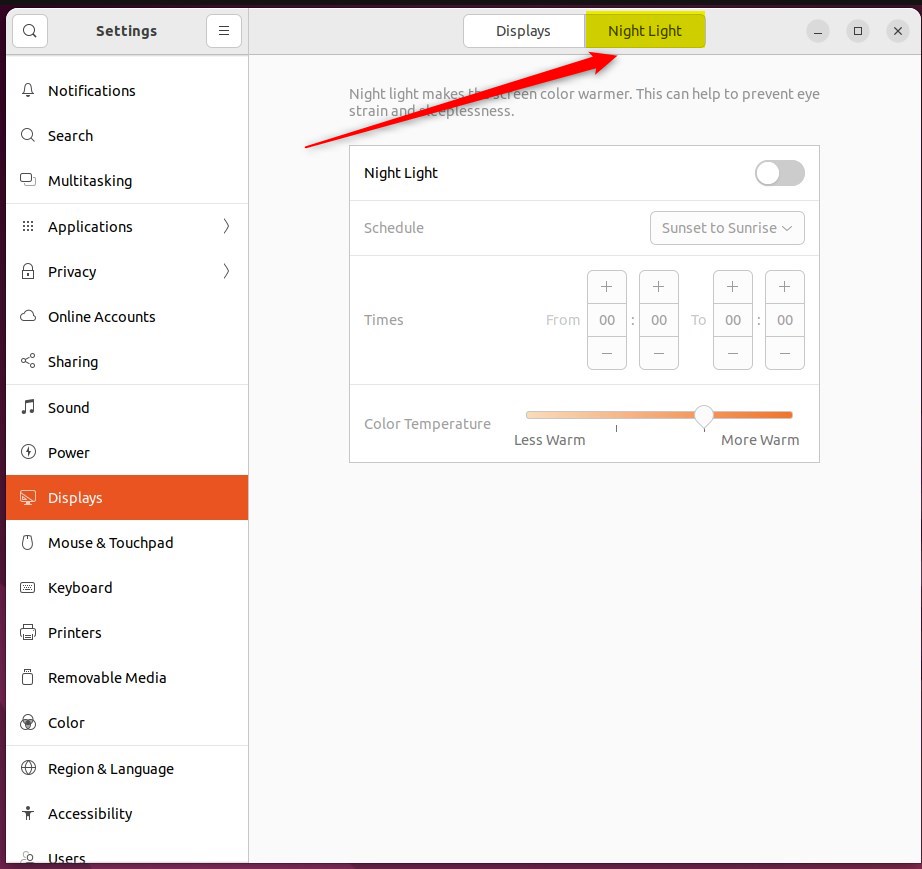
In the System Settings -> Displays settings panel, click Night Light in the header bar to access its options.
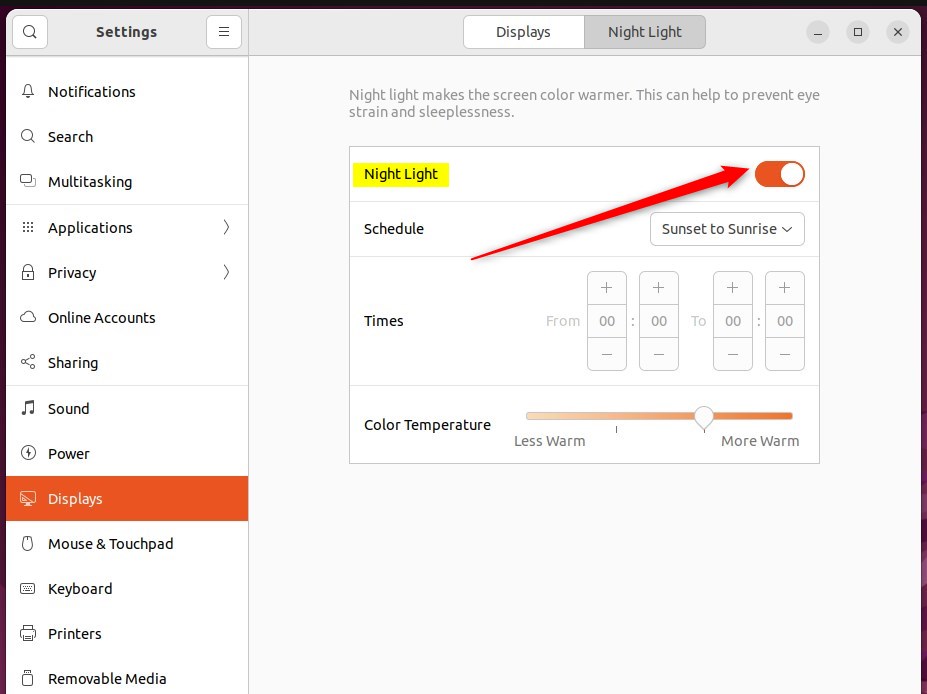
In the System Settings -> Displays -> Night Light settings panel, toggle the Night Light switch to the On position to enable it.
To disable it, move the Night Light switch back to the Off position or turn it off from the system menu.
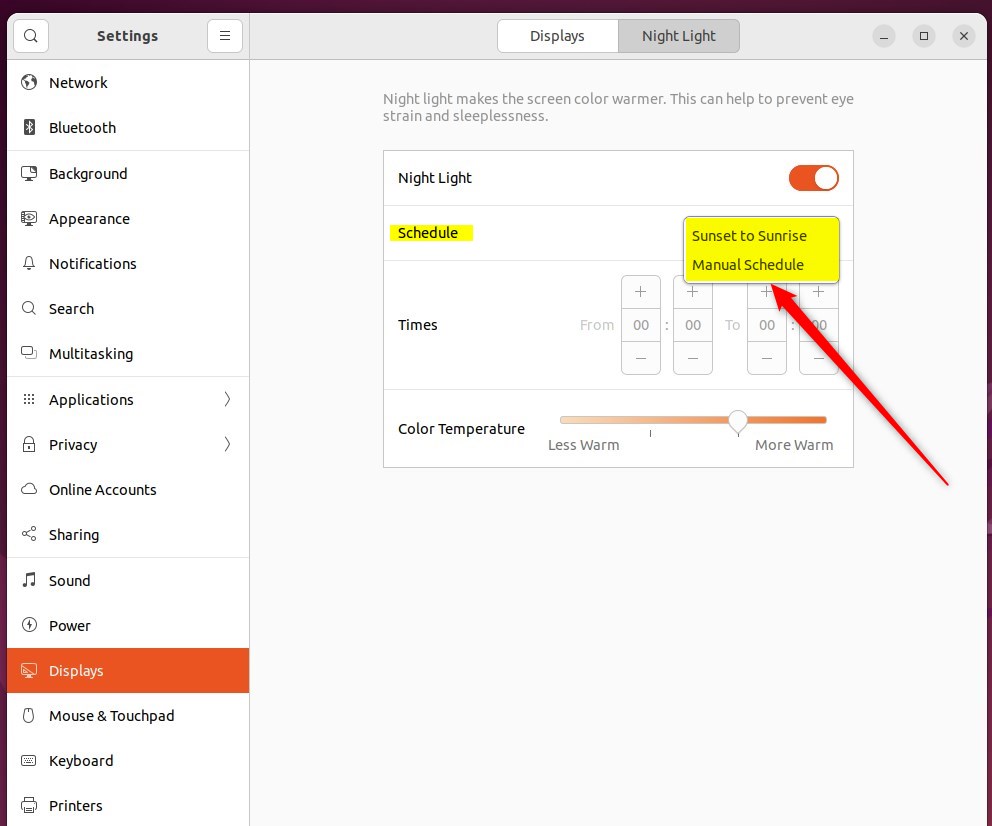
Under Schedule, select Sunset to Sunrise to have the screen color automatically adjust based on your location’s sunset and sunrise times.
Select Manual Schedule to set a custom schedule for the Times.
The top bar shows an indicator when Night Light is active. You can temporarily disable it from the system menu.
That’s all there is to it! You can now close the Settings app.
Conclusion:
- Night Light in Ubuntu Linux provides a convenient way to reduce eye strain and improve sleep quality during nighttime computer usage.
- Users can easily enable or disable Night Light by following a few simple steps in the System Settings and customize its schedule to align with their preferences.
- Utilizing the Sunset to Sunrise option or setting a Manual Schedule allows for flexible control over the warm color display, ultimately enhancing the viewing experience.
- The visual indicator in the top bar conveniently signals when Night Light is active, providing a quick reference for its status.
- Overall, leveraging Night Light in Ubuntu Linux can significantly contribute to a more comfortable and healthier screen viewing experience, especially in low-light conditions.
Was this guide helpful?

About the Author
Richard
Tech Writer, IT Professional
Richard, a writer for Geek Rewind, is a tech enthusiast who loves breaking down complex IT topics into simple, easy-to-understand ideas. With years of hands-on experience in system administration and enterprise IT operations, he’s developed a knack for offering practical tips and solutions. Richard aims to make technology more accessible and actionable. He's deeply committed to the Geek Rewind community, always ready to answer questions and engage in discussions.



No comments yet — be the first to share your thoughts!