How to Turn On or Off Scheduled Night Light in Windows 11

You turn on or off scheduled Night Light in Windows 11 to automatically adjust your screen’s color temperature for reduced eye strain during evening hours.
Night Light is a Windows 11 feature that shifts the display’s colors to a warmer spectrum, mimicking natural light cycles to potentially improve sleep quality.
This adjustment is particularly helpful for reducing blue light exposure, which can interfere with melatonin production.
You can schedule Night Light to activate automatically from sunset to sunrise, or set custom hours, like from 10 PM to 7 AM.
Open Settings, go to System > Display, and click Night light. Toggle “Schedule night light” on or off, then choose your preferred schedule option.
Why Use Night Light?
Your computer screen emits blue light, which can make it harder to fall asleep when you see it at night.
What is Scheduled Night Light?
Scheduled Night Light in Windows 11 lets you set your screen’s warmer colors to turn on and off automatically every day.
How to Turn On or Off Scheduled Night Light
To turn on or off scheduled Night Light in Windows 11, first open the Settings app by pressing Windows key + I.
Quick Tips
Using scheduled Night Light in Windows 11 can help reduce eye strain and improve your sleep by automatically adjusting screen colors.
Summary
Windows 11’s Night Light is a simple feature that reduces blue light from your screen at night, making your eyes more comfortable and helping you sleep better.
Can you schedule night light on 🪟 Windows 11?
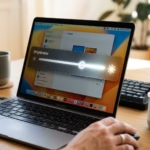
Click on the Night Light section to access its specific configurations. Use the strength slider to adjust the amount of on-screen warming effect. 30% is a good starting point. This is where you can also schedule the Night Light.
How to schedule light and dark mode in 🪟 Windows 11?
Turn the Light Switch utility on or off. Set a keyboard shortcut to manually toggle between light and dark themes. Choose between using dark mode from Sunset to Sunrise (based on your location), Fixed hours (set specific times), or Follow Night Light (synchronize with the Windows Night Light schedule).
How do I add night light to Quick Settings in 🪟 Windows 11?
Find nightlight here and turn it on. You can also adjust the strength or schedule the nightlight. Time the default setting is to activate. Between sunset and sunrise.
Was this guide helpful?

About the Author
Richard
Tech Writer, IT Professional
Richard, a writer for Geek Rewind, is a tech enthusiast who loves breaking down complex IT topics into simple, easy-to-understand ideas. With years of hands-on experience in system administration and enterprise IT operations, he’s developed a knack for offering practical tips and solutions. Richard aims to make technology more accessible and actionable. He's deeply committed to the Geek Rewind community, always ready to answer questions and engage in discussions.

No comments yet — be the first to share your thoughts!