How to Turn On or Off Scheduled Night Light in Windows 11

This guide will help you set up the Night Light feature on your Windows 11 computer. Night Light makes your screen show warmer colors at night, which are easier on your eyes and can help you sleep better.
Why Use Night Light?
Your computer screen gives off blue light, the same kind of light you see during the daytime. Too much blue light at night can make it harder to fall asleep. Turning on Night Light changes the screen colors to warmer tones, which feels more comfortable for your eyes in the dark.
What is Scheduled Night Light?
You can set Night Light to turn on and off automatically each day. You have two options:
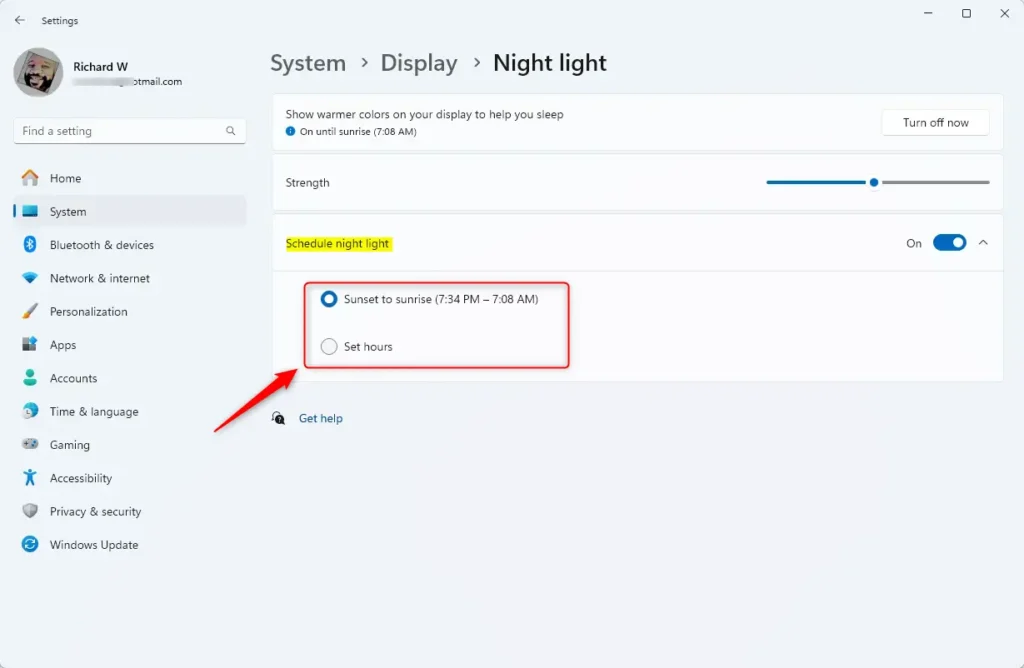
- Sunset to sunrise – Night Light turns on when it gets dark outside and turns off when the sun rises. (You need to have Location services turned on for this.)
- Set hours – You pick the exact times you want Night Light to turn on and off.
How to Turn On or Off Scheduled Night Light
- Open Settings: Press the Windows key + I on your keyboard to open the Settings app.
- Go to Display Settings: In the left menu, click System, then click Display on the right.

- Find Night Light: Scroll down to the Brightness & color section and click on Night light.
- Turn On Scheduled Night Light:
- Turn on the switch for Schedule night light.
- Choose either Sunset to sunrise or Set hours.
- If you pick Sunset to sunrise, make sure your Location is turned on under Settings > Privacy & security > Location.
- If you pick Set hours, pick the times you want Night Light to turn on and off each day.
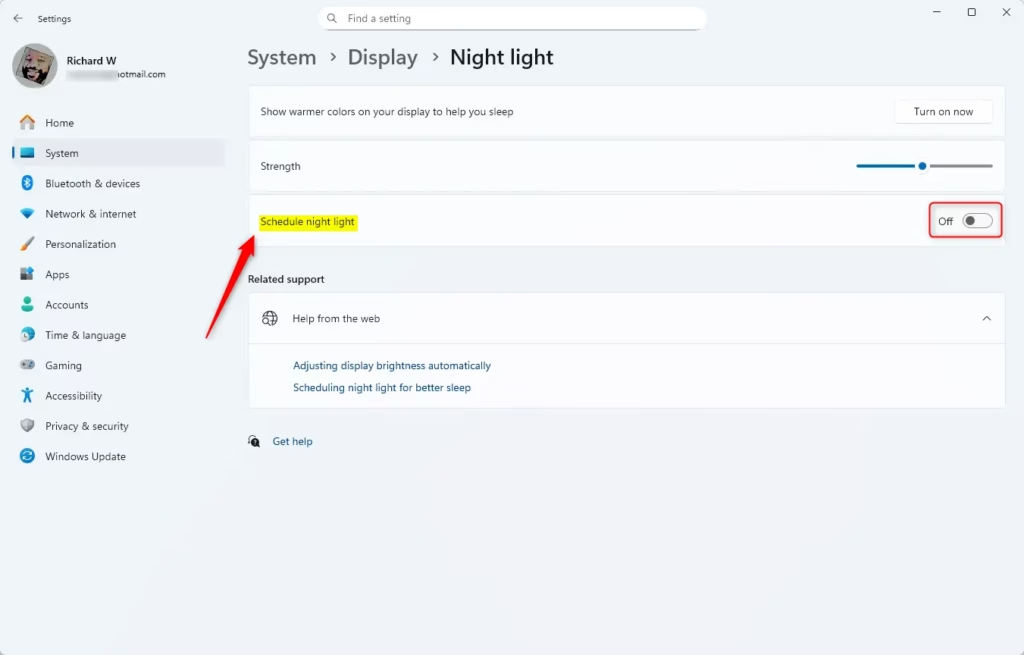
- Turn Off Scheduled Night Light: If you want to stop Night Light from turning on automatically, just switch off Schedule night light.
- You can now close the Settings app.
Quick Tips
- Using Scheduled Night Light can help reduce eye strain and improve your sleep at night.
- You can pick times that fit your daily routine.
- Location services must be enabled if you want Night Light to follow sunset and sunrise times automatically.
- Changing these settings is easy and doesn’t affect anything else on your computer.
- If you don’t like the warmer colors, just turn Night Light off anytime.
- For more detailed info and troubleshooting, check out the official Microsoft support page: Use Night Light on Windows 11.
Summary
Night Light is a simple feature in Windows 11 that reduces blue light from your screen at night. This makes your eyes more comfortable and can help you sleep better. You can set it to turn on and off automatically using sunset and sunrise times, or you can pick specific hours that work for you. It only takes a few clicks to set up in your Display Settings, and you can turn it on or off whenever you want. There’s no downside to trying it—if you don’t like the warmer colors, you can disable it anytime.
Was this guide helpful?

About the Author
Richard
Tech Writer, IT Professional
Richard, a writer for Geek Rewind, is a tech enthusiast who loves breaking down complex IT topics into simple, easy-to-understand ideas. With years of hands-on experience in system administration and enterprise IT operations, he’s developed a knack for offering practical tips and solutions. Richard aims to make technology more accessible and actionable. He's deeply committed to the Geek Rewind community, always ready to answer questions and engage in discussions.

No comments yet — be the first to share your thoughts!