How to Turn On or Off Minimize Windows When a Monitor is Disconnected in Windows 11

Ever unplugged a monitor and lost track of your open windows? Windows 11 has a setting for that.
This setting determines if your apps automatically hide when you unplug an external monitor. It’s a built-in behavior designed to prevent windows from becoming inaccessible.
For example, if you have several programs open across two screens and pull one out, Windows 11 will automatically hide those programs on the disconnected screen. You can turn this automatic minimization on or off in Windows 11’s Display settings.
Navigate to Settings > System > Display > Multiple displays. Find “Minimize windows when a monitor is disconnected” and check the box to enable or uncheck it to disable. This setting controls whether applications automatically hide when an external display is unplugged.
Why Does Windows Do This?
When you disconnect a monitor, Windows 11 has two choices. It can hide all the windows that were on that screen. Or it can move those windows to your main screen so you can still see them. Right now, Windows is probably hiding them. You might want to change that.
What Happens When You Change This Setting?
If you disable this feature, your windows won’t hide. Instead, Windows will move them to your main screen, so you can keep working without losing track of anything.
How to Change This Setting Using Windows Settings
- Press the Windows Key + I on your keyboard. The Settings window opens.
- Look at the left side. Click System.
- On the right side, click Display.
- Scroll down and find Multiple displays. Click it to open more options.
- Look for the option called Minimize windows when a monitor is disconnected.
- Check the box to turn it on. Uncheck the box to turn it off.
You can easily turn on or off the feature that minimizes windows when a monitor is disconnected in Windows 11 using the built-in Settings app.
Windows Display Settings tile
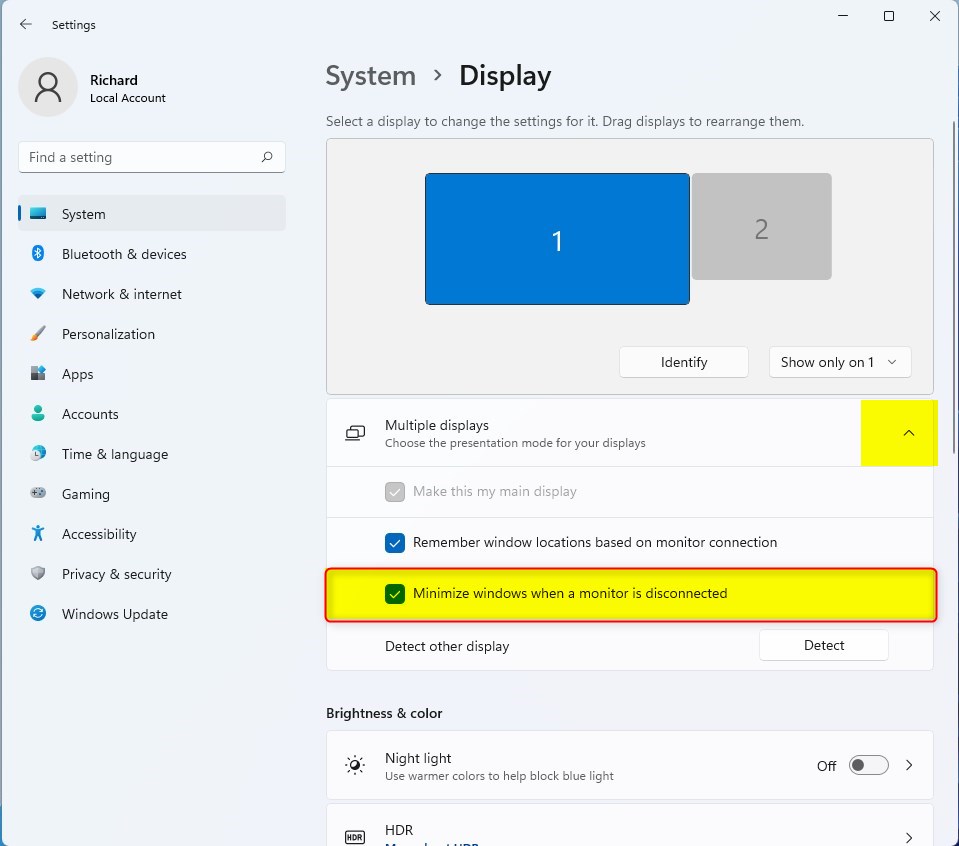
Windows 11 minimize windows on disconnected monitor
How to Change This Setting Using the Registry (Advanced Users Only)
Warning: The Registry is a special place in Windows where it keeps important system settings. Messing it up can cause problems, so be careful. Follow these steps carefully. If you are not sure, ask someone for help.
To Turn ON Minimize Windows (This Is the Default):
reg add "HKEY_CURRENT_USER\Control Panel\Desktop" /v MonitorRemovalRecalcBehavior /t REG_DWORD /d 0 /fTo Turn OFF Minimize Windows (Keep Windows on Main Screen):
reg add "HKEY_CURRENT_USER\Control Panel\Desktop" /v MonitorRemovalRecalcBehavior /t REG_DWORD /d 1 /fReady to use these commands? Create a new text file, paste the code inside, and save it with a .reg extension. Then, double-click the file to add it to your Registry.
Summary
- You can control what happens to your windows when you unplug a monitor.
- By default, Windows hides windows on the disconnected monitor.
- You can turn off this feature. Then Windows will move those windows to your main screen instead.
- Change this setting in Windows Settings. It takes just a few clicks.
- Advanced users can also edit the Registry using commands.
- Try both settings. See which one works better for you.
This guide shows you how to manage whether your windows minimize when you disconnect a monitor in Windows 11, offering simple steps to control this behavior.
Was this guide helpful?

About the Author
Richard
Tech Writer, IT Professional
Richard, a writer for Geek Rewind, is a tech enthusiast who loves breaking down complex IT topics into simple, easy-to-understand ideas. With years of hands-on experience in system administration and enterprise IT operations, he’s developed a knack for offering practical tips and solutions. Richard aims to make technology more accessible and actionable. He's deeply committed to the Geek Rewind community, always ready to answer questions and engage in discussions.


No comments yet — be the first to share your thoughts!