How to Disable Touchpad With Mouse in Windows 11

This tutorial shows you how to turn on or off the touchpad on your Windows 11 computer when a mouse is connected.
Why This Matters
If your laptop has a built-in touchpad and you use an external USB or Bluetooth mouse, you can make Windows automatically turn off the touchpad when the mouse connects. This stops accidental touchpad touches while you work.
What Happens
When you enable this setting, your touchpad will turn off automatically when you plug in or connect a mouse. When you disconnect the mouse, the touchpad turns back on.
Reference: Precision touchpad tuning (touchpad-tuning-guidelines)
This topic presents information about touchpad tuning capabilities in Windows 10 and beyond.
Option 1Use Settings
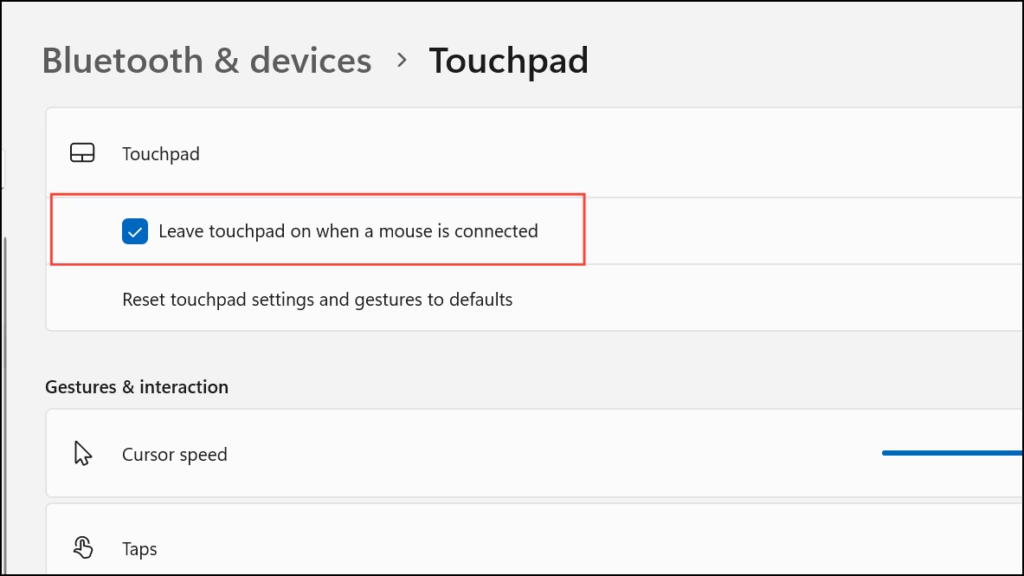
The Settings app provides the quickest way to disable touchpad with mouse in Windows 11. Open Settings by pressing ⊞ Win+I, navigate to Bluetooth & devices, select Touchpad, then uncheck the ‘Leave touchpad on when a mouse is connected’ option to turn off your touchpad automatically when an external mouse is detected.- Open Settings by pressing
Win+I. - Click on Bluetooth & devices on the left side.
- Click on Touchpad on the right side.
- Click on Touchpad to expand it open.
- Check the box (on – this is the default) or uncheck the box (off) next to Leave touchpad on when a mouse is connected. Choose what you want.
- You can now close Settings.
Option 2Use Registry
⚠️ Admin privileges required: Open the Windows Terminal app as an administrator and run the commands below.
Turn On Leave Touchpad On when Mouse Connected
This is the default setting.
reg add "HKEY_CURRENT_USER\Software\Microsoft\Windows\CurrentVersion\PrecisionTouchPad" /v LeaveOnWithMouse /t REG_DWORD /d 4294967295 /f
Turn Off Leave Touchpad On when Mouse Connected
reg add "HKEY_CURRENT_USER\Software\Microsoft\Windows\CurrentVersion\PrecisionTouchPad" /v LeaveOnWithMouse /t REG_DWORD /d 0 /f
Summary
You now know how to control whether your touchpad stays on when a mouse is connected. Use Settings for an easy way to change this. Use Registry for more advanced control. Either method lets you stop accidental touchpad touches when using an external mouse.
How to turn off touchpad when using mouse 🪟 Windows 11?
To automatically disable your touchpad when a mouse is connected, press ⊞ Win+I to open Settings. Navigate to Bluetooth & devices, select Touchpad, and click the arrow to expand the menu. Uncheck the box labeled 'Leave touchpad on when a mouse is connected' to enable automatic touchpad deactivation upon mouse connection.
How do I disable the touchpad when using a mouse?
You can disable the touchpad by accessing the Windows 11 Settings menu. Go to Bluetooth & devices, then select Touchpad. Expand the Touchpad section and uncheck the option 'Leave touchpad on when a mouse is connected.' This ensures your touchpad turns off automatically whenever an external mouse is plugged in or paired.
How to force disable touchpad?
To force disable your touchpad, open Settings, navigate to Bluetooth & devices, and select Touchpad. Toggle the main Touchpad switch to the Off position. This action completely disables the touchpad regardless of whether an external mouse is connected, preventing all input until you manually toggle the setting back to the On position.
How do I turn off my touchpad permanently?
For a permanent disable, open Settings, go to Bluetooth & devices, and select Touchpad. Toggle the main Touchpad switch to Off. Alternatively, you can disable it via Device Manager by right-clicking the touchpad driver under 'Mice and other pointing devices' and selecting 'Disable device' to ensure it remains inactive after system restarts.
Was this guide helpful?

About the Author
Richard
Tech Writer, IT Professional
Richard, a writer for Geek Rewind, is a tech enthusiast who loves breaking down complex IT topics into simple, easy-to-understand ideas. With years of hands-on experience in system administration and enterprise IT operations, he’s developed a knack for offering practical tips and solutions. Richard aims to make technology more accessible and actionable. He's deeply committed to the Geek Rewind community, always ready to answer questions and engage in discussions.




No comments yet — be the first to share your thoughts!