How to Enable or Disable Game Mode in Windows 11

What is Game Mode?
Windows 11 Game Mode is a feature that helps your games run smoother by giving them priority on your PC.
Here’s what happens when Game Mode is on:
- Windows won’t install updates or restart while you’re playing.
- Your game may run smoother with fewer slowdowns.
Note: Windows automatically adjusts the power settings to help your game when Game Mode is on. You can’t change these settings while Game Mode is active.
How to Turn Game Mode On or Off in Settings
You can easily turn Windows 11 Game Mode on or off using the Settings app.
- Press the ⊞ Win+I keys on your keyboard to open Settings.
- Click on Gaming from the menu on the left side.
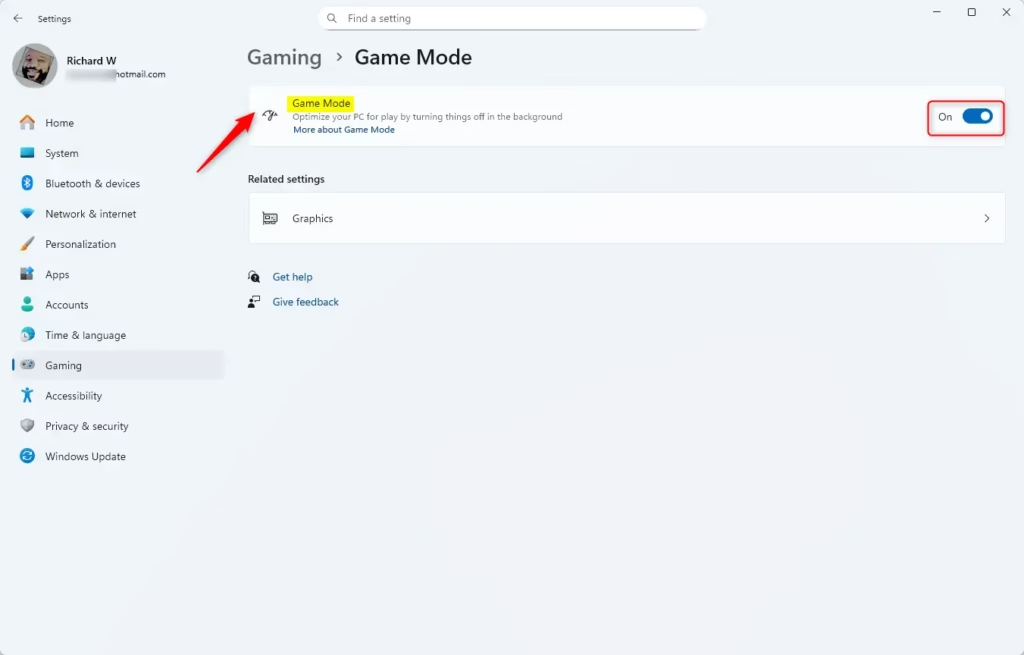
- Click on Game Mode on the right side.
- Use the switch to turn Game Mode On or Off.
- Close Settings when you’re done.
You can also jump straight to Game Mode settings by clicking here: Open Game Mode Settings
How to Turn Game Mode On or Off Using the Registry (Advanced)
If you’re comfortable with advanced Windows settings and want to edit the Registry (a database that stores low-level settings for Windows and applications), you can use this method. Be careful — consider making a backup of your registry before making changes.
Turn On Game Mode
You’ll need administrator privileges to make changes here.
reg add "HKEY_CURRENT_USER\Software\Microsoft\GameBar" /v AutoGameModeEnabled /t REG_DWORD /d 1 /fTurn Off Game Mode
You’ll need administrator privileges to make changes here.
reg add "HKEY_CURRENT_USER\Software\Microsoft\GameBar" /v AutoGameModeEnabled /t REG_DWORD /d 0 /fNeed More Help?
For more information about Game Mode, visit the Xbox Support website

Summary
Windows 11 Game Mode helps your games run better by giving them priority, stopping updates and restarts while you play.
How do I get out of Game Mode on 🪟 Windows 11?
In the menu, click on ‘Game Mode.’ Then, toggle the switch to the ‘Off’ position. Game Mode will disable right away.
Was this guide helpful?

About the Author
Richard
Tech Writer, IT Professional
Richard, a writer for Geek Rewind, is a tech enthusiast who loves breaking down complex IT topics into simple, easy-to-understand ideas. With years of hands-on experience in system administration and enterprise IT operations, he’s developed a knack for offering practical tips and solutions. Richard aims to make technology more accessible and actionable. He's deeply committed to the Geek Rewind community, always ready to answer questions and engage in discussions.



No comments yet — be the first to share your thoughts!