

Windows 11 has a feature called Dynamic Lighting. It lets certain apps and devices (like LED keyboards, mice, or PC lights) change colors and lighting effects while you use your computer.
You can set it so that apps you are actively using (in the front) control the lighting, or let background apps control it even if you’re using another app.
What Does “Compatible Apps in the Foreground Always Control Lighting” Mean?
This setting means:
- On: The app you are currently using controls the lighting.
- Off: Other apps running in the background can also control the lighting, even if you’re using a different app.
How to Turn This Setting On or Off Using Windows Settings
Follow these simple steps:
- Open the Settings app:
– Click the Start menu button and select Settings, or
– Press Windows key + I on your keyboard to open Settings quickly.
- Go to Personalization:
In the left menu, click Personalization.
- Select Dynamic Lighting:
Find and click the Dynamic Lighting tile on the right side.
- Toggle the setting:
Find the switch labeled “Compatible apps in the foreground always control lighting”.
Click the switch to turn it On or Off as you want.
- Close Settings:
When done, just close the Settings window.
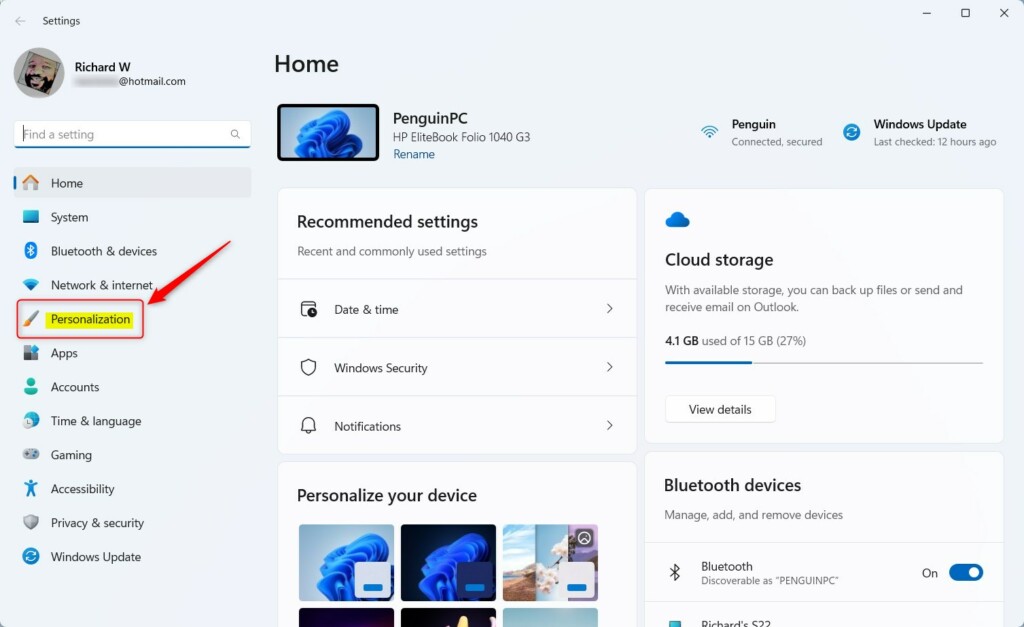
Click Personalization in Windows Settings
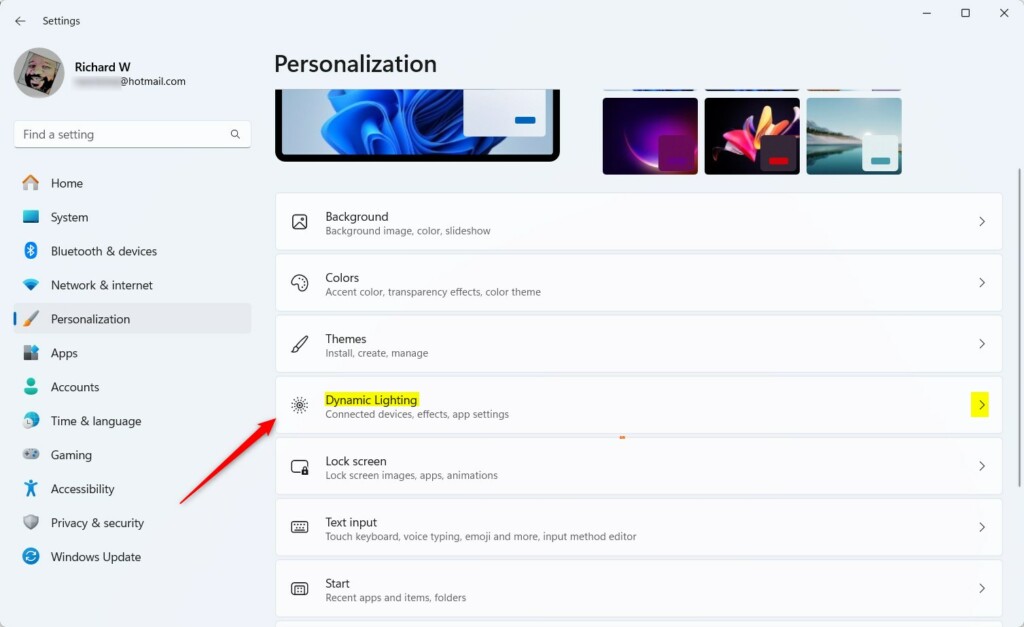
Select the Dynamic Lighting tile
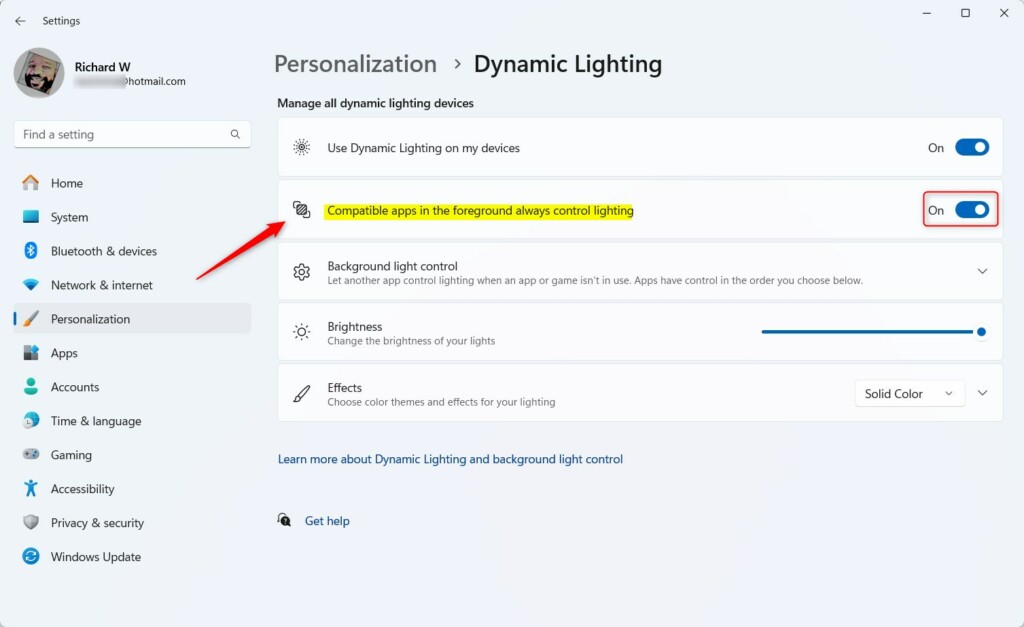
Toggle the setting On or Off
How to Change This Setting Using the Windows Registry (Advanced)
If you’re comfortable with advanced settings, you can also change this option using the Windows Registry. Be careful when editing the registry, as making wrong changes can cause problems.
- Open the Windows Registry Editor:
– Press Windows key + R, typeregedit, and press Enter. - Go to this folder (key):
HKEY_CURRENT_USER\Software\Microsoft\Lighting - If you don’t see the
Lightingfolder, you can create it by right-clicking onMicrosoft, choosing New > Key, and naming itLighting. - Right-click on the right side of the
Lightingfolder and select New > DWORD (32-bit) Value. - Name the new value:
ControlledByForegroundApp. - Double-click this new value and set the Base to Decimal.
- Set the Value data to:
- 1 to turn On (foreground apps control lighting)
- 0 to turn Off (background apps can control lighting)
- Click OK, close Registry Editor, and restart your PC to apply the changes.
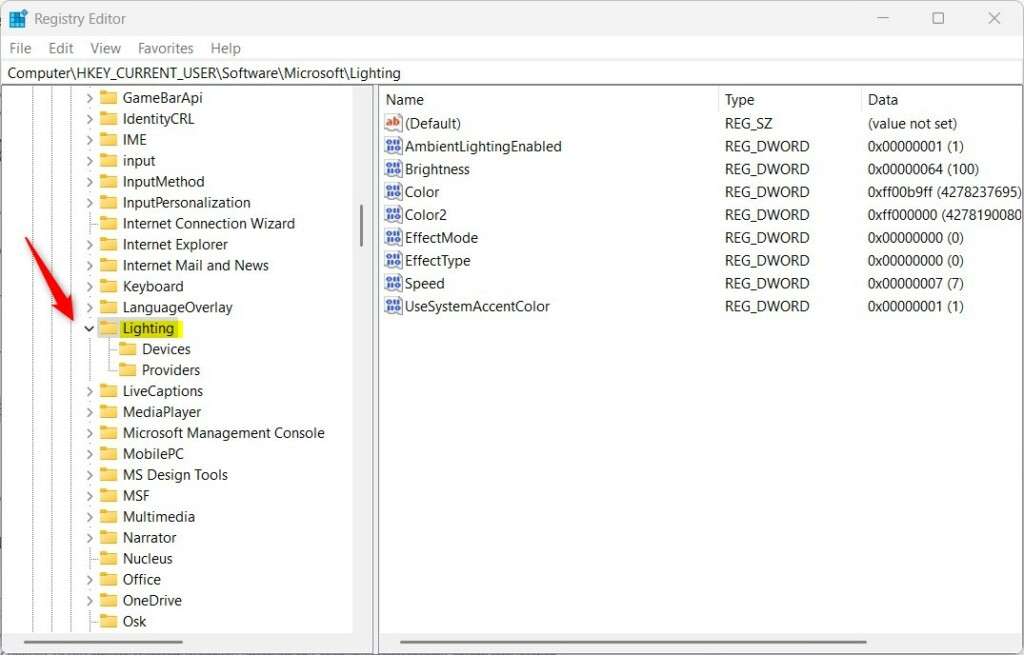
Windows Registry Editor showing Lighting key
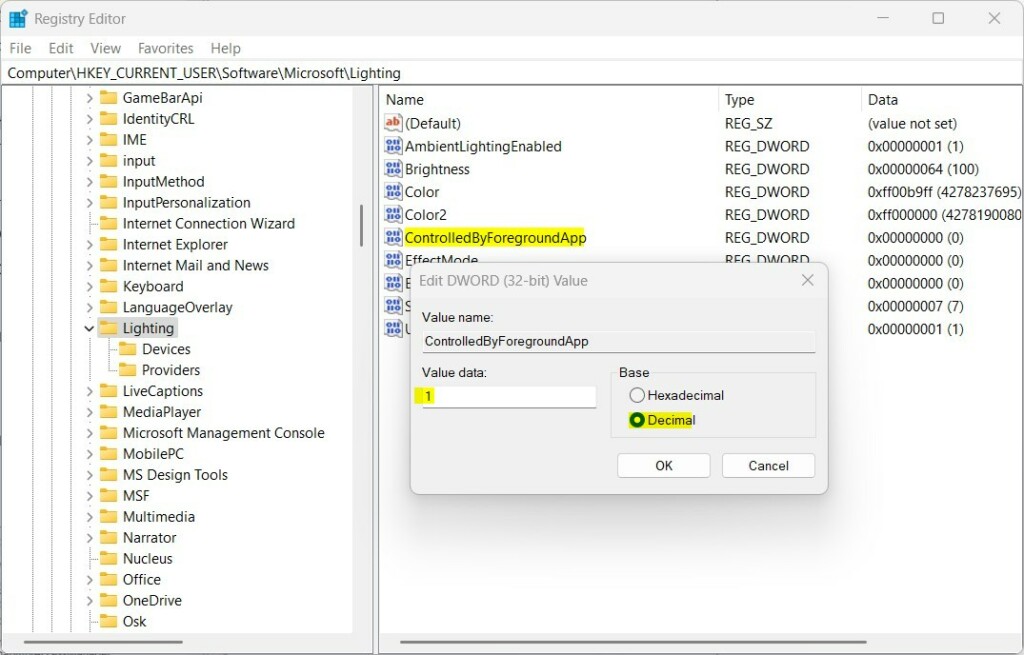
Set the value to 1 or 0
Need More Help?
For more info, you can check the official Microsoft support page about Dynamic Lighting.
If you run into problems or have questions, feel free to ask in the comments or search for help online.
Summary
- You learned how to turn on or off the setting that lets apps in front control your device lighting in Windows 11.
- You can do this easily through Windows Settings or by using the Registry Editor if you’re comfortable.
- Remember to be careful with the Registry and always back up before making changes.


Leave a Reply