
This guide will help you easily turn on or off the feature that automatically reopens apps when you sign back into your Windows 11 account.
Windows can remember which apps you had open before you signed out, restarted, or shut down your computer. When you sign back in, it can open those apps for you automatically.
Starting with Windows 11 version 25H2, if you have the setting to “Restore previous folder windows at logon” turned on in File Explorer, Windows will also reopen all the tabs you had open in each File Explorer window. When you turn on the automatic restart apps setting, Windows will turn on this File Explorer setting for you as well.
Option 1: Turn On or Off Automatically Restart Apps Using Settings
- Press Windows key + I on your keyboard to open Settings.
- Click Accounts on the left side.
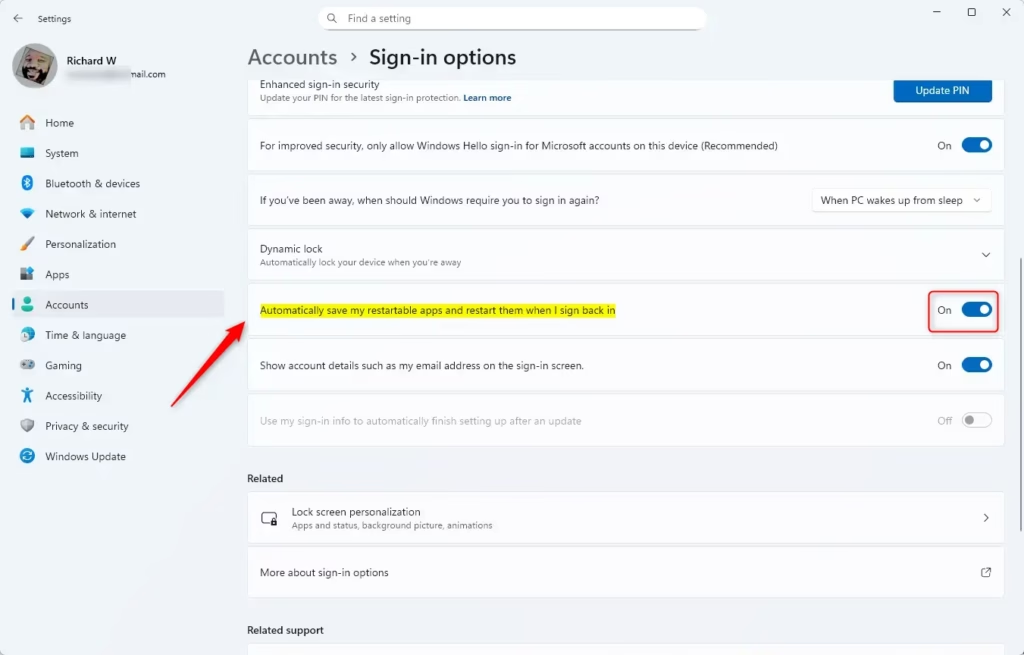
Then click Sign-in options on the right side. - Under Additional settings, find the option called Automatically save my restartable apps and restart them when I sign back in.
- Switch it On to enable this feature or Off to disable it.
- Close the Settings window when you’re done.
You can also open the Sign-in options page directly by clicking this link: Open Sign-in options settings

Option 2: Turn On or Off Automatically Restart Apps Using the Registry (for advanced users)
If you like, you can change this setting by editing the Windows Registry. Please be careful when using the Registry Editor.
To Turn On Automatically Restart Apps:
reg add "HKEY_CURRENT_USERSOFTWAREMicrosoftWindows NTCurrentVersionWinlogon" /v RestartApps /t REG_DWORD /d 1 /f
To Turn Off Automatically Restart Apps (default setting):
reg add "HKEY_CURRENT_USERSOFTWAREMicrosoftWindows NTCurrentVersionWinlogon" /v RestartApps /t REG_DWORD /d 0 /f
Summary
- Easy to change: Use Windows Settings or the Registry Editor to turn this feature on or off.
- Keeps your apps ready: Automatically saves and reopens apps so you can continue working faster.
- File Explorer tabs: Windows 11 now also remembers your open File Explorer tabs when you sign back in.
- Flexible: You can choose to use this feature or not depending on your preference.
- User-friendly: Windows Settings gives you a simple way to find and change this option.


Leave a Reply