How to Enable or Disable Automatically Hide the Taskbar in Windows 11

You can enable or disable the automatic hiding of the Taskbar in Windows 11 through the Personalization settings.
The Taskbar is a fundamental Windows interface element, typically found at the bottom of your screen, displaying your open applications, the Start menu, and system tray icons. By default, it remains visible.
Automatically hiding the Taskbar frees up valuable screen real estate, making your workspace appear larger. Windows 11 introduced this feature to enhance productivity and provide a cleaner desktop experience.
When enabled, the Taskbar will disappear after a few seconds of inactivity and reappear when you move your mouse pointer to the edge of the screen where it’s located.
Go to Settings > Personalization > Taskbar. Expand Taskbar behaviors and toggle “Automatically hide the taskbar” on or off. The taskbar will hide when not in use and reappear when you move your mouse to the bottom of the screen.
What Does Auto-Hide Do?
The Windows 11 taskbar auto-hide feature makes your taskbar disappear when you’re not using it, giving you more room on your screen. It reappears when you move your mouse to the bottom of the screen, press ⊞ Win+T, or swipe up from the bottom on a touchscreen.
You can see it again by moving your mouse to the bottom of your screen. You can also press ⊞ Win+T on your keyboard. Or you can swipe up from the bottom if you have a touchscreen.
Note: If you’re using a tablet or 2-in-1 device in tablet mode, the taskbar might always hide automatically. This happens even if you turn this setting off.
How to Turn Auto-Hide On or Off Using Settings
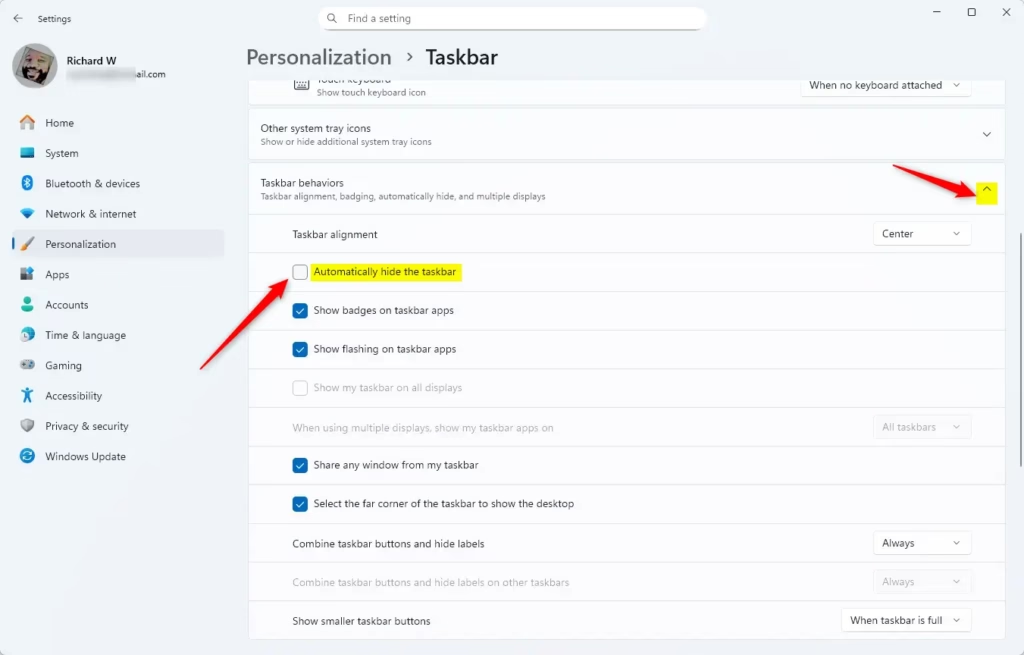
You can easily turn the Windows 11 taskbar auto-hide on or off using the Settings app. Just open Settings by pressing ⊞ Win+I, go to Personalization, then Taskbar, and click the arrow next to Taskbar behaviors to find the option.
What happens? Your taskbar will hide or show based on your choice.
- Open Settings by pressing ⊞ Win+I on your keyboard.
- Click Personalization on the left side.
- Click Taskbar on the right side.
- Scroll down and click the arrow next to Taskbar behaviors to open more options.
- Find Automatically hide the taskbar and check the box to turn it on. Uncheck it to turn it off.
- Close Settings. The changes will apply right away.
Here’s what it looks like:
How to Turn Auto-Hide On or Off Using Command Prompt
For those who prefer commands, you can turn the Windows 11 taskbar auto-hide feature on or off using the Command Prompt. You’ll need to open Windows Terminal as an administrator and then type a specific command to change the setting.
What happens? The command will change the setting and refresh your taskbar automatically.
- 🔒 Admin Required — Right-click the Start button and select Windows Terminal (Admin). Then choose Command Prompt from the dropdown.
- To turn on auto-hide, copy and paste this command and press Enter:
powershell -command "&{$p='HKCU:\SOFTWARE\Microsoft\Windows\CurrentVersion\Explorer\StuckRects3';$v=(Get-ItemProperty -Path $p).Settings;$v[8]=3;&Set-ItemProperty -Path $p -Name Settings -Value $v;&Stop-Process -f -ProcessName explorer}" - To turn off auto-hide (default), copy and paste this command and press Enter:
powershell -command "&{$p='HKCU:\SOFTWARE\Microsoft\Windows\CurrentVersion\Explorer\StuckRects3';$v=(Get-ItemProperty -Path $p).Settings;$v[8]=2;&Set-ItemProperty -Path $p -Name Settings -Value $v;&Stop-Process -f -ProcessName explorer}" - Your taskbar will refresh automatically after running the command.
- Close the Windows Terminal window.
Summary
Managing the Windows 11 taskbar auto-hide is simple, letting you get more screen space when you need it. You can turn this feature on or off using either the Settings app or the Command Prompt, and remember to move your mouse to the bottom to see the taskbar again.
When the taskbar is hidden, move your mouse to the bottom of the screen to see it. You can also use the ⊞ Win+T keyboard shortcut. On a touchscreen, swipe up from the bottom.
Keep in mind that tablet mode and certain touch settings may change how auto-hide works.
Once you make your choice, you’re done! Windows 11 will now work just how you like it.
How to make your taskbar automatically hide?
Right-click the taskbar and select Taskbar settings at the bottom of the list. Or select Start, Settings, Personalization, and Taskbar. Toggle on Automatically hide the taskbar in desktop mode.
Was this guide helpful?

About the Author
Richard
Tech Writer, IT Professional
Richard, a writer for Geek Rewind, is a tech enthusiast who loves breaking down complex IT topics into simple, easy-to-understand ideas. With years of hands-on experience in system administration and enterprise IT operations, he’s developed a knack for offering practical tips and solutions. Richard aims to make technology more accessible and actionable. He's deeply committed to the Geek Rewind community, always ready to answer questions and engage in discussions.


No comments yet — be the first to share your thoughts!