How to Turn On or Off Archive Apps in Windows 11

This tutorial will show you how to turn archive apps on or off. You can do this for your account, a specific person’s account, or everyone on your computer in Windows 11.
What are Archive Apps?
Archive apps help save space on your computer and Internet data. Windows automatically archives Microsoft Store apps that you don’t use very often. Your files and information stay safe. When you use an archived app again, it downloads from the Internet to work like normal (if it’s still available).
Why would you want to turn this on or off? Turning it on saves storage space. Turning it off keeps your apps ready to use right away without downloading.
Reference:
ApplicationManagement Policy CSP
Learn more about the ApplicationManagement Area in Policy CSP.
Option One
Turn Archive Apps On or Off for Your Account in Settings
- Open Settings (⊞ Win+I).
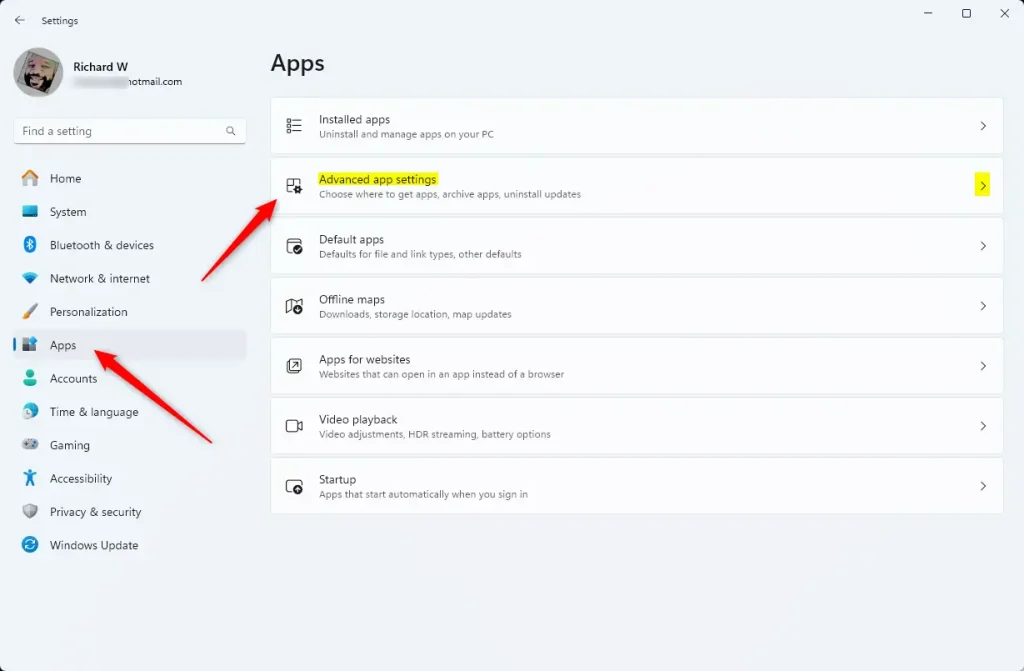
- Click on Apps on the left side. Then click on Advanced app settings on the right side.
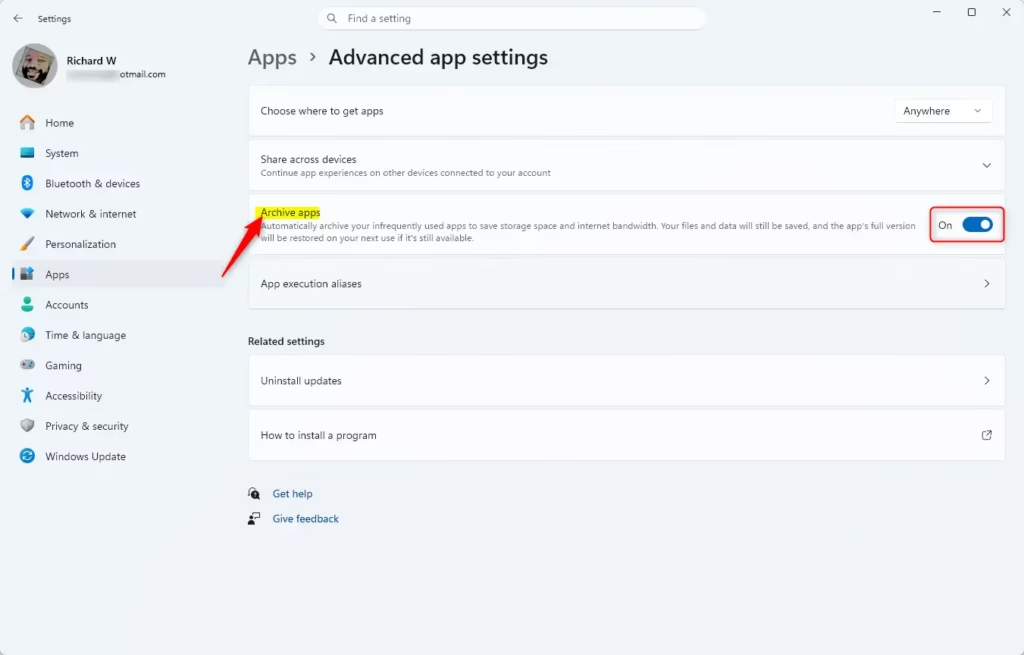
- Turn archive apps On (this is the default) or Off for what you want.
- You can now close Settings.
Option Two
Turn Archive Apps On or Off for a Specific Person in Registry Editor
⚠️ Admin Required: You must be signed in as an administrator to use this option.
- Open Windows Terminal. Select Windows PowerShell.
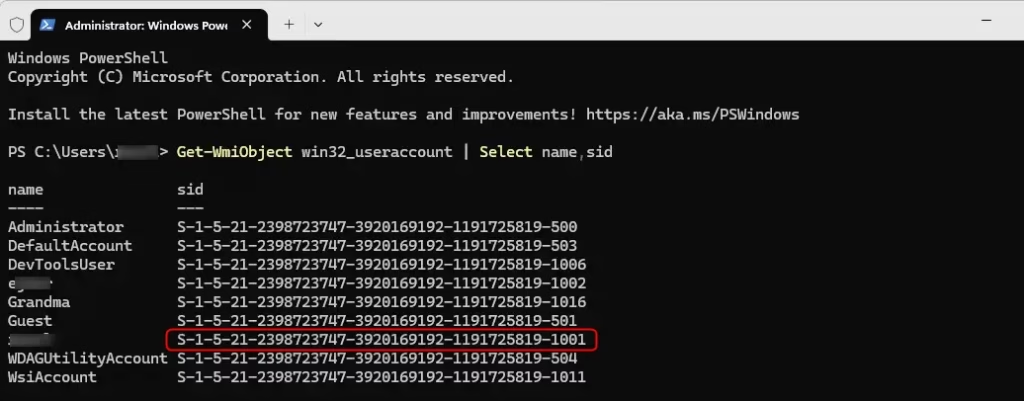
- Copy and paste the command below into PowerShell. Press Enter.
Get-WmiObject win32_useraccount | Select name,sid- Find the SID (example: “S-1-5-21-2398723747-3920169192-1191725819-1001”) for the account (example: “User1”) you want to turn archive apps on or off for.
You will need to know the SID of the person’s account. You’ll use it in the step below.
- Open Registry Editor (regedit.exe).
- Navigate to this location in the left pane of Registry Editor:
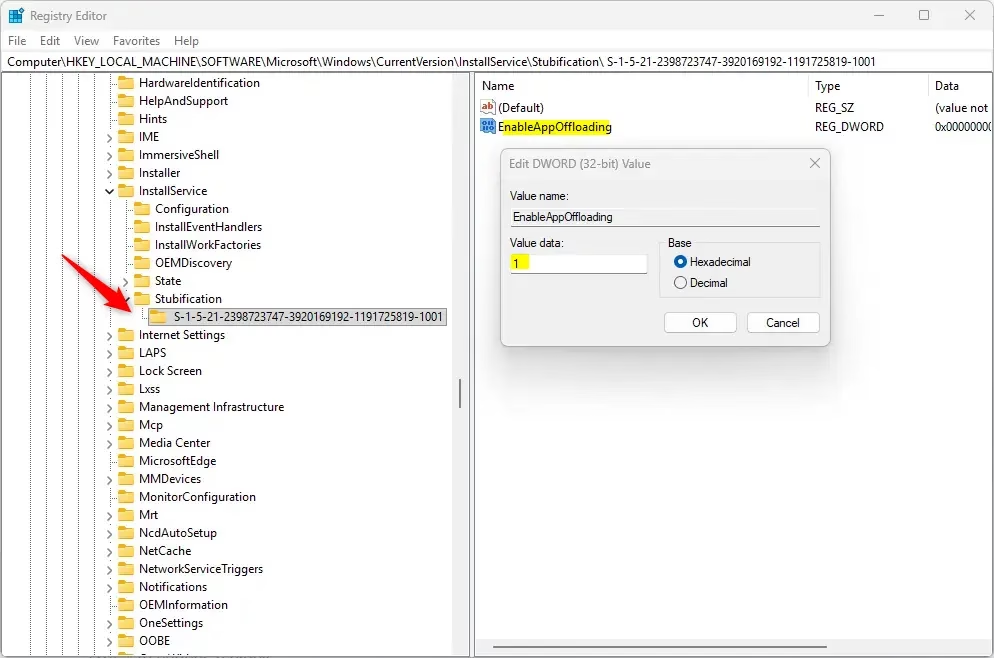
HKEY_LOCAL_MACHINE\SOFTWARE\Microsoft\Windows\CurrentVersion\InstallService\Stubification- Under Stubification, click on the folder (example: “S-1-5-21-2398723747-3920169192-1191725819-1001”) that matches the SID from step 3 (example: “S-1-5-21-2398723747-3920169192-1191725819-1001”).
- In the right pane, double-click on EnableAppOffloading to change it.
- Type 1 (on – this is the default) or 0 (off) for what you want. Click OK.
- You can now close Registry Editor and Windows Terminal.
Option Three
Turn Archive Apps On or Off for Everyone in Local Group Policy Editor
⚠️ Admin Required: You must be signed in as an administrator to use this option.
Note: Local Group Policy Editor only works on Windows 11 Pro, Enterprise, and Education. If you have Home edition, use Option Four instead.
- Open Local Group Policy Editor (gpedit.msc).
- Navigate to this location in the left pane:
Computer Configuration > Administrative Templates > Windows Components > App Package Deployment
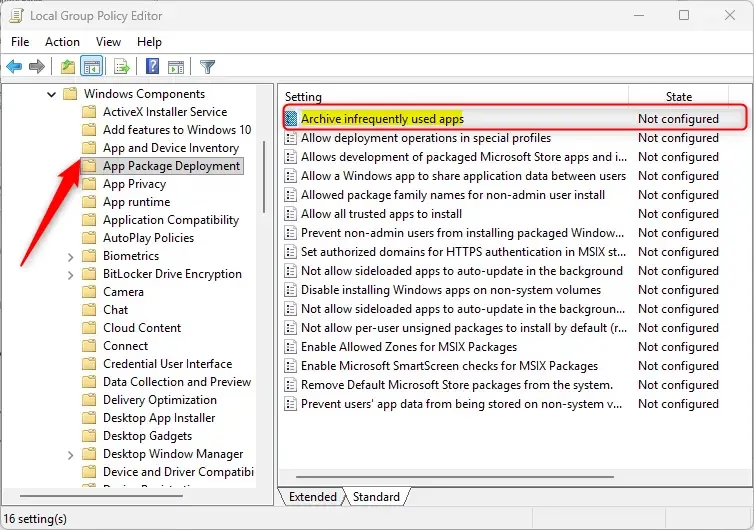
- In the right pane, double-click on Archive infrequently used apps to change it.
To Turn Archive Apps On for Everyone:
- Click the dot next to Enabled.
- Click OK. Go to step 8 below.
To Turn Archive Apps Off for Everyone:
- Click the dot next to Disabled. (see screenshot below)
- Click OK. Go to step 8 below.
To Use Default Settings (Let People Choose):
- Click the dot next to Not Configured.
- Click OK. Go to step 8 below.
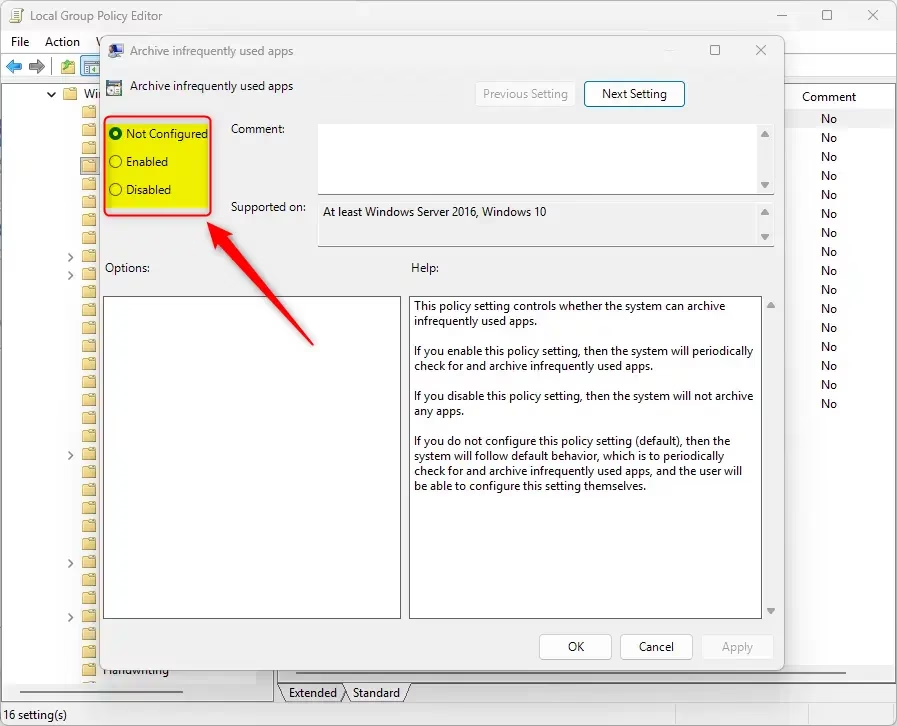
- You can now close Local Group Policy Editor.
Option Four
Turn Archive Apps On or Off for Everyone Using a REG File
⚠️ Admin Required: You must be signed in as an administrator to use this option.
To Turn Archive Apps On for Everyone:
reg add "HKEY_LOCAL_MACHINE\SOFTWARE\Policies\Microsoft\Windows\Appx" /v AllowAutomaticAppArchiving /t REG_DWORD /d 1 /f
To Turn Archive Apps Off for Everyone:
reg add "HKEY_LOCAL_MACHINE\SOFTWARE\Policies\Microsoft\Windows\Appx" /v AllowAutomaticAppArchiving /t REG_DWORD /d 0 /f
To Use Default Settings (Let People Choose):
reg delete "HKEY_LOCAL_MACHINE\SOFTWARE\Policies\Microsoft\Windows\Appx" /v AllowAutomaticAppArchiving /f
Summary
Archive apps save space on your computer by removing apps you don’t use often. The files stay safe. When you use the app again, it downloads and restores automatically. You can turn this feature on or off in four ways:
- Option One: Use Settings for just your account. This is the easiest way.
- Option Two: Use Registry Editor to change settings for one specific person on the computer. Requires admin access.
- Option Three: Use Local Group Policy Editor to change settings for everyone. Only works on Pro, Enterprise, and Education versions. Requires admin access.
- Option Four: Use a REG file to change settings for everyone. Works on all versions. Requires admin access.
What do archive apps do in 🪟 Windows 11?
Archive apps in Windows 11 help save storage space and internet data by automatically archiving Microsoft Store apps you rarely use. Your personal files and data remain safe during this process. When you need to use an archived app again, it automatically downloads from the internet to function normally.
How to hide apps on 🪟 Windows 11 without deleting?
Windows 11 does not have a native 'hide' feature for apps. To keep apps out of sight, you can remove shortcuts from your desktop or taskbar. Alternatively, you can move app shortcuts into a specific folder within your Start menu's 'All apps' list to keep your interface clean and organized.
How do I remove unused programs and bloatware from 🪟 Windows 11?
To remove unused programs, open Settings, go to Apps, and select Installed apps. Locate the program you wish to remove, click the three-dot menu, and select Uninstall. For persistent bloatware, you may need to use PowerShell commands or third-party uninstaller tools to ensure all associated registry files are completely cleared.
How to archive apps to free up space?
Windows 11 automatically manages app archiving. To ensure it is enabled, open Settings, navigate to Apps, and select Advanced app settings. Toggle the 'Archive apps' option to On. This feature intelligently archives infrequently used Microsoft Store apps, freeing up disk space while keeping your data accessible for future use.
Was this guide helpful?

About the Author
Richard
Tech Writer, IT Professional
Richard, a writer for Geek Rewind, is a tech enthusiast who loves breaking down complex IT topics into simple, easy-to-understand ideas. With years of hands-on experience in system administration and enterprise IT operations, he’s developed a knack for offering practical tips and solutions. Richard aims to make technology more accessible and actionable. He's deeply committed to the Geek Rewind community, always ready to answer questions and engage in discussions.




No comments yet — be the first to share your thoughts!