How to Enable App Sharing Across Devices in Windows 11

Windows 11 app sharing allows you to seamlessly transfer ongoing tasks, web links, and app states between your connected devices.
This feature, officially known as ‘Share across devices,’ establishes communication pathways so you can instantly pick up where you left off on another PC or Android phone.
Imagine starting research on your desktop and continuing it on your laptop without any manual steps; this is the core benefit of enabling app sharing in Windows 11. This capability can significantly boost your productivity, especially if you regularly switch between different computers.
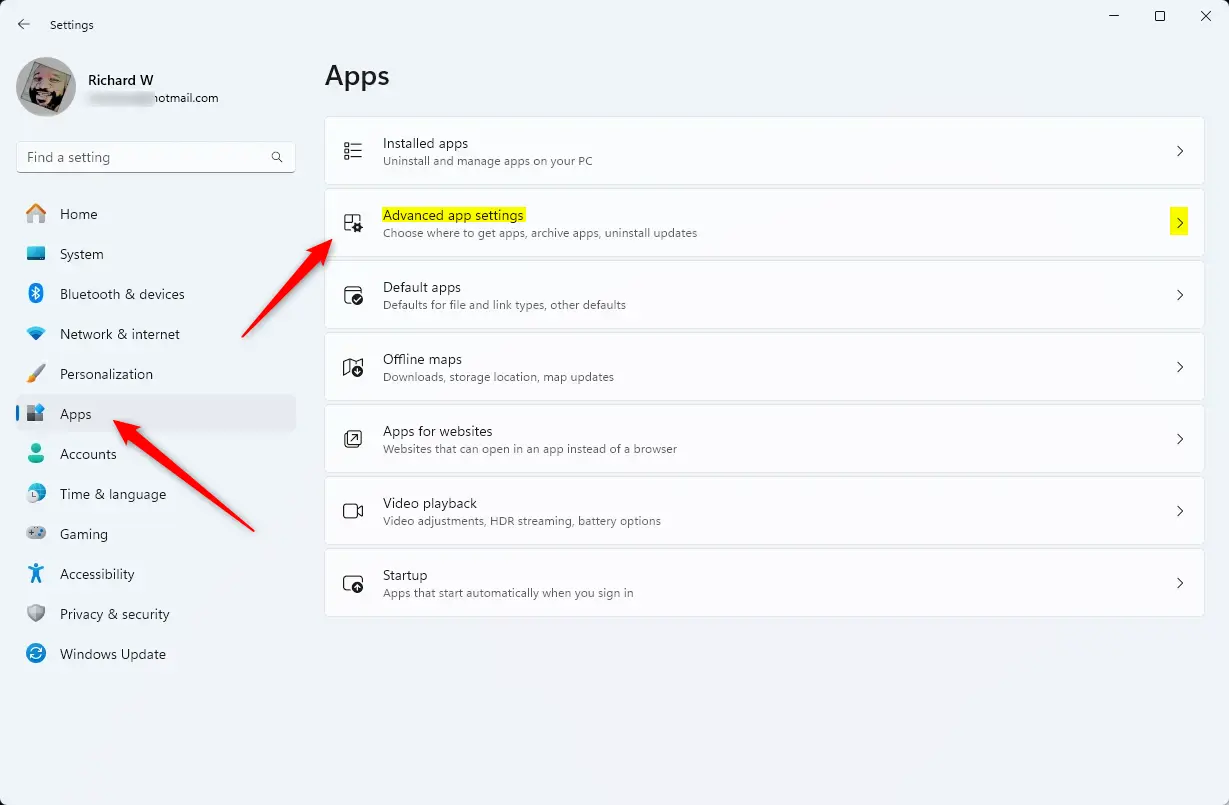
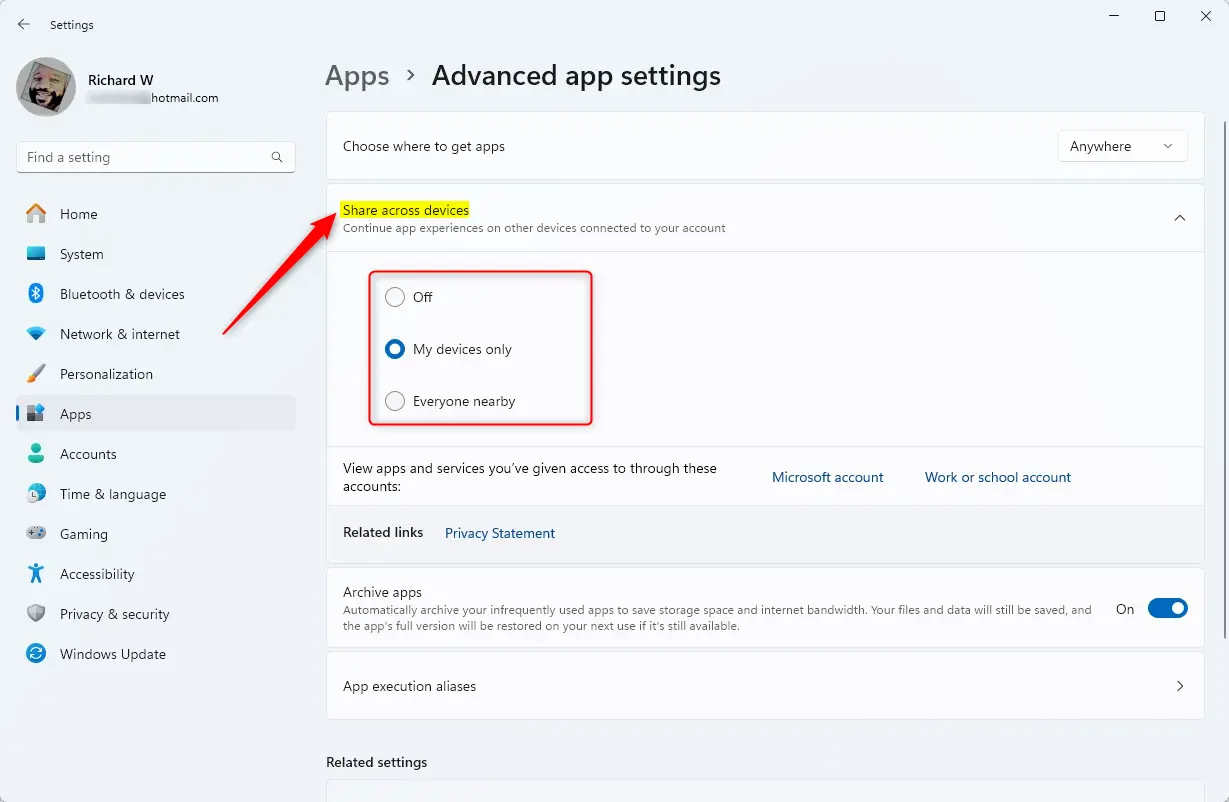
Open Settings, navigate to Apps, then Advanced app settings, and click Share across devices. Select your preferred sharing options to enable app sharing between your Windows 11 devices.
How to Enable App Sharing via Settings
You can manage these settings through the main Windows interface. This requires standard user access, but some network changes may need admin privileges.
- Press Windows key + I to open Settings.
- Navigate to Apps > Advanced app settings.
- Click Share across devices and choose your preference.
Enterprise and IT Management
In a business office, IT teams often want to control these settings for security. You can use the Registry Editor to force these settings. Warning: Modifying the registry requires admin privileges.
To disable this via Registry, navigate to:
HKEY_CURRENT_USER\Software\Microsoft\Windows\CurrentVersion\CDP
Set the value of NearShareEnabled to 0. You can also use Group Policy Object (GPO) to push these settings to all computers in your domain.
Troubleshooting Common Issues
Why is my ‘Share across devices’ option greyed out? This usually happens if your Azure AD account or Microsoft account is not properly synced. Ensure your device is connected to the internet and that you are signed in correctly. If you are using a local account, this feature will not function because it requires cloud-based data synchronization.
Clearing Synced Clipboard History
If you sync your clipboard, sensitive data might move between devices. To clear it:
- Go to Settings > System > Clipboard.
- Click the Clear button next to Clear clipboard data.
Summary
Windows 11 app sharing is a powerful tool for productivity. By configuring your sync settings correctly, you ensure a smooth workflow. Always use the ‘My devices’ setting for the best balance of convenience and security. If you are in an office, check with your IT department regarding device connectivity policies.
Does ‘Share Across Devices’ work with local accounts?
No, this feature requires a Microsoft account or an Azure AD account to function. Local accounts lack the necessary cloud identity to sync app states and clipboard data across different hardware. You must sign in with a verified account to enable these cross-device experiences.
Is ‘Share Across Devices’ a security risk in enterprise environments?
Yes, it can be a risk because it allows data to move between devices. In high-security environments, IT administrators often disable this feature using Group Policy or the Registry to prevent sensitive company data from being synced to unauthorized or personal devices outside of the corporate network.
Was this guide helpful?

About the Author
Richard
Tech Writer, IT Professional
Richard, a writer for Geek Rewind, is a tech enthusiast who loves breaking down complex IT topics into simple, easy-to-understand ideas. With years of hands-on experience in system administration and enterprise IT operations, he’s developed a knack for offering practical tips and solutions. Richard aims to make technology more accessible and actionable. He's deeply committed to the Geek Rewind community, always ready to answer questions and engage in discussions.



Hi Richard i do very similiar type of searches and i have a small non profit organization-educational. i was wondering would it be ok to list your site on my website as a free resource link?
that would be awesome