How to Turn On or Off Share Across Devices for Apps in Windows 11

You turn on or off the “Share Across Devices” feature in Windows 11 to control app continuity between your Microsoft-linked devices.
This setting allows specific Windows 11 apps to share their experiences, like starting a document on one PC and finishing it on another, provided you’re signed in with the same Microsoft account.
You can enable or disable this functionality through the Windows 11 Settings app, typically found under the “System” > “Shared experiences” section, version 22H2 and later.
Open Settings, go to Apps, then Advanced app settings, and click Share across devices. Select “Off,” “My devices only,” or “Everyone nearby” to manage app continuity between your Windows 11 devices.
What is Share Across Devices?
“Share Across Devices” (also called Project Rome or “Shared Experiences”) lets your apps work together on your different devices. For example, you could start reading an article on your PC and continue on your tablet without losing your place.
You can choose to share with:
- My devices only (default) – only your devices signed in with the same Microsoft account can share apps.
- Everyone nearby – anyone close to you can share app experiences with your PC.
How to Turn On or Off Share Across Devices
Option 1Turn On or Off Using Settings
- Press ⊞ Win+I on your keyboard to open Settings.
- Click Apps from the left menu.
- On the right, click Advanced app settings.
- Click Share across devices to open its options.
- Choose one of these:
- Off – disables sharing.
- My devices only – share only with your devices (default).
- Everyone nearby – share with nearby devices.
- Close Settings when done.
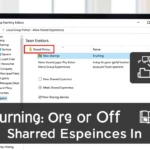
Here’s what it looks like:
Option 2Turn On or Off Using Registry (For Advanced Users)
Warning: Be careful when editing the Registry. Making incorrect changes can cause issues. It’s a good idea to back up your Registry before proceeding.
To Turn Off Share Across Devices, run the command below.
reg add "HKEY_CURRENT_USER\Software\Microsoft\Windows\CurrentVersion\CDP" /v CdpSessionUserAuthzPolicy /t REG_DWORD /d 0 /f
reg add "HKEY_CURRENT_USER\Software\Microsoft\Windows\CurrentVersion\CDP" /v RomeSdkChannelUserAuthzPolicy /t REG_DWORD /d 0 /f
To Turn On for My Devices Only (default setting), use this:
reg add "HKEY_CURRENT_USER\Software\Microsoft\Windows\CurrentVersion\CDP" /v CdpSessionUserAuthzPolicy /t REG_DWORD /d 1 /f
reg add "HKEY_CURRENT_USER\Software\Microsoft\Windows\CurrentVersion\CDP" /v RomeSdkChannelUserAuthzPolicy /t REG_DWORD /d 1 /f
reg add "HKEY_CURRENT_USER\Software\Microsoft\Windows\CurrentVersion\CDP\SettingsPage" /v RomeSdkChannelUserAuthzPolicy /t REG_DWORD /d 1 /f
To Turn On for Everyone Nearby, use this:
reg add "HKEY_CURRENT_USER\Software\Microsoft\Windows\CurrentVersion\CDP" /v CdpSessionUserAuthzPolicy /t REG_DWORD /d 2 /f
reg add "HKEY_CURRENT_USER\Software\Microsoft\Windows\CurrentVersion\CDP" /v RomeSdkChannelUserAuthzPolicy /t REG_DWORD /d 2 /f
reg add "HKEY_CURRENT_USER\Software\Microsoft\Windows\CurrentVersion\CDP\SettingsPage" /v RomeSdkChannelUserAuthzPolicy /t REG_DWORD /d 2 /f
Why Use Share Across Devices?
- Easy App Use: Move from one device to another without losing your place.
- Flexible Sharing: Choose if you want to share just with your devices or with people nearby.
- Works Across Devices: Great for those who use a PC, tablet, and phone all together.
- Simple to Setup: Use Settings for an easy toggle or Registry for more control.
- Stay Updated: Keep Windows updated to get the best experience and new features.
Learn More
Want to explore more about this feature? Check out these helpful articles:
- Cross-device experiences with Project Rome
- Going social with Project Rome on Xbox
- Project Rome: User engagement across devices
What does turning off share across devices do?
To avoid any potential issues, we strongly recommend turning off this option on all your Apple devices connected to the same Apple ID. Don't worry—this won't disable Screen Time on your devices. It simply prevents the time tracked on each device from being merged.
Was this guide helpful?

About the Author
Richard
Tech Writer, IT Professional
Richard, a writer for Geek Rewind, is a tech enthusiast who loves breaking down complex IT topics into simple, easy-to-understand ideas. With years of hands-on experience in system administration and enterprise IT operations, he’s developed a knack for offering practical tips and solutions. Richard aims to make technology more accessible and actionable. He's deeply committed to the Geek Rewind community, always ready to answer questions and engage in discussions.



No comments yet — be the first to share your thoughts!